How to Block or Allow Websites, IPs, Apps, and Ports Using Windows Firewall and PowerShell
Create firewall rules to control network access for domains, IP addresses, ports, and programs.
Overview
Windows Defender Firewall can block or allow traffic by IP, port, or application. This guide shows how to create these rules through the Firewall GUI and PowerShell, for controlling access on a machine you administer.
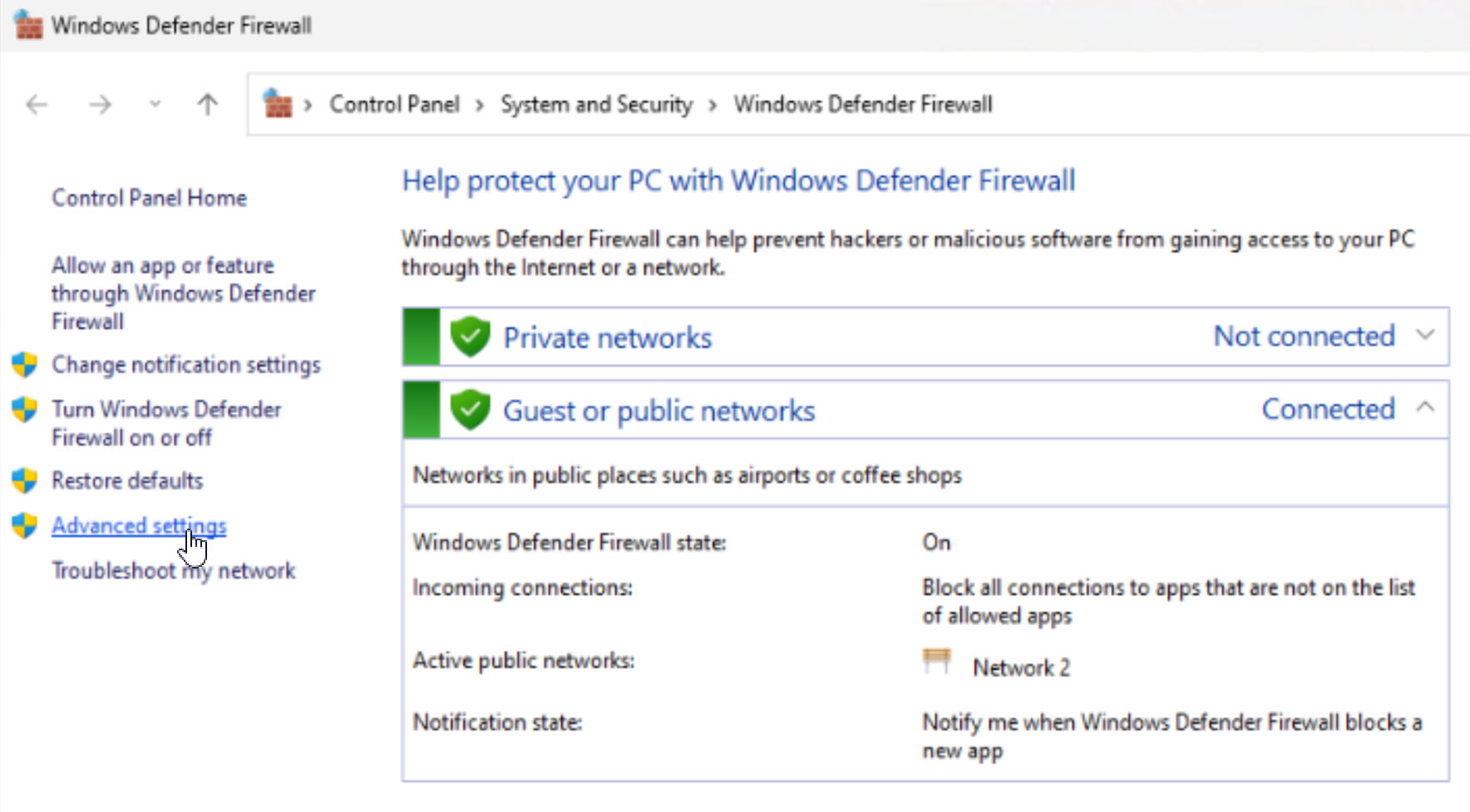
Allowing or blocking with Windows Firewall.
Note: Only configure firewall rules on computers you own or are authorized to manage.
Key Takeaways
- Firewall rules can target IPs, ports, or apps.
- Blocking a website by IP is imperfect (sites use many/shared IPs).
- Use PowerShell (New-NetFirewallRule) for scripting.
- Inbound and outbound rules are configured separately.
Find a Website’s IP Address
1. Open Command Prompt.
2. Run: nslookup example.com
3. Note the returned IP address(es) to use in a rule.
Block/Allow an IP (Firewall GUI)
1. Run wf.msc to open Windows Defender Firewall with Advanced Security.
2. Right-click "Outbound Rules" > New Rule > Custom.
3. Apply to all programs, any protocol.
4. Under Scope, add the remote IP address(es).
5. Choose Block (or Allow) and name the rule.
Block/Allow with PowerShell
1. Block an IP: New-NetFirewallRule -DisplayName "Block IP" -Direction Outbound -RemoteAddress 1.2.3.4 -Action Block
2. Block a port: New-NetFirewallRule -DisplayName "Block 8080" -Direction Inbound -Protocol TCP -LocalPort 8080 -Action Block
3. Block an app: New-NetFirewallRule -DisplayName "Block App" -Direction Outbound -Program "C:\Path\app.exe" -Action Block
Block/Allow an App (GUI)
1. Open Control Panel > Windows Defender Firewall > Allow an app or feature (for allowing).
2. For blocking, use wf.msc > New Rule > Program and point to the app’s .exe.
3. Choose Block and apply to the desired profiles.
Troubleshooting
Problem: Blocked website still loads.
Solution: Sites use many/rotating IPs and CDNs — IP blocking is unreliable; use a hosts-file entry or DNS/content filtering instead.
Problem: Rule has no effect.
Solution: Check direction (inbound vs outbound), that the rule is enabled, and it applies to the active network profile.
Problem: App still connects.
Solution: Point the Program rule to the exact .exe path; some apps use helper processes needing their own rules.
Problem: Locked yourself out of a service.
Solution: Disable/delete the rule in wf.msc or with Remove-NetFirewallRule -DisplayName "...".
Conclusion
Windows Firewall lets you allow or block by IP, port, or program through wf.msc or PowerShell’s New-NetFirewallRule. For website blocking specifically, DNS/content filtering or the hosts file works better than IP rules, since sites span many addresses.