How to Change Network Priority in Windows (Ethernet + Wi-Fi)
Control which connection Windows prefers by setting interface metrics and Wi-Fi order.
Overview
When multiple connections are active, Windows uses the one with the lowest interface "metric". This guide shows how to set network priority for adapters (Ethernet vs Wi-Fi) and how to order preferred Wi-Fi networks.
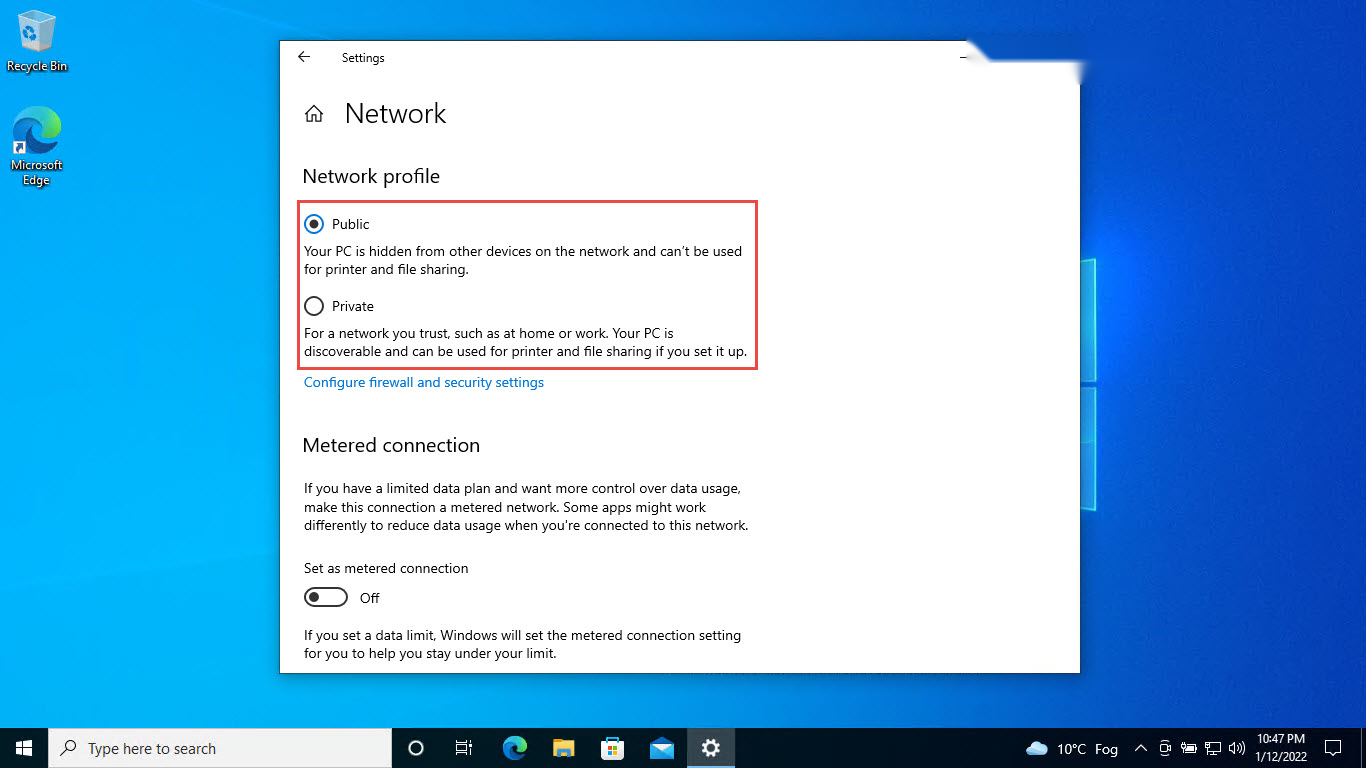
Changing network adapter priority in Windows.
Key Takeaways
- Lower metric = higher priority.
- Set the metric in the adapter’s IPv4 advanced settings or via PowerShell.
- Wi-Fi network order controls which SSID connects first.
- Useful when both Ethernet and Wi-Fi are connected.
Change Adapter Priority (Control Panel)
1. Press Windows + R, type ncpa.cpl, and press Enter.
2. Right-click the adapter > Properties > Internet Protocol Version 4 > Properties > Advanced.
3. Untick "Automatic metric".
4. Enter a lower "Interface metric" for the preferred adapter (e.g., 10) and a higher one for the other (e.g., 20).
5. Click OK.
Change Adapter Priority (PowerShell)
1. Open PowerShell as administrator.
2. List adapters/metrics: Get-NetIPInterface
3. Set a metric: Set-NetIPInterface -InterfaceAlias "Ethernet" -InterfaceMetric 10
4. Set the other higher: Set-NetIPInterface -InterfaceAlias "Wi-Fi" -InterfaceMetric 20
Change Wi-Fi Network Priority
1. Enable auto-connect: Settings > Network & Internet > Wi-Fi > Manage known networks > select a network > "Connect automatically".
2. Command line order: netsh wlan show profiles to list them.
3. Prioritize: netsh wlan set profileorder name="SSID" interface="Wi-Fi" priority=1
Troubleshooting
Problem: Windows still uses the wrong connection.
Solution: Ensure "Automatic metric" is unticked and the preferred adapter has the lower number.
Problem: Metric resets.
Solution: Set it explicitly (GUI or Set-NetIPInterface); a driver reinstall can reset it.
Problem: Wi-Fi connects to the wrong network.
Solution: Reorder profiles with netsh wlan set profileorder and enable auto-connect on the preferred SSID.
Problem: Changes need a refresh.
Solution: Disable/enable the adapter or reconnect for new metrics to take effect.
Conclusion
Network priority in Windows comes down to interface metrics — set a lower metric on the connection you want preferred, via the adapter’s advanced IPv4 settings or Set-NetIPInterface. For Wi-Fi, order your profiles with netsh and enable auto-connect on the network you want first.