How to Limit CPU Usage in Windows
Cap a process’s CPU with affinity and power settings, and trim background load.
Overview
A runaway process can hog the CPU, slowing everything down. This guide shows how to limit CPU usage — by setting process affinity, capping the maximum processor state, and reducing background load.
Limiting CPU usage in Windows.
Key Takeaways
- Affinity limits a process to fewer CPU cores.
- Max processor state caps overall CPU speed.
- Ending background apps frees CPU.
- Priority tweaks help the important app get CPU time.
Method 1: Limit a Process to Fewer Cores (Affinity)
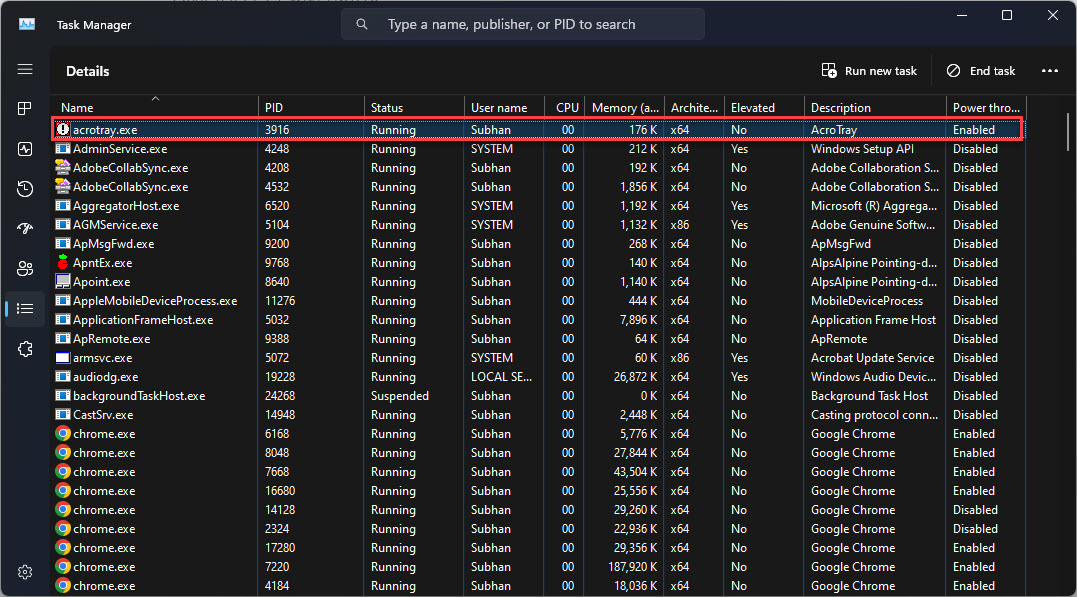
1. Open Task Manager > Details tab.
2. Right-click the process > "Set affinity".
3. Untick some CPU cores to restrict it.
4. This caps how much total CPU it can use.
Method 2: Cap Overall CPU Speed (Power Options)
1. Open Control Panel > Power Options > Change plan settings > Change advanced power settings.
2. Expand Processor power management > "Maximum processor state".
3. Lower it (e.g., to 80%) to cap CPU speed/heat.
4. Apply — useful for reducing thermals/fan noise.
Method 3: Adjust Priority
1. In Task Manager > Details, right-click a process > "Set priority".
2. Lower a background process to "Below normal", or raise the app you need.
3. Priority changes are per session.
Method 4: Reduce Background Load
1. End non-essential apps/processes in Task Manager.
2. Disable unneeded startup apps (Task Manager > Startup).
3. Turn off background apps in Settings > Apps.
4. Scan for malware if CPU stays high with no clear cause.
Troubleshooting
Problem: Affinity resets on relaunch.
Solution: Affinity is per session; use a launcher (start /affinity) or a third-party tool to make it persistent.
Problem: CPU still maxed.
Solution: Identify the process (Task Manager/Resource Monitor); update/repair it, or scan for malware.
Problem: Lowering max state hurt performance.
Solution: Raise "Maximum processor state" back toward 100% when you need full speed.
Problem: System process using CPU.
Solution: Investigate the specific service; run SFC/DISM and update drivers.
Conclusion
To limit CPU usage, restrict a process with affinity, cap the maximum processor state in Power Options, and lower priorities or close background apps. If usage stays high unexpectedly, identify the culprit process and update it or scan for malware.