Overview
An overheating CPU causes throttling, crashes, and shortened hardware life. Windows has no built-in CPU thermometer, so you check temperatures in the BIOS/UEFI or with a free monitoring app. This guide shows how to check your CPU temperature, what range is healthy, and how to bring high temperatures down.
Monitoring CPU temperature helps keep your PC cool and stable.
Key Takeaways
- Windows has no built-in CPU temperature display — use the BIOS or a monitoring app.
- Free tools like Core Temp, HWMonitor, and HWiNFO show real-time per-core temps.
- Idle around 30–50°C is normal; under load up to ~80°C is generally fine.
- Sustained temps near 90–100°C mean throttling — improve cooling.
Method 1 — Check in the BIOS/UEFI
1. Restart and enter the BIOS/UEFI (commonly Del, F2, or F10 during boot).
2. Look for a Hardware Monitor, PC Health, or status section.
3. Read the CPU temperature there.
4. Note this shows the idle temperature only (no Windows load).
Method 2 — Use a Monitoring App
1. Download a reputable tool such as Core Temp, HWMonitor, or HWiNFO from its official site.
2. Install and open it.
3. View the current, minimum, and maximum CPU (and per-core) temperatures.
4. Watch the values while idle and during heavy tasks to see how hot it gets under load.
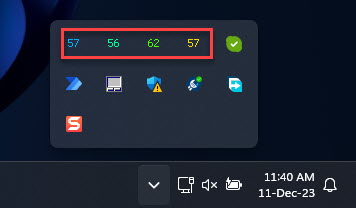
A monitoring app shows real-time per-core CPU temperatures.
What Is a Safe CPU Temperature?
- Idle: roughly 30–50°C is normal.
- Under load: up to around 80°C is generally acceptable.
- 85–95°C: hot — check cooling, especially for sustained loads.
- 100°C: the CPU is at its thermal limit and will throttle or shut down to protect itself.
Causes of High CPU Temperatures
- Dust-clogged fans and heatsinks reducing airflow.
- Dried-out or poorly applied thermal paste.
- Inadequate case ventilation or a failing CPU cooler.
- Heavy background processes, overclocking, or high ambient room temperature.
How to Keep Temperatures Down
- Clean dust from fans, vents, and the heatsink regularly.
- Ensure good case airflow and that all fans spin.
- Reapply quality thermal paste if the cooler is old.
- Close runaway background apps, and avoid blocking laptop vents (use a cooling pad).
Troubleshooting
Problem: Temperatures spike to 90°C+ under light use.
Solution: Check for a runaway process in Task Manager, clean dust from the cooler, and verify the CPU fan is spinning.
Problem: The PC shuts down suddenly under load.
Solution: This is thermal protection. Improve cooling, reapply thermal paste, and ensure the heatsink is seated correctly.
Problem: A monitoring app shows no temperature.
Solution: Run it as administrator and update it; some apps need the latest version to read newer CPUs.
Problem: Laptop runs hot.
Solution: Use it on a hard surface or cooling pad, keep vents clear, and clean the internal fan if temperatures stay high.
Conclusion
Checking your CPU temperature takes minutes with a free monitoring app. Keep idle temps in the 30–50°C range and loads under ~80°C, and address dust, airflow, and thermal paste if you see sustained high readings.
</w:pBdr><w:spacing w:before="220" w:after="40"/></w:pPr><w:r><w:rPr><w:b/><w:bCs/><w:color w:val="0B5394"/><w:sz w:val="21"/><w:szCs w:val="21"/><w:rFonts w:ascii="Calibri" w:cs="Calibri" w:eastAsia="Calibri" w:hAnsi="Calibri"/></w:rPr><w:t xml:space="preserve">About TechHub
This guide is part of the TechHub Knowledge Base. For more step-by-step IT guides and support, visit techhub.com.lk.