How to Force a Program to Use a Specific GPU in Windows
Assign apps to your dedicated (or integrated) GPU via Settings and the right-click menu.
Overview
Laptops and many PCs have two GPUs — integrated (power-saving) and dedicated (high-performance). This guide shows how to force a specific program to use the GPU you want, for better performance or battery life.
Forcing a program to use a specific GPU.
Key Takeaways
- Windows Graphics settings assign a GPU per app.
- Right-click "Run with graphics processor" also works (NVIDIA/AMD).
- Dedicated GPU = performance; integrated = battery.
- Confirm usage in Task Manager’s GPU column.
Method 1: Windows Graphics Settings
1. Open Settings > System > Display > Graphics.
2. Add the app (Browse to its .exe) or select it from the list.
3. Click Options and choose "High performance" (dedicated GPU) or "Power saving" (integrated).
4. Save; the app uses that GPU next launch.
Method 2: Right-Click Menu
1. Right-click the app/shortcut.
2. Choose "Run with graphics processor" > "High-performance NVIDIA processor" (or AMD).
3. This runs it on the dedicated GPU for that session.
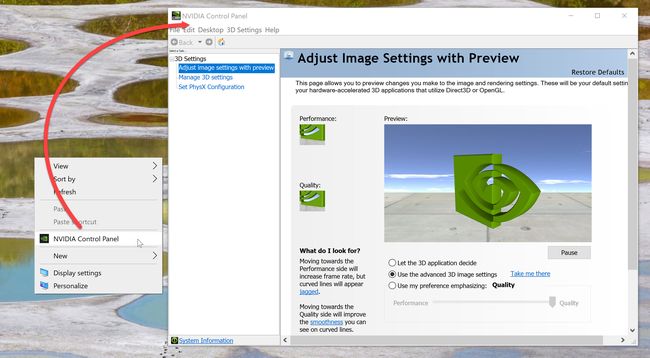
Method 3: GPU Control Panel
1. NVIDIA Control Panel > Manage 3D settings > Program Settings: pick the app and set the preferred GPU.
2. AMD Radeon Software > Gaming/Graphics: assign the GPU per app.
3. Set global defaults if you want all apps to prefer one GPU.
Verify Which GPU Is Used
1. Open Task Manager > Processes and add/enable the GPU/GPU Engine columns.
2. Or Task Manager > Performance to see per-GPU load.
3. Confirm the app is on the intended GPU under load.
Troubleshooting
Problem: App still uses the wrong GPU.
Solution: Set it in both Windows Graphics settings and the GPU vendor control panel; restart the app.
Problem: No "High performance" option.
Solution: Update GPU drivers; single-GPU systems won’t show a choice.
Problem: "Run with graphics processor" missing.
Solution: Enable it in the NVIDIA/AMD control panel context-menu settings.
Problem: Battery drains fast.
Solution: Set non-demanding apps to "Power saving" (integrated GPU).
Conclusion
Assign apps to the right GPU via Settings > System > Display > Graphics (High performance vs Power saving), or the right-click "Run with graphics processor" option and the GPU vendor control panel. Verify in Task Manager, and use the dedicated GPU for demanding apps, integrated for battery savings.