Overview
Hardware-Accelerated GPU Scheduling (HAGS) lets the GPU manage its own memory scheduling, potentially reducing latency and CPU overhead. This guide explains it, the requirements, and how to enable it via Settings or the Registry.
Enabling Hardware-Accelerated GPU Scheduling.
Key Takeaways
- HAGS offloads GPU scheduling from the CPU to the GPU.
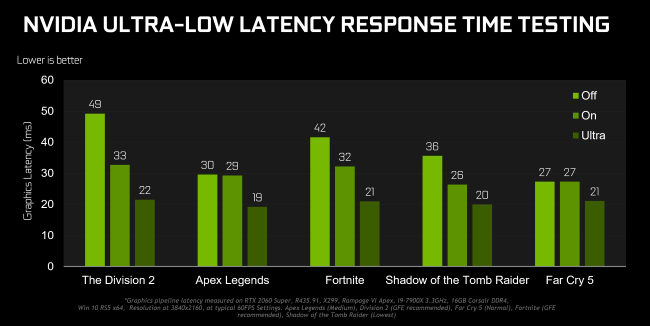
- It can lower latency in some games and workloads.
- Requires a supported GPU and up-to-date WDDM 2.7+ driver.
- Enable via Settings or a Registry value, then reboot.
What HAGS Does
Normally the CPU (via Windows) schedules GPU work. HAGS moves much of that to a dedicated GPU-based scheduler, which can reduce overhead and latency. Results vary by hardware and workload.
Requirements
- Supported NVIDIA/AMD/Intel GPU.
- WDDM 2.7 or newer graphics driver (update from the vendor’s official site).
- Windows 10 2004+ or Windows 11.
Method 1: Settings App
1. Open Settings > System > Display > Graphics.
2. Click "Change default graphics settings".
3. Turn on "Hardware-accelerated GPU scheduling".
4. Restart the PC to apply.
Method 2: Registry Editor
Warning: Editing the Registry incorrectly can cause problems. Back up the Registry first.
1. Open regedit and go to HKEY_LOCAL_MACHINE\SYSTEM\CurrentControlSet\Control\GraphicsDrivers.
2. Set the DWORD "HwSchMode" to 2 to enable (1 to disable).
3. Close regedit and restart the PC.
Troubleshooting
Problem: The toggle is missing.
Solution: Update the GPU driver to WDDM 2.7+; unsupported GPUs/drivers won’t show the option.
Problem: No performance change.
Solution: Benefits vary — some setups see lower latency, others little difference; it’s safe to leave on or off.
Problem: Instability after enabling.
Solution: Disable it (set HwSchMode to 1 or toggle off) and update the driver; some older drivers had issues.
Problem: Reverts after reboot.
Solution: Ensure you restarted after enabling; a driver reinstall can reset the setting — re-enable it.
Conclusion
Hardware-Accelerated GPU Scheduling can trim latency and CPU overhead on supported hardware. Enable it in Settings > Display > Graphics (or via the HwSchMode Registry value), keep your GPU driver current, and reboot — then judge the benefit for your own workloads.
</w:pBdr><w:spacing w:before="220" w:after="40"/></w:pPr><w:r><w:rPr><w:b/><w:bCs/><w:color w:val="0B5394"/><w:sz w:val="21"/><w:szCs w:val="21"/><w:rFonts w:ascii="Calibri" w:cs="Calibri" w:eastAsia="Calibri" w:hAnsi="Calibri"/></w:rPr><w:t xml:space="preserve">About TechHub
This guide is part of the TechHub Knowledge Base. For more step-by-step IT guides and support, visit techhub.com.lk.