Overview
Knowing your graphics card model and its details is essential for installing the right drivers, checking game compatibility, or troubleshooting display issues. Windows offers several built-in ways to find this information. This guide covers six reliable methods, from the Settings app to the DirectX Diagnostic Tool.
Windows offers several built-in ways to identify your graphics card.
Key Takeaways
- You can identify your GPU without installing any extra software.
- Device Manager and DxDiag show the model; Task Manager shows live usage and memory.
- System Information (msinfo32) gives a detailed hardware summary.
- The GPU vendor’s control panel shows the driver version and advanced details.
Method 1 — Settings App
1. Press Windows key + I to open Settings.
2. Go to System > Display > Advanced display.
3. The connected display’s adapter section shows your graphics card model; click Display adapter properties for more detail.
Method 2 — Device Manager
1. Right-click the Start button and choose Device Manager.
2. Expand Display adapters to see your GPU model(s).
3. Double-click the GPU and open the Driver tab to view the driver version and date.
Method 3 — System Information
1. Press Windows key + R, type msinfo32, and press Enter.
2. Expand Components and select Display.
3. Review the adapter name, RAM, driver version, and resolution details.
Method 4 — Task Manager
1. Press Ctrl + Shift + Esc to open Task Manager.
2. Open the Performance tab and select GPU.
3. See the GPU model, dedicated/shared memory, driver version, and real-time usage.
Method 5 — DirectX Diagnostic Tool
1. Press Windows key + R, type dxdiag, and press Enter.
2. Switch to the Display tab.
3. Review the device name, manufacturer, memory, and driver information.
Method 6 — GPU Control Panel
1. Right-click the desktop and open your GPU vendor’s control panel (NVIDIA Control Panel, AMD Software, or Intel Graphics Command Center).
2. Open the System Information or About section.
3. View the exact GPU model, driver version, and feature details.
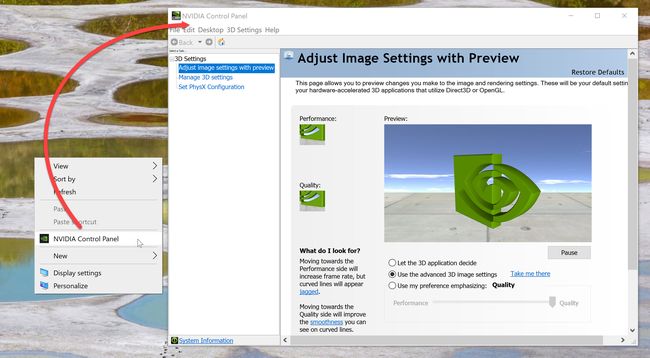
A GPU vendor control panel shows the model and driver version.
Tip: Task Manager’s GPU view is the quickest way to confirm both the model and how much video memory you have.
Troubleshooting
Problem: Device Manager shows "Microsoft Basic Display Adapter".
Solution: The proper GPU driver is not installed. Install your GPU vendor’s driver, then re-check Device Manager.
Problem: Only one GPU shows on a laptop with two.
Solution: Laptops often have integrated and discrete GPUs. Check Device Manager > Display adapters, which lists both.
Problem: The vendor control panel is missing.
Solution: Install the full GPU driver package (NVIDIA, AMD, or Intel) — the control panel ships with it.
Problem: DxDiag shows little memory.
Solution: Integrated GPUs report shared system memory. Check Task Manager > Performance > GPU for dedicated vs shared memory.
Conclusion
Windows gives you several quick ways to identify your graphics card and its driver. Task Manager and Device Manager are the fastest for everyday checks, while DxDiag and System Information provide deeper detail when you need it.
</w:pBdr><w:spacing w:before="220" w:after="40"/></w:pPr><w:r><w:rPr><w:b/><w:bCs/><w:color w:val="0B5394"/><w:sz w:val="21"/><w:szCs w:val="21"/><w:rFonts w:ascii="Calibri" w:cs="Calibri" w:eastAsia="Calibri" w:hAnsi="Calibri"/></w:rPr><w:t xml:space="preserve">About TechHub
This guide is part of the TechHub Knowledge Base. For more step-by-step IT guides and support, visit techhub.com.lk.