Overview
Intel Graphics Driver version 30.0.100.9955 is a GPU driver update for Intel integrated graphics. It adds hardware video-encode support and resolves minor graphical glitches in several games. This guide summarises the changes and walks you through downloading and installing the driver correctly.
Intel Graphics Driver 30.0.100.9955 for Windows 11 and Windows 10.
Key Takeaways
- Adds H.264 and HEVC DirectX 12 video encode support on Windows 11 for 10th Gen Intel Core (Iris Plus) and newer.
- Fixes minor graphical anomalies in several games.
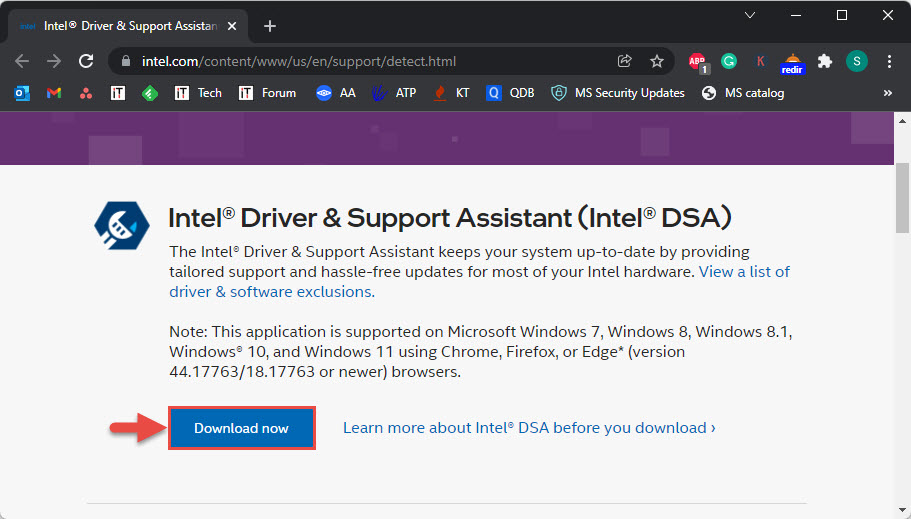
- Install it via the Intel Driver & Support Assistant or by downloading from Intel’s official site.
- Keep all system drivers updated, not just graphics, for the best stability.
What’s New in This Release
- H.264 and HEVC DX12 video encode support added on Windows 11 for 10th Gen Intel Core processors with Iris Plus graphics and higher.
- Fixes minor graphic anomalies in Cyberpunk 2077, Hitman 2, and Wolfenstein: Youngblood.
- Fixes minor anomalies on 11th Gen Iris Xe graphics in Monster Jam Steel Titans 2 and Ark: Survival Evolved.
Note: This release also lists a few known issues; check Intel’s release notes if you experience problems with a specific game or app.
How to Download the Driver
1. Open Intel’s official Download Center (intel.com) or the Intel Driver & Support Assistant.
2. Search for your graphics model or let the assistant detect it automatically.
3. Locate version 30.0.100.9955 and download the installer package.
4. Save the file and confirm the download completed before installing.
Warning: Download Intel drivers only from Intel’s official site or the Intel Driver & Support Assistant. Avoid third-party driver sites.
How to Install the Driver
1. Run the downloaded installer and accept the licence agreement.
2. Choose a clean installation if offered, to remove old driver remnants.
3. Let the installer complete — the screen may flicker during installation.
4. Restart the PC if prompted, then verify the version in Device Manager > Display adapters > Properties > Driver.
Tip: Prefer the manufacturer’s (OEM) driver if your laptop maker provides a customised version, as it may include device-specific tweaks.
Troubleshooting
Problem: The installer says the driver is not validated for your computer.
Solution: Your laptop OEM may control graphics drivers. Get the matching driver from your PC manufacturer, or install the generic Intel driver only if supported.
Problem: Display issues after updating.
Solution: Roll back via Device Manager > Display adapters > Properties > Driver > Roll Back Driver, or reinstall with a clean installation.
Problem: A game still shows graphical glitches.
Solution: Confirm your processor generation is covered by the fix, update the game, and check Intel’s known issues for this release.
Problem: Installation fails.
Solution: Close running apps, temporarily disable antivirus, and run the installer as administrator.
Conclusion
Driver 30.0.100.9955 brings useful video-encode support and game fixes for Intel graphics users. Install it from Intel’s official channels with a clean installation, and roll back easily if any issue appears.
</w:pBdr><w:spacing w:before="220" w:after="40"/></w:pPr><w:r><w:rPr><w:b/><w:bCs/><w:color w:val="0B5394"/><w:sz w:val="21"/><w:szCs w:val="21"/><w:rFonts w:ascii="Calibri" w:cs="Calibri" w:eastAsia="Calibri" w:hAnsi="Calibri"/></w:rPr><w:t xml:space="preserve">About TechHub
This guide is part of the TechHub Knowledge Base. For more step-by-step IT guides and support, visit techhub.com.lk.