Overview
Chrome’s Click-to-Call lets you select a phone number on a desktop page and send it to your signed-in Android phone to dial. This guide shows how to enable it via Chrome flags and account sync, and how to use it.
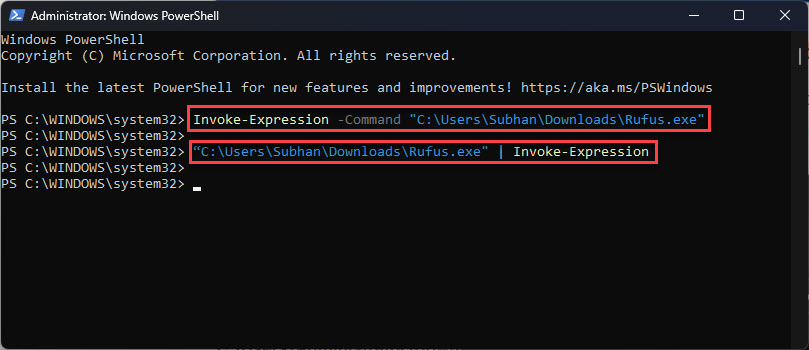
Enable the Click-to-Call feature in Chrome.
Note: Click-to-Call relies on Chrome features that Google has changed over time. If the flag is missing in your version, the feature may have been retired or moved.
Key Takeaways
- Click-to-Call sends numbers from desktop Chrome to your phone.
- You must be signed into Chrome on both devices with sync on.
- Enable the relevant flag at chrome://flags if needed.
- Select a number, right-click, and send it to your device.
Prerequisites
- Chrome on desktop and an Android phone.
- Signed into the same Google account on both.
- Chrome sync enabled on both devices.
Enable the Feature
1. On desktop Chrome, go to chrome://flags.
2. Search for "Click to Call".
3. Set the related flag(s) to Enabled.
4. Click "Relaunch" to restart Chrome.
5. Ensure you’re signed in and syncing on both devices.
How to Use It
1. On a web page, highlight a phone number.
2. Right-click and choose "Send to your devices" / "Call <number>".
3. Pick your phone from the device list.
4. The number opens in your phone’s dialer to place the call.
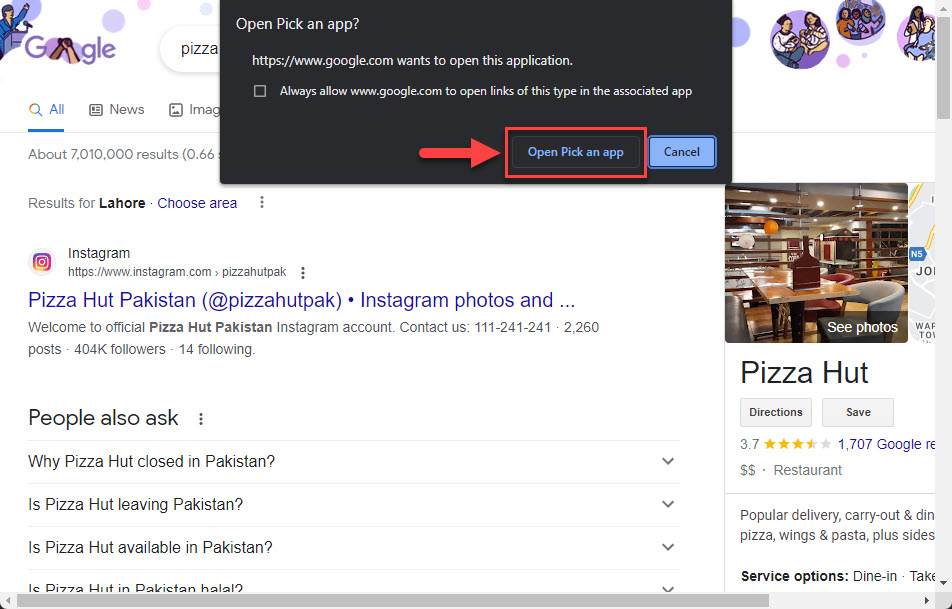
Pick an app to place the call.
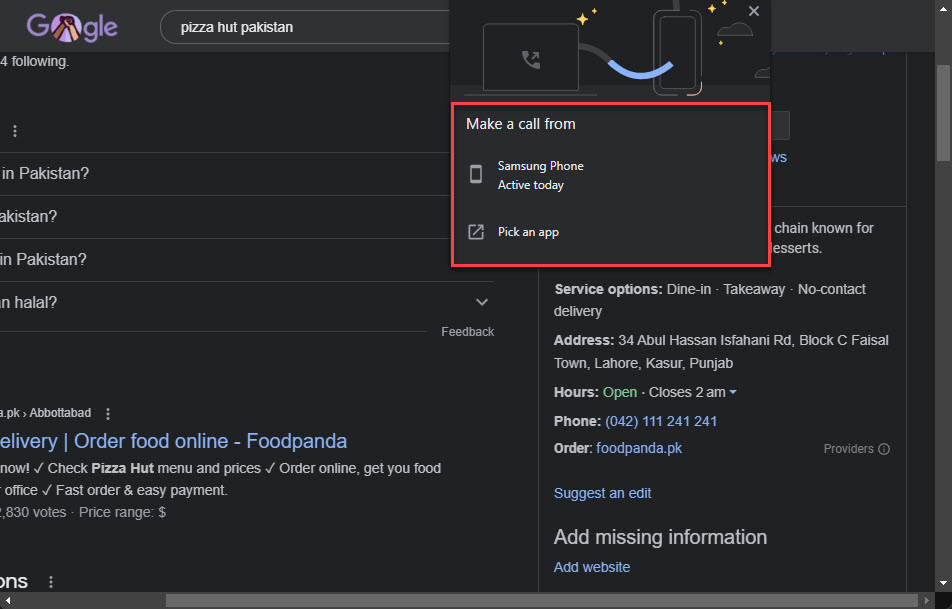
Select the device to send the number to.
Troubleshooting
Problem: No "Send to your devices" option.
Solution: Confirm sync is on and both devices use the same Google account; the flag may also be unavailable in newer Chrome.
Problem: The flag isn’t listed.
Solution: Google may have removed it in your version; update Chrome or rely on built-in cross-device sharing.
Problem: Phone doesn’t receive the number.
Solution: Open Chrome on the phone at least once, enable notifications, and re-check sync status.
Problem: Number won’t dial.
Solution: Ensure the phone has a dialer app and the number is correctly formatted.
Conclusion
With Chrome sync enabled and the right flag turned on, Click-to-Call bridges desktop and phone so you can dial numbers in a click. If the option is missing, your Chrome version may have retired it — Chrome’s general "Send to your devices" sharing is the fallback.
</w:pBdr><w:spacing w:before="220" w:after="40"/></w:pPr><w:r><w:rPr><w:b/><w:bCs/><w:color w:val="0B5394"/><w:sz w:val="21"/><w:szCs w:val="21"/><w:rFonts w:ascii="Calibri" w:cs="Calibri" w:eastAsia="Calibri" w:hAnsi="Calibri"/></w:rPr><w:t xml:space="preserve">About TechHub
This guide is part of the TechHub Knowledge Base. For more step-by-step IT guides and support, visit techhub.com.lk.