Overview
When you sign in to more than one Google account in the same browser, the first account you log in with automatically becomes the default. Every Google service — Gmail, Drive, YouTube, Photos — then opens with that account first. Because Google offers no direct "make default" button, changing the default means signing out of all accounts and signing back in with the account you want first. This guide walks through the process on both desktop and mobile.
Key Takeaways
- The default Google account is simply the first account signed in during the current session.
- To change it, sign out of all Google accounts and then sign in with your preferred account before adding the others.
- The default is tied to the browser session, so different browsers or devices can have different defaults.
- Your Google account (email, Drive, YouTube) is separate from a Chrome profile, which syncs bookmarks and settings in the browser itself.
How to Change the Default Google Account on Desktop
1. Open your browser and go to google.com or any Google service such as Gmail.
2. Click your profile picture in the top-right corner to expand the accounts menu.
3. Select "Sign out" or "Sign out of all accounts". This clears the current default.
4. Sign back in and enter the credentials for the account you want to be the default — this must be the first account you add.
5. Once signed in, click your profile picture again and choose "Add another account" to sign in to your remaining accounts.
6. The first account you signed in with is now the default for all Google services in this browser.
Signing out of all Google accounts before choosing a new default.
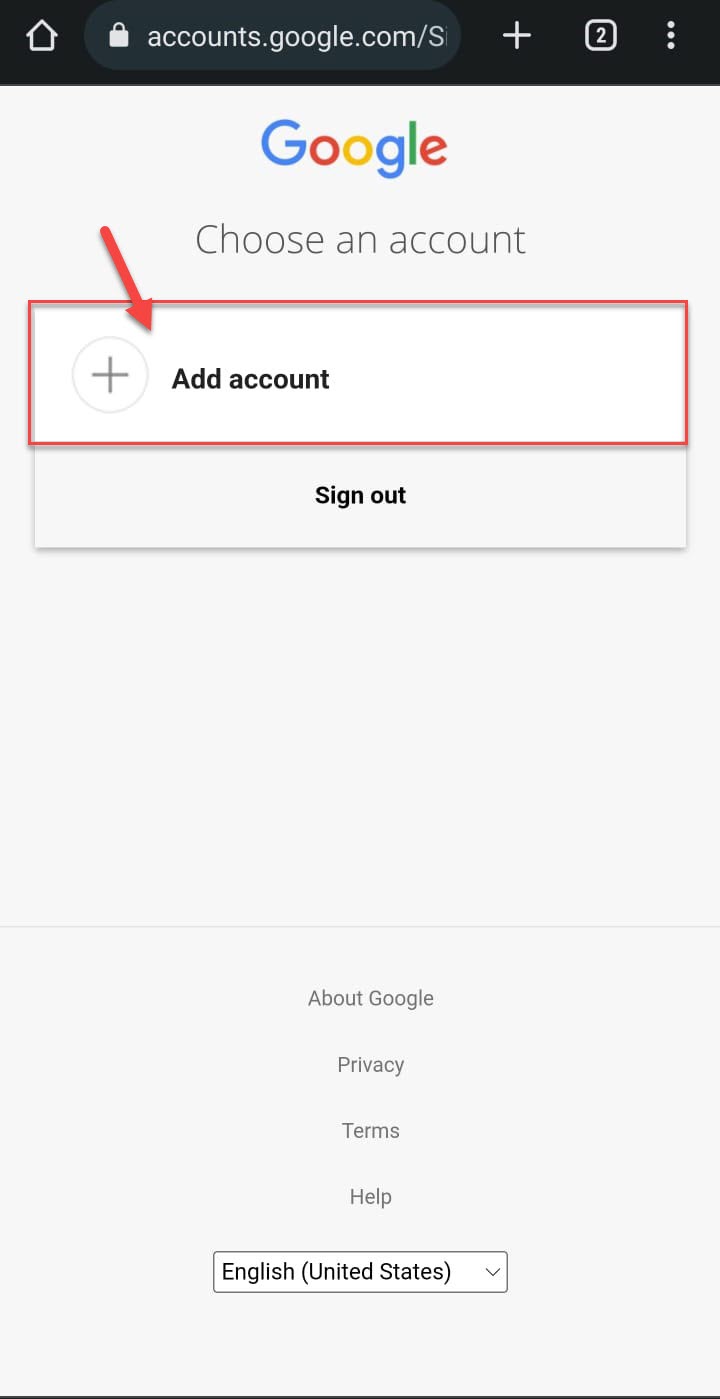
Adding your other accounts after the preferred default is signed in first.
Tip: If you regularly juggle personal and work accounts, consider using separate Chrome profiles instead. Each profile keeps its own default account, bookmarks, and history, avoiding the sign-out dance entirely.
How to Change the Default Google Account on Android and iOS
On mobile, the Google app and Gmail app share the account list, but the default behaves similarly to the desktop.
1. Open the Gmail or Google app and tap your profile picture in the top-right corner.
2. Tap "Manage accounts on this device" (Android) or "Manage accounts" (iOS).
3. Remove or sign out of the accounts, or use the account switcher to reorder which account loads first.
4. On Android, the account listed at the top of the switcher acts as the primary account; sign in with your preferred account first to make it default.
5. Reopen the Google service to confirm it now opens with the account you selected.
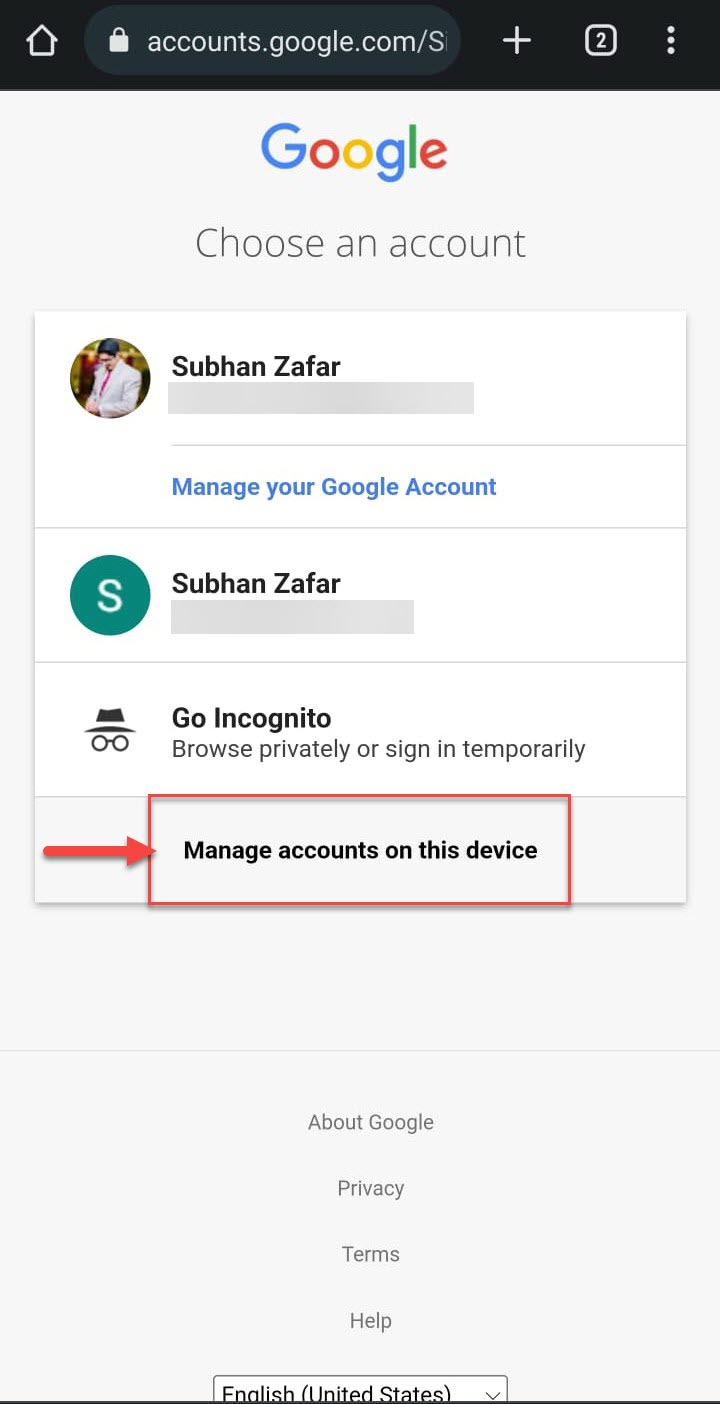
Managing Google accounts on a mobile device.
Note: On Android the default Google account is closely tied to the account you added when first setting up the device. Removing that account can affect backups and app data, so switch carefully.
Google Account vs Chrome Account
These two are easy to confuse. Your Google account is your identity across Google services like Gmail, Drive, and YouTube. A Chrome (profile) account signs you into the browser itself to sync bookmarks, passwords, history, and settings across devices. You can browse with a Google account for services without signing Chrome into that same account, and vice versa.
Troubleshooting
Problem: Google keeps reverting to the old default account.
Solution: You likely signed the old account in first again. Sign out of all accounts completely, close the tab, then sign in with only the preferred account before adding others.
Problem: Signing out of one account signs you out of all of them.
Solution: This is expected — Google signs all accounts out together for security. Simply sign back in starting with your desired default.
Problem: The default is correct in one browser but wrong in another.
Solution: The default is per-browser session. Repeat the sign-out and sign-in sequence in each browser or use dedicated Chrome profiles.
Problem: You cannot see the "Add another account" option on mobile.
Solution: Update the Gmail or Google app to the latest version, then open the account switcher from your profile picture and choose "Add another account".
Conclusion
Google does not let you flag an account as default directly, but the rule is simple: the first account signed in becomes the default. Sign out of everything, sign in with the account you want first, then add the rest. For a permanent fix, separate Chrome profiles keep each account isolated with its own default.
About TechHub
This guide is part of the TechHub Knowledge Base. For more step-by-step IT guides and support, visit techhub.com.lk.