Overview
Intel released two graphics DCH drivers together in a single package: version 31.0.101.3222 for newer processors and version 31.0.101.2111 for older ones. The installer automatically applies the correct driver for your CPU. This release adds Windows 11 22H2 support. This guide explains which version applies to you and how to install it.
Intel’s combined package installs the right DCH driver for your processor generation.
Key Takeaways
- Version 31.0.101.3222 is for 11th and 12th Gen Intel Core processors.
- Version 31.0.101.2111 is for 10th Gen and earlier processors (a legacy DCH branch).
- The single package installs only the correct driver for your hardware.
- This release adds support for Windows 11 version 22H2.
Which Version Applies to You?
- 11th and 12th Gen Intel Core (Iris Xe and newer) — receive version 31.0.101.3222.
- 10th Gen and below — receive the legacy DCH version 31.0.101.2111.
- You do not need to choose manually; the installer detects your processor and installs the matching driver.
How to Download
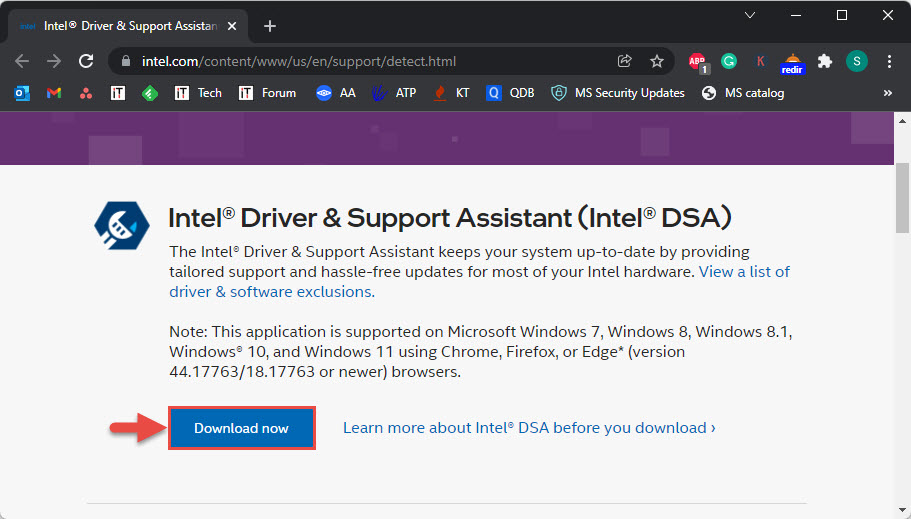
1. Open Intel’s official Download Center or the Intel Driver & Support Assistant.
2. Search for your graphics model, or let the assistant detect your hardware.
3. Download the combined driver package for July 2022 (31.0.101.3222 / 31.0.101.2111).
4. Confirm the download completed before installing.
Warning: Download Intel drivers only from Intel’s official site or the Intel Driver & Support Assistant.
How to Install
1. Run the downloaded installer and accept the licence agreement.
2. Choose a clean installation if offered.
3. Allow the installer to apply the correct version for your processor; the screen may flicker.
4. Restart if prompted, then verify the installed version in Device Manager > Display adapters.
Note: On many laptops, the graphics driver is managed by the PC manufacturer. If the generic Intel installer is blocked, get the driver from your OEM instead.
Supported Systems
- Operating systems: Windows 10 and Windows 11 (including 22H2) 64-bit.
- Processors: 6th Gen through 12th Gen Intel Core, with the version split described above.
Troubleshooting
Problem: The installer says your computer is not validated.
Solution: Your OEM controls the graphics driver. Download the matching driver from your laptop manufacturer’s support page.
Problem: Display problems after installing.
Solution: Roll back via Device Manager > Display adapters > Properties > Driver > Roll Back Driver, then reinstall with a clean installation.
Problem: Not sure which version installed.
Solution: Open Device Manager > Display adapters > your Intel GPU > Properties > Driver tab to see the exact version.
Problem: Installation fails.
Solution: Close apps, disable antivirus temporarily, and run the installer as administrator.
Conclusion
This combined Intel package keeps both newer and older processors up to date with the right DCH driver and adds Windows 11 22H2 support. Install it from Intel’s official channels and let it pick the correct version for your hardware.
</w:pBdr><w:spacing w:before="220" w:after="40"/></w:pPr><w:r><w:rPr><w:b/><w:bCs/><w:color w:val="0B5394"/><w:sz w:val="21"/><w:szCs w:val="21"/><w:rFonts w:ascii="Calibri" w:cs="Calibri" w:eastAsia="Calibri" w:hAnsi="Calibri"/></w:rPr><w:t xml:space="preserve">About TechHub
This guide is part of the TechHub Knowledge Base. For more step-by-step IT guides and support, visit techhub.com.lk.