Overview
Device drivers are the software layer that lets Windows communicate with your hardware — graphics, network, audio, storage, and more. When you reinstall Windows, upgrade to a new version, or move to a new device, manually tracking down every driver again is time-consuming. Backing up your existing drivers first lets you restore them in a single step.
This guide shows you how to back up and restore all of your device drivers using the built-in Command Prompt, PowerShell, Device Manager, and a batch file, plus a few reliable third-party utilities. The steps apply to both Windows 11 and Windows 10.
Back up your drivers before a clean install or upgrade, then restore them in one command.
Key Takeaways
- Use the command pnputil /export-driver * "[BackupFolder]" (or DISM) to back up all third-party drivers.
- Restore everything with pnputil /add-driver "[BackupFolder]\*.inf" /subdirs /install.
- You can also back up with PowerShell, restore individual drivers from Device Manager, or use a batch file.
- Utilities such as DriverMax, Driver Genius, and Driver Magician offer a graphical alternative.
Before You Begin
- You need an account with administrator rights — every command method must run in an elevated window.
- Create an empty destination folder for the backup first (for example D:\DriverBackup). The export commands do not create the folder for you.
- Only third-party (non-Microsoft) drivers are exported; the in-box Windows drivers are reinstalled automatically by Windows.
Note: Backed-up drivers are stored as the original .inf, .sys, and supporting files, so they can be re-installed on a compatible version of Windows.
Method 1 — Back Up All Drivers Using Command Prompt
1. Create the folder where the drivers will be saved (for example D:\DriverBackup).
2. Press Windows key + R, type cmd, and press Ctrl + Shift + Enter to launch Command Prompt as administrator.
3. Run the following command, replacing the path in brackets with your backup folder:
4. DISM /Online /Export-Driver /Destination:"[PathToBackupFolder]"
5. Alternatively, you can use: pnputil /export-driver * "[PathToBackupFolder]"

All third-party drivers exported successfully to the backup folder.
Method 2 — Back Up All Drivers Using PowerShell
1. Right-click the Start button and choose Windows PowerShell (Admin) or Terminal (Admin).
2. Run the following command, replacing the path with your backup folder:
3. Export-WindowsDriver -Online -Destination "[PathToBackupFolder]"
Method 3 — Restore All Device Drivers Using Command Prompt
If you have a driver backup from a compatible version of Windows, you can reinstall every driver with one command.
1. Press Windows key + R, type cmd, and press Ctrl + Shift + Enter to open an elevated Command Prompt.
2. Run the following command, replacing the bracketed path with the location of your backup:
3. pnputil /add-driver "[PathToBackupFolder]\*.inf" /subdirs /install /reboot
Warning: This command can automatically restart your PC if a driver requires it. Save and close any open work before running it.
Method 4 — Restore a Single Driver Using Device Manager
If you only need to restore one or a few drivers, Device Manager is the simplest option.
1. Right-click the Start button and choose Device Manager.
2. Expand the category, right-click the device, and choose Update driver.
3. Select Browse my computer for drivers.
4. Browse to your backup folder, tick Include subfolders, then click Next to install the matching driver.
Method 5 — Back Up or Restore Using a Batch File
For repeat use, you can wrap the backup and restore commands in a simple batch (.bat) file and run it whenever needed, rather than typing the commands each time.
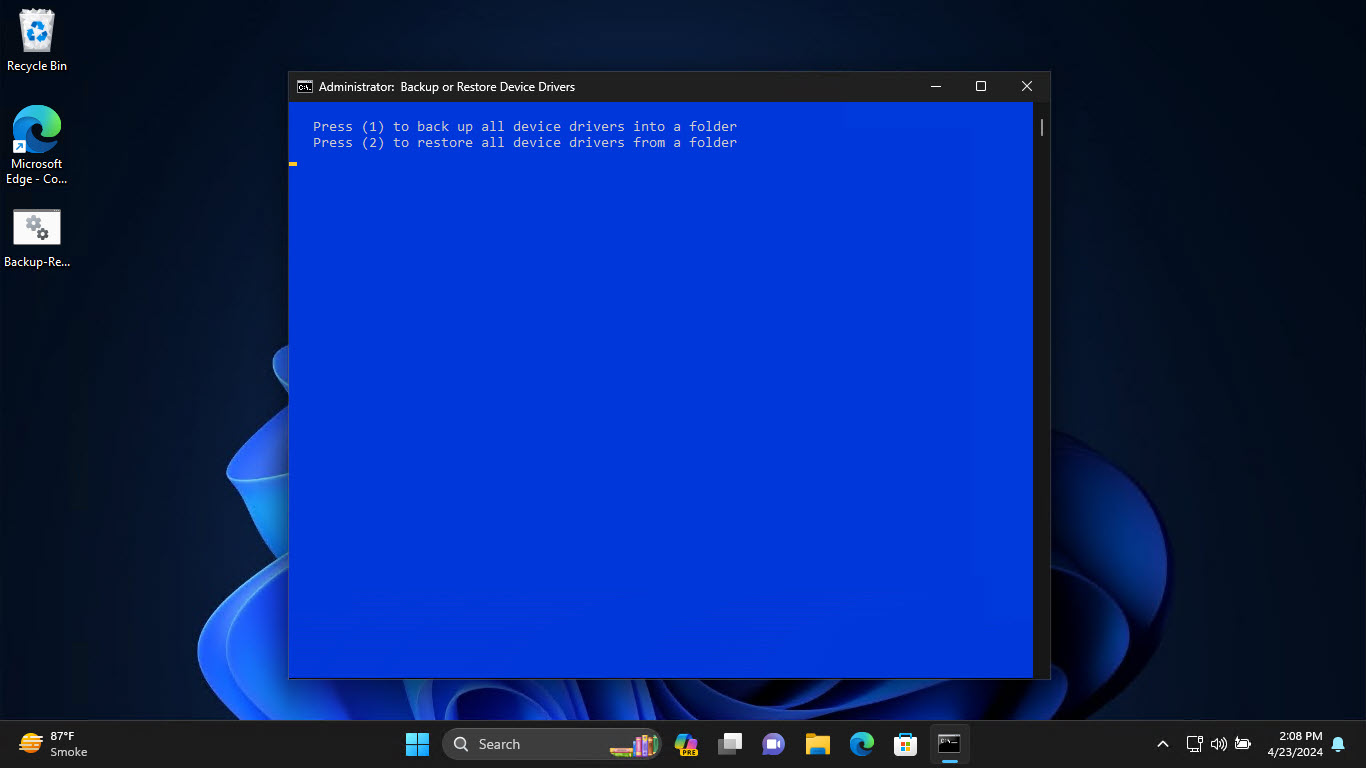
A batch file can automate both the backup and restore commands.
Tip: Keep the batch file together with your driver backup folder so the whole set is easy to copy to another drive or PC.
Method 6 — Use a Third-Party Tool
If you prefer a graphical interface, several dedicated utilities can back up and restore drivers, and some can also find newer driver versions:
- DriverMax — backs up, restores, and updates drivers with a simple wizard.
- Driver Genius — backs up drivers and can create a self-installing restore package.
- Driver Magician — backs up, restores, and detects unknown devices.
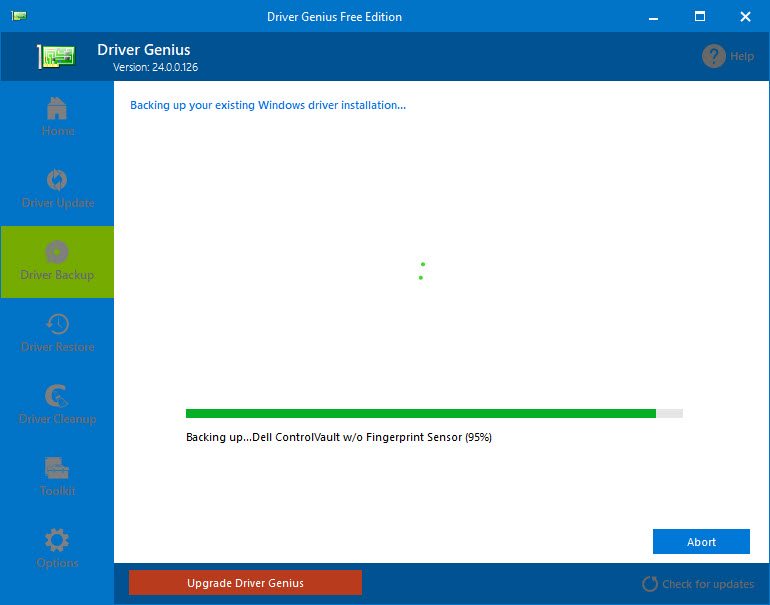
Driver Genius offers a graphical backup and restore workflow.
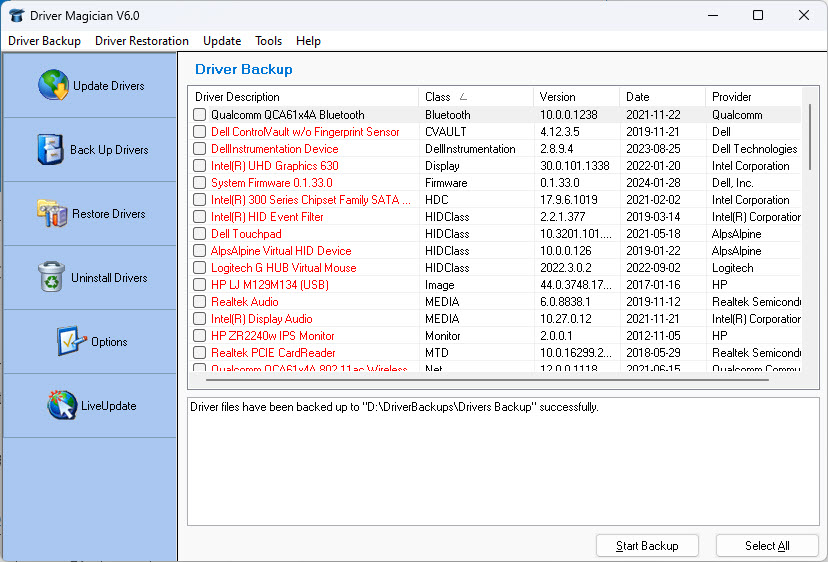
Driver Magician backs up and restores drivers and identifies unknown devices.
Note: Third-party driver tools are optional. The built-in Command Prompt and PowerShell methods above are free and sufficient for most users.
Troubleshooting
Problem: The export command fails or exports nothing.
Solution: Make sure the destination folder already exists and that you are running the window as administrator. The export only includes third-party drivers — Microsoft in-box drivers will not appear.
Problem: "Access denied" when running pnputil or DISM.
Solution: You are not in an elevated window. Re-open Command Prompt or PowerShell using Run as administrator (Ctrl + Shift + Enter).
Problem: A restored driver is not the correct one for the device.
Solution: Use Device Manager to restore that specific device manually, or roll back the driver from the device’s Properties > Driver tab.
Problem: Restore does not apply on a different Windows version.
Solution: Driver backups are only guaranteed to work on a compatible OS version and architecture. Obtain the correct driver from the device manufacturer if restore fails.
Conclusion
Backing up your drivers takes only a minute and can save hours after a reinstall or hardware change. Export them with pnputil or DISM, keep the backup folder safe, and restore everything later with a single command — or use Device Manager for one-off drivers.
</w:pBdr><w:spacing w:before="220" w:after="40"/></w:pPr><w:r><w:rPr><w:b/><w:bCs/><w:color w:val="0B5394"/><w:sz w:val="21"/><w:szCs w:val="21"/><w:rFonts w:ascii="Calibri" w:cs="Calibri" w:eastAsia="Calibri" w:hAnsi="Calibri"/></w:rPr><w:t xml:space="preserve">About TechHub
This guide is part of the TechHub Knowledge Base. For more step-by-step IT guides and support, visit techhub.com.lk.