












Windows 11 version 25H2 is the 2025 annual feature update for Windows 11. Microsoft released it to the public on 30 September 2025, and it began rolling out to all eligible devices through Windows Update from 16 October 2025. This TechHub guide walks you through what the update actually changes, where to download the official ISO files, the hardware you need, and every way to install it — whether you are upgrading a single home PC or preparing media for several machines.
Quick Summary
| Build 26200.6584 is the RTM release. 25H2 shares the same underlying platform as 24H2, so it introduces no major new exclusive features.If you already run 24H2, the upgrade arrives as a tiny enablement package and finishes in about 5 minutes with a single restart.Upgrading resets your support clock: 24 months for Home/Pro and 36 months for Enterprise/Education.Official ISOs are available in 38 languages for both x64 and Arm64 systems. |
|---|
Understanding Windows 11 Version 25H2
Version 25H2 is Microsoft's 2025 feature update, with RTM build 26200.6584 reaching general availability on 16 October 2025. Unlike a traditional feature update, it does not ship a large batch of brand-new features. Instead, the new capabilities were quietly delivered to your PC throughout the year as part of regular 24H2 cumulative updates, and 25H2 simply switches them on.
This is done through an enablement package (eKB) — a roughly 200 KB package pushed via Windows Update that activates the 25H2 feature set already staged on your system. Because of this design, the upgrade has some practical advantages:
- Minimal downtime: installation completes in about 5 minutes and needs only one restart.
- No app re-testing: since 24H2 and 25H2 share the same architecture, anything that ran on 24H2 will run on 25H2.
- Low bandwidth: you download a small package instead of gigabytes of system files — handy on metered or slower connections.
- Easy rollback: reverting is straightforward and again needs just a quick restart.
What Has Changed in 25H2
If there are no headline features, what is actually different? The visible changes fall into a few groups.
Security improvements
- Stronger build-time and runtime vulnerability detection.
- AI-assisted secure coding used internally during development.
- Improved protection against the CVE-2024-30098 smart card authentication vulnerability.
Removed components
- PowerShell 2.0 has been deprecated and removed for security reasons.
- The legacy WMIC (Windows Management Instrumentation command-line) tool has been removed entirely.
Enterprise additions
- Wi-Fi 7 support for enterprise connectivity.
- The ability to remove pre-installed Microsoft Store apps via Group Policy or Microsoft Intune on Enterprise/Education editions.
- Expanded management through temporary enterprise feature control.
Refreshed support lifecycle
The biggest reason to upgrade is the reset support timeline, which keeps security and bug fixes flowing for the longest possible period.
| Edition | Support Period | Approx. End of Support | |
|---|---|---|---|
| Home & Pro | 24 months from release | September 2027 | |
| Enterprise & Education | 36 months from release | September 2028 | Our server → |
How to Download Windows 11 25H2
Option 1: Official ISO from Microsoft (recommended)
Downloading directly from Microsoft always gives you the most up-to-date build. The single multi-edition ISO contains every edition; your product key decides which one activates.
- Open the official download page:
- https://www.microsoft.com/software-download/windows11
- Scroll to “Download Windows 11 Disk Image (ISO) for x64 devices.”
- Select “Windows 11 (multi-edition ISO)” from the dropdown.
- Click Download, then choose your language from the 38 available.
- Click Confirm, then choose the 64-bit download (or the Arm64 ISO if your device uses an Arm processor).
- The download starts automatically — roughly 7 GB for x64, a little smaller for Arm64.
Option 2: Enablement package (fastest upgrade from 24H2)
If you are already on 24H2 and just want to switch to 25H2, the enablement package (KB5054156) is the quickest route. These direct links are stable:
- Windows 11 25H2 Enablement Package (KB5054156) – x64 (AMD/Intel)
- Windows 11 25H2 Enablement Package (KB5054156) – Arm64
Option 3: Direct ISO links (all 38 languages)
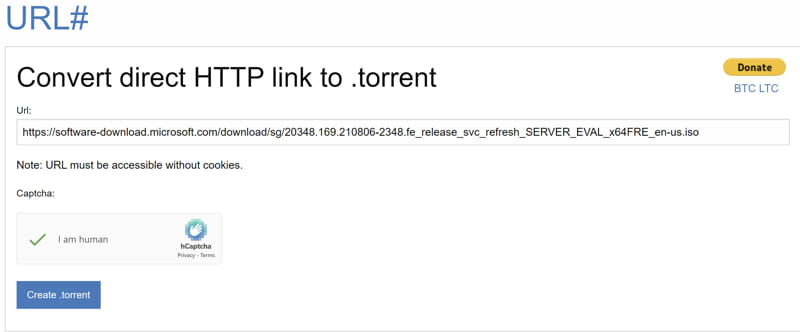
Microsoft also serves the full ISO in 38 languages for x64 (each around 6.9–7.2 GB). Important: these direct download links expire roughly every 24 hours. If a link no longer works, regenerate a fresh one from Microsoft's download page above. A few of the most-requested languages:
| Language | Locale | Size | Download |
|---|---|---|---|
| English (US) | en-US | 7.2 GB | Download → |
| English (UK) | en-GB | 7.2 GB | Download → |
| Arabic | ar-SA | 6.9 GB | Our server → |
| Chinese (Simplified) | zh-CN | 7.2 GB | Our server → |
| French | fr-FR | 7.2 GB | Our server → |
| German | de-DE | 7.2 GB | Our server → |
| Hindi-equivalent locales & 31 more | varies | ~6.9–7.2 GB | Our server → |
For any other language, pick it from the Microsoft download page — all 38 locales are listed there.
Option 4: Media Creation Tool
The Media Creation Tool downloads the latest build and can build a bootable USB drive for you in one step.
Download: Windows 11 25H2 Media Creation Tool
- Run MediaCreationToolW11.exe and accept the UAC prompt.
- Accept the licence terms.
- Choose the recommended options for this PC, or set your own language and edition.
- Select USB flash drive (8 GB+, creates bootable media) or ISO file (save for later or DVD).
- Follow the prompts to finish.
Option 5: Installation Assistant
If you have no USB drive and Windows Update is not offering the update, the Installation Assistant upgrades you online without saving an ISO. Note that it needs a stable connection throughout and is fairly bandwidth-heavy. Download: Windows 11 Installation Assistant
System Requirements
There are no new hardware or software requirements compared with 24H2. If your PC already runs Windows 11, it will run 25H2.
| Component | Requirement | |
|---|---|---|
| Processor | 1 GHz or faster, dual-core, 64-bit (Intel 8th Gen+, AMD Ryzen 2000+, or Qualcomm Snapdragon) | |
| RAM | 4 GB minimum (8 GB recommended) | |
| Storage | 64 GB or larger (SSD strongly recommended) | |
| Firmware | UEFI with Secure Boot capability | |
| TPM | Trusted Platform Module (TPM) version 2.0 | |
| Graphics | DirectX 12 compatible with WDDM 2.0 driver | |
| Display | 720p (1280×720) minimum, larger than 9", 8 bits per colour channel | |
| Account | Microsoft account required for Windows 11 Home setup | |
| CPU instructions | SSE4.2 and POPCNT support are mandatory | Our server → |
Tip: to confirm compatibility, run Microsoft's PC Health Check tool. As a rule of thumb, an 8th-generation processor or newer meets the requirements.
How to Install Windows 11 25H2
Method A: Windows Update (safest)
This is the easiest and most reliable route for any device already on 24H2.
- Open Settings (Windows key + I).
- Go to Windows Update and click Check for updates.
- If eligible, Windows 11 version 25H2 appears as an optional update — click Download & install.
- Let it finish, then restart when prompted.
To receive updates the moment they are available, turn on “Get the latest updates as soon as they're available” on the same screen.
Method B: In-place upgrade using an ISO
Use this if Windows Update is not offering the update yet but you want to upgrade now. It keeps your files, apps, and settings.
- Download the 25H2 ISO (Option 1 above).
- Right-click the ISO and choose Mount — Windows attaches it as a virtual drive.
- Open the mounted drive and double-click setup.exe.
- Accept the UAC prompt, then choose what to keep: personal files and apps (recommended), files only, or nothing for a clean install.
- Follow the wizard. The PC restarts automatically to finish.
Method C: Clean install from a bootable USB
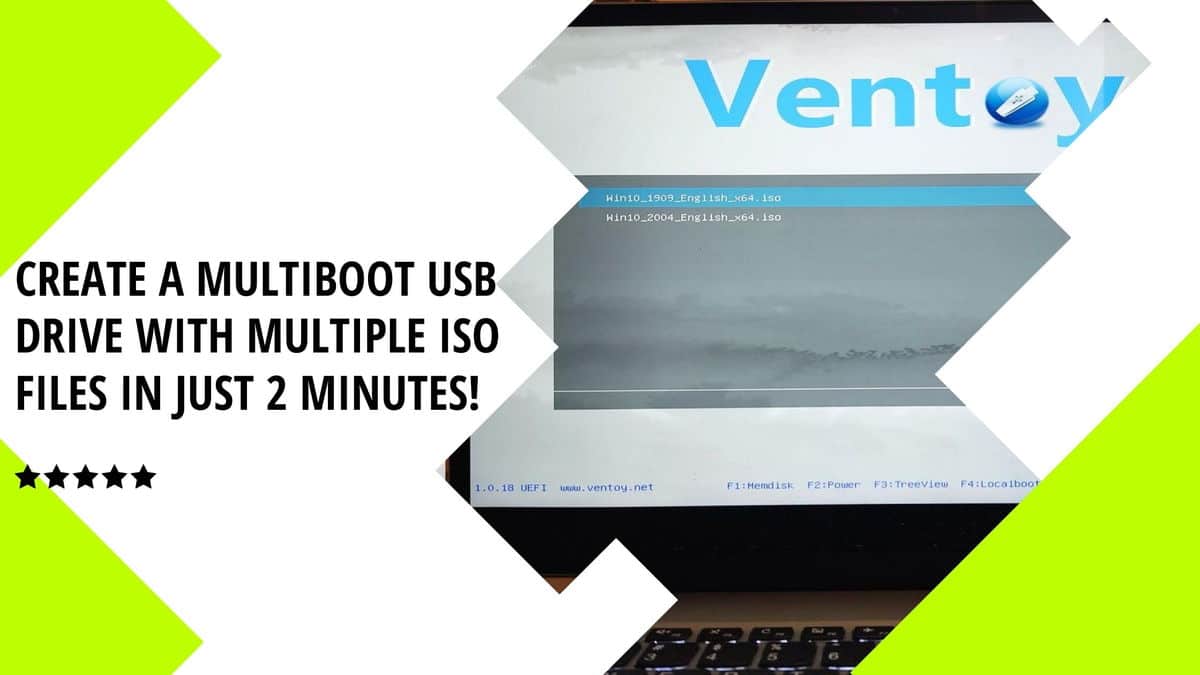
For a fresh start, create bootable media with Rufus and install from it. This erases the target drive, so back up first.
First, create the USB:
- Download and install Rufus from rufus.ie.
- Insert an 8 GB+ USB drive (all data on it will be erased).
- In Rufus, set Device to your USB, and Boot selection to the 25H2 ISO.
- Use Partition scheme GPT, Target system UEFI (non-CSM), File system FAT32.
- Click START, keep the standard Windows 11 requirements (or choose the bypass option if needed), confirm the format warning, and wait 10–15 minutes.
Then install from it:
- Restart with the USB inserted and open the boot menu (often F12, F2, ESC, or DEL).
- Select the USB drive, then choose your language, time, and keyboard layout.
- Click Install now and enter your product key (or select “I don't have a product key”).
- Pick your edition, accept the licence, and choose Upgrade (keep files) or Custom (clean install).
- Select the target partition and let Windows install (20–40 minutes), then complete the out-of-box setup.
Conclusion
Even though Windows 11 25H2 brings no dramatic new features, it is still worth installing. The lightweight enablement package makes upgrading from 24H2 almost effortless, and most importantly it resets your support timeline so you keep getting security and stability updates from Microsoft for longer. If you are on older hardware or starting fresh, the ISO and bootable-USB methods above cover every scenario.
Need help upgrading or building installation media? Contact the TechHub support team or visit techhub.com.lk for more guides.