












Windows 11 is Microsoft's current desktop operating system, and just like Windows 10 before it, the ISO files are available to download for free directly from Microsoft. You can use an ISO to perform a clean install or to upgrade an existing Windows 10 or older Windows 11 machine.
There are several ways to install Windows 11, but every method depends on one thing first: your PC must meet the minimum hardware requirements. This TechHub guide walks you through downloading the Windows 11 ISO using different methods, creating a bootable USB drive, and installing the operating system from start to finish.
Download Windows 11 ISO
The table below lists the available Windows 11 versions. For the two latest feature updates we recommend the dedicated download guides; older versions link to Microsoft's archive page.
| Version | Platform | Download |
|---|---|---|
| Windows 11 25H2 | 64-bit | Download ISO guide |
| Windows 11 24H2 | 64-bit | Download ISO guide |
| Windows 11 23H2 | 64-bit | Microsoft download page |
| Windows 11 22H2 | 64-bit | Microsoft download page |
| Windows 11 21H2 | 64-bit | Microsoft download page |
Every Windows 11 ISO bundles the following editions, which you choose during installation:
- Windows 11 Home
- Windows 11 Home N
- Windows 11 Home Single Language
- Windows 11 Education
- Windows 11 Education N
- Windows 11 Pro
- Windows 11 Pro Education
Method 1: Download the ISO Directly from Microsoft
Downloading from Microsoft's own site gives you the widest choice of languages and always serves the latest available build. Note: this method automatically downloads the newest version of Windows 11.
- Open Microsoft's Windows 11 download page in any browser.
- Scroll to “Download Windows 11 Disk Image (ISO)”, select “Windows 11 (multi-edition ISO)” from the dropdown, and click Download.
- Choose your preferred language and click Confirm.
- Click the 64-bit Download button — your ISO download begins immediately.
Windows 11 can be downloaded in 37 languages, including Arabic, Brazilian Portuguese, Bulgarian, Chinese (Simplified and Traditional), Croatian, Czech, Danish, Dutch, English, English International, Estonian, Finnish, French Canadian, German, Greek, Hebrew, Hungarian, Italian, Japanese, Korean, Latvian, Lithuanian, Norwegian, Polish, Portuguese, Romanian, Russian, Serbian Latin, Slovak, Slovenian, Spanish, Spanish (Mexico), Swedish, Thai, Turkish, and Ukrainian.
Method 2: Use the Media Creation Tool
Microsoft's Media Creation Tool (MCT) can download a standalone ISO and create bootable media. As with Method 1, it always grabs the latest build.
- Download the Windows 11 Media Creation Tool and run it.
- Accept the licence terms.
- If you are creating media for a different PC, untick “Use the recommended options for this PC” and pick your language and edition, then click Next.
- Select the ISO file option and click Next.
- Choose a save location with plenty of free space and click Save — the download starts.
- Click Finish when it completes. You can ignore the brief setup cleanup that runs afterwards.
Upgrade to the Latest Windows 11 Version
If you would rather upgrade in place than download an ISO and clean install, you can use Windows Update or the Installation Assistant.
Upgrade through Windows Update
To move from Windows 10 to Windows 11, your device must meet the minimum requirements. On Windows 10, check for the upgrade here:
Settings > Update & Security > Windows Update
If you are already on an older Windows 11 build and want a newer one, go here instead:
Settings > Windows Update
Click Check for updates. If the upgrade is offered, click Download and Install to begin.
Upgrade using the Installation Assistant
The Installation Assistant runs on the PC you want to upgrade. Note that it does not work on Arm-based PCs — those should use the manual ISO method instead.
- Download the Windows 11 Installation Assistant and run it.
- When prompted, click Get PC Health Check app, install it, and confirm your system meets the requirements.
- Return to the Installation Assistant and click Refresh.
- Click Accept and install. The tool downloads Windows 11.
- Restart your computer when prompted to complete the upgrade.
Download a Windows 11 Insider ISO
You can also download Windows 11 Insider (preview) ISOs for a clean install. Be aware that once you install an Insider build you cannot roll back to the stable release — you can only pause further updates. You will also need a Microsoft account registered with the Windows Insider Program.
- Open the Windows Insider Preview Downloads page.
- Sign in with your Insider-registered Microsoft account.
- Select an Insider build from the dropdown and click Confirm.
- Choose your language and click Confirm.
- Click 64-bit Download to start the ISO download.
Check the Minimum System Requirements
Before installing, confirm your PC qualifies. When Windows 11 launched, Microsoft tightened the requirements to improve security and reliability. The key points are:
- 64-bit only — 32-bit systems are not supported.
- At least 2 CPU cores.
- TPM 2.0 is required. It is built into most 8th-generation CPUs and newer, so an 8th-Gen processor or later is effectively the baseline.
- UEFI firmware only — legacy BIOS boot is not supported.
Checking each item manually is tedious, so the easiest route is Microsoft's PC Health Check app: install it, click “Check now”, and it reports whether your PC supports Windows 11. If it does not, you can either upgrade the hardware or look into bypassing the requirements (advanced, and unsupported by Microsoft).
Create a Bootable Windows 11 USB Drive
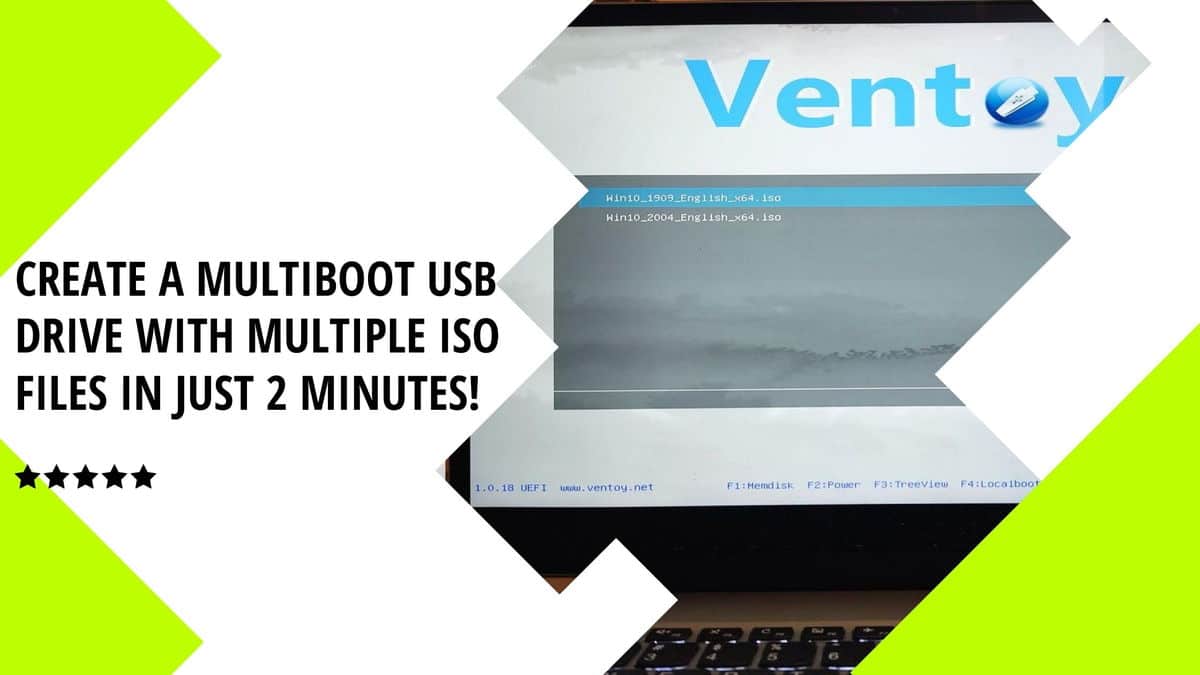
Turning an ISO into bootable media is straightforward. A USB drive is more convenient than a DVD. You can use Rufus or Ventoy; the steps below use Rufus.
- Plug in an 8 GB+ USB drive and back up its contents — it will be formatted and erased.
- Download Rufus from rufus.ie (the portable version needs no installation) and run it.
- Under Device, select your USB drive.
- Under Boot selection, click Select and choose your Windows 11 ISO.
- Leave the remaining settings at their defaults and click Start.
- Choose your Windows 11 customization options (Rufus can optionally bypass the TPM/Secure Boot checks) and click OK.
- Wait for the green “Ready” bar, then close Rufus. Your bootable drive is done.
Install Windows 11 from the ISO
With your bootable drive ready, you can install Windows 11:
- Confirm the target PC meets the minimum requirements.
- Insert the bootable USB drive into the target computer.
- Power on or reboot and open the one-time boot menu (usually F12, F10, or Esc).
- Select the USB drive to boot from it.
- On the Windows Setup screen, click Next, then Install Now.
- Click “I don't have a product key” — you can activate later after installation.
- Select the Windows 11 edition you want and click Next.
- Accept the licence agreement and click Next.
- Choose “Custom: Install Windows only (advanced)” for a clean install.
- Create or select your partition (keep at least 40 GB for the primary drive), confirm any prompt about extra partitions, then click Next.
- Windows 11 installs and may reboot several times. Follow the Out-of-Box Experience (OOBE) screens to finish setup.
Frequently Asked Questions
How do I purchase Windows 11?
You cannot currently buy a standalone Windows 11 licence directly. Instead, buy a device with Windows 11 pre-installed, or an eligible Windows 10 device that qualifies for the free upgrade.
Can I upgrade my PC to Windows 11?
Yes, through Windows Update, provided your system meets the minimum requirements. Some features need extra hardware such as TPM 2.0 and Secure Boot, so compatibility matters for the full experience.
How long does it take to download Windows 11?
The ISO is roughly 5 GB, so expect anywhere from 30 to 60 minutes depending on your internet speed.
How long does installation take?
Typically 15 to 30 minutes, depending on your hardware.
Can I keep using Windows 10?
The upgrade is free for Windows 10 users, but you are not forced to take it. Note that Microsoft ended mainstream Windows 10 updates on 14 October 2025, so staying on Windows 10 means running an unsupported OS.
Need help choosing a version, building installation media, or checking compatibility? Contact the TechHub support team or visit techhub.com.lk for more guides.