Overview
Locking your computer is one of the simplest and most effective ways to protect your data when you step away from your desk. Unlike signing out, locking keeps all of your apps, documents, and processes running in the background — you simply return, enter your password or PIN, and pick up exactly where you left off.
This guide walks you through every reliable method to lock a Windows PC, from one-key keyboard shortcuts to automatic locking and even locking the keyboard and mouse while keeping the screen on. The steps apply to both Windows 10 and Windows 11.
Locking a Windows PC keeps your session secure without closing your apps.
Key Takeaways
- Locking is not the same as signing out — your apps and files stay open and running.
- The fastest way to lock instantly is the Windows key + L shortcut.
- You can make Windows lock automatically after a period of inactivity, or when your paired phone moves out of Bluetooth range (Dynamic Lock).
- To disable the keyboard and mouse without turning off the screen, use a free utility such as KeyFreeze.
Before You Begin
- A user account with a password, PIN, or Windows Hello sign-in configured (locking only adds protection if a sign-in credential is required to return).
- Administrator rights are needed only for the automatic and third-party methods.
- These steps work on both Windows 10 and Windows 11; menu wording may vary slightly between versions.
Note: Locking your account and signing out are two different actions. When you lock, your session stays active and apps keep running. When you sign out, all apps close and running processes stop.
Method 1 — Lock Instantly With a Keyboard Shortcut
This is the quickest method and the one we recommend for everyday use.
1. Make sure you have saved any work in progress (locking does not close apps, but it is good practice).
2. Press the Windows key + L at the same time.
3. Your PC locks immediately and shows the lock screen. Sign back in with your password, PIN, or Windows Hello to resume.
Tip: Commit Windows + L to memory — it is the single fastest way to secure your PC before walking away.
Method 2 — Lock From the Start Menu
1. Click the Start button.
2. Click your account name or profile picture (in Windows 10 it appears on the left edge of the Start menu; in Windows 11 it is at the bottom-left).
3. Select Lock from the menu that appears.
Locking the computer from the Start menu account icon.
Method 3 — Lock From the Security Options Screen (Ctrl + Alt + Del)
1. Press Ctrl + Alt + Delete together.
2. On the security options screen that appears, click Lock.

The Security Options screen, opened with Ctrl + Alt + Del, includes a Lock option.
Method 4 — Lock From the Command Line
You can lock the workstation with a single command, which is handy in scripts or remote sessions.
1. Press Windows key + R to open the Run dialog (or open Command Prompt / PowerShell).
2. Type the following command and press Enter:
3. Rundll32.exe user32.dll,LockWorkStation
Note: Enter the command exactly as shown, including the comma: Rundll32.exe user32.dll,LockWorkStation
Method 5 — Lock From Task Manager
Task Manager can disconnect (lock) your user session.
1. Right-click the taskbar and choose Task Manager, or press Ctrl + Shift + Esc.
2. Switch to the Users tab.
3. Right-click your user account and choose Disconnect.
4. When prompted to confirm, click Disconnect user.
Note: This only locks your account — you will not be logged off, and your apps continue running in the background.
Method 6 — Create a Desktop Lock Shortcut
If you prefer a one-click icon, create a desktop shortcut that locks the PC.
1. Right-click an empty area of the desktop, point to New, and click Shortcut.
2. In the location box, paste: Rundll32.exe user32.dll,LockWorkStation — then click Next.
3. Enter a name such as "Lock PC" and click Finish.
4. Double-click the new shortcut any time you want to lock the computer.
Method 7 — Automatically Lock After Inactivity
Windows can lock itself after a set period of inactivity by using the screen saver with a logon prompt.
1. Open Settings and search for "screen saver", then choose Change screen saver to open the Screen Saver Settings window.
2. Select any screen saver from the drop-down (choose "Blank" if you prefer no animation).
3. Set the Wait time, in minutes, after which the PC should lock.
4. Tick the box labelled "On resume, display logon screen".
5. Click Apply and then OK.
After the chosen idle time, Windows shows the screen saver and then requires you to sign in again — effectively locking the PC automatically.
Method 8 — Automatically Lock With Dynamic Lock
Dynamic Lock pairs your phone with your PC over Bluetooth and locks Windows automatically when you (and your phone) move out of range.
1. Pair your phone with your PC over Bluetooth first.
2. Open Settings > Accounts > Sign-in options.
3. Scroll to Dynamic lock.
4. Tick "Allow Windows to automatically lock your device when you’re away".
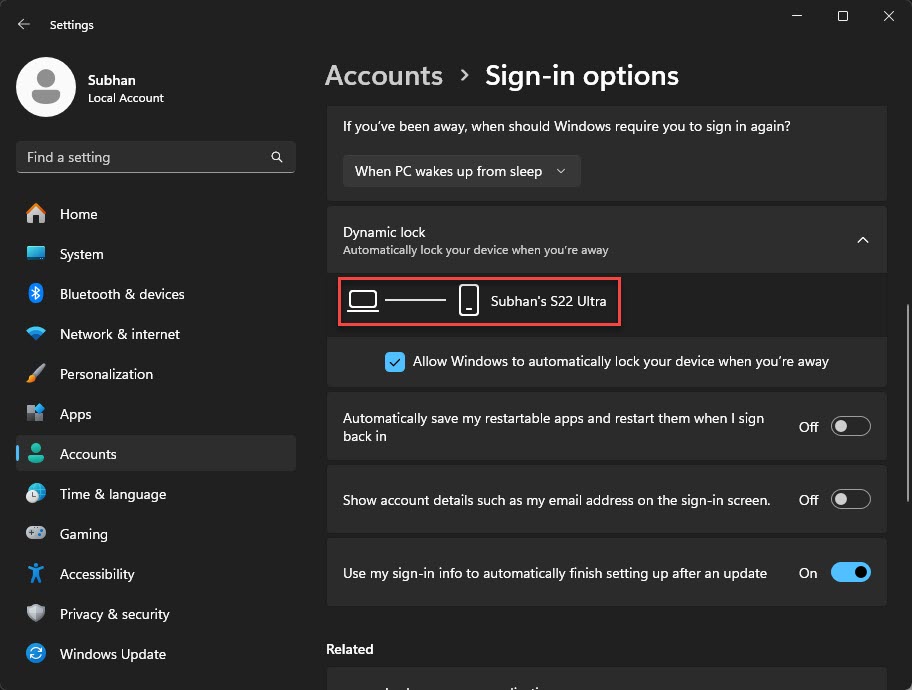
Pair your phone over Bluetooth to enable Dynamic Lock.
Note: When your paired phone leaves Bluetooth range, Windows waits about 30 seconds before locking the PC.
Method 9 — Lock the Keyboard and Mouse Without Locking the Screen (KeyFreeze)
Sometimes you want the screen to stay on — for example while watching a video or on a video call — but you want to stop anyone (or a curious child or pet) from interfering with the keyboard and mouse. The free KeyFreeze utility does exactly this.
1. Download and install KeyFreeze, then launch the app.
2. Click the single button labelled "Lock Keyboard & Mouse".
3. The keyboard and mouse are now disabled while the screen continues to display normally.
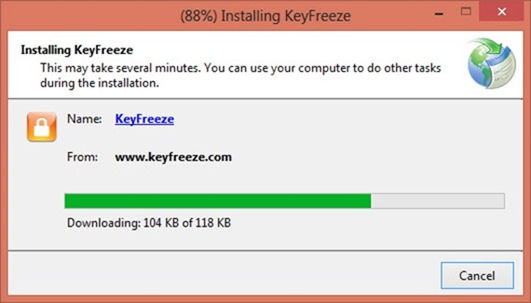
Installing the KeyFreeze utility.
To unlock the keyboard and mouse again, press Ctrl + Alt + Delete.
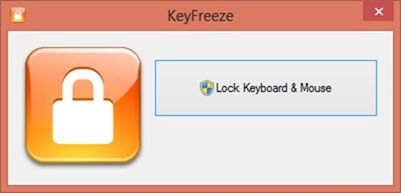
The KeyFreeze interface has a single button to lock keyboard and mouse input.
Tip: Run KeyFreeze as administrator to avoid the User Account Control prompt each time you launch it.
Unlocking Your Computer
To return to a locked session, press any key or click the mouse to reveal the sign-in screen, then enter your password, PIN, or use Windows Hello. Your apps and documents will be exactly as you left them.
Troubleshooting
Problem: The Windows + L shortcut does nothing.
Solution: The lock workstation feature may be disabled by a Group Policy or registry setting (DisableLockWorkstation). On a personal PC, ensure that value is set to 0, or use the Ctrl + Alt + Del method instead.
Problem: There is no Lock option in the Start menu or Ctrl + Alt + Del screen.
Solution: This is usually caused by an organisation policy on managed or work devices. Contact your IT administrator, or use the command-line method (Rundll32.exe user32.dll,LockWorkStation).
Problem: Dynamic Lock does not lock the PC.
Solution: Confirm Bluetooth is on, your phone is paired, and the option is enabled under Sign-in options. Allow up to about 30 seconds after the phone leaves range before the PC locks.
Problem: KeyFreeze shows a SmartScreen or admin prompt.
Solution: This is expected for a small third-party utility. Choose Run anyway / Yes, or run the app as administrator to suppress future prompts.
Conclusion
Whether you prefer a quick keyboard shortcut, a one-click desktop icon, or fully automatic locking, Windows gives you several easy ways to secure your session in seconds. Make Windows + L a habit, and consider enabling automatic locking so your PC is protected even if you forget.
</w:pBdr><w:spacing w:before="220" w:after="40"/></w:pPr><w:r><w:rPr><w:b/><w:bCs/><w:color w:val="0B5394"/><w:sz w:val="21"/><w:szCs w:val="21"/><w:rFonts w:ascii="Calibri" w:cs="Calibri" w:eastAsia="Calibri" w:hAnsi="Calibri"/></w:rPr><w:t xml:space="preserve">About TechHub
This guide is part of the TechHub Knowledge Base. For more step-by-step IT guides and support, visit techhub.com.lk.