Overview
Forgetting your Windows sign-in password is a common, fixable problem. This guide covers how to reset the password on a device you own — starting with the easiest official options (security questions and Microsoft account reset) and finishing with the advanced recovery-console method for a local account.
Reset a forgotten password to regain access to your own Windows PC.
Warning: Only use these methods on a device you own or are authorized to administer. Resetting a password you are not entitled to access is not permitted.
Key Takeaways
- Local-account passwords can be reset without third-party software.
- Microsoft-account passwords are reset online from another device.
- Local accounts created with security questions can be reset right from the lock screen.
- The recovery-console method is an advanced last resort for a forgotten local password.
Method 1 — Security Questions (Local Account)
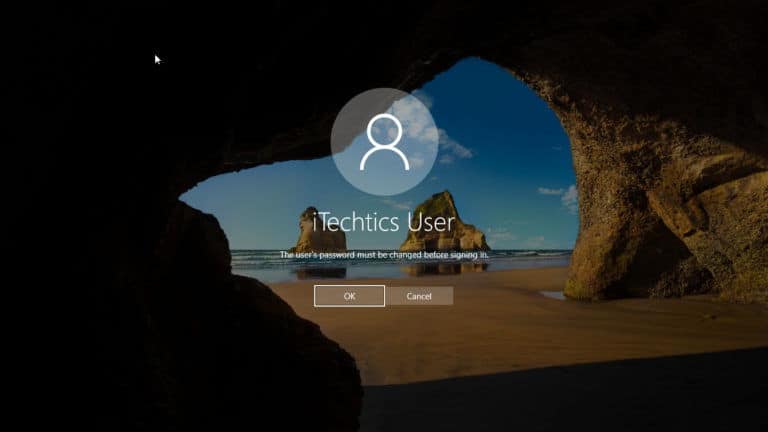
1. At the lock screen, enter any password to trigger the failure, then click Reset password.
2. Answer the security questions you set when creating the local account.
3. Enter and confirm a new password, then sign in.
Method 2 — Reset a Microsoft Account Password
1. On another device or phone, go to Microsoft’s account recovery page (account.live.com/password/reset).
2. Verify your identity via email, phone, or the authenticator app.
3. Set a new password.
4. Back on your PC, sign in with the new password (you may need an internet connection).
Method 3 — Use a Password Reset Disk
1. If you previously created a password reset USB, click Reset password at the lock screen after a failed attempt.
2. Insert the reset disk and follow the Password Reset Wizard.
3. Set a new password and sign in.
Method 4 — Recovery Console (Advanced, Local Account)
Warning: This advanced method is for a device you own and are locked out of. It requires Windows installation media and physical access.
1. Boot from Windows installation media and press Shift + F10 at the first screen to open Command Prompt.
2. Use the utility-manager swap technique to open an elevated Command Prompt at the lock screen, as documented by Microsoft community guides for your own device.
3. Run: net user to list accounts, then: net user "YourAccount" NewPassword to set a new password.
4. Reverse any changes you made, reboot, and sign in with the new password.
Note: After regaining access, consider switching to a Microsoft account or adding security questions so future resets are simple.
Troubleshooting
Problem: No Reset password / security questions option appears.
Solution: The account may not have security questions set, or it is a Microsoft account. Use the online Microsoft account reset instead.
Problem: The Microsoft reset will not verify you.
Solution: Use an alternate recovery email/phone, or complete Microsoft’s account recovery form with as much detail as possible.
Problem: You only have a PIN problem.
Solution: At sign-in, choose Sign-in options and use your password; then reset the PIN from Settings > Accounts > Sign-in options.
Problem: You are locked out with no recovery set up.
Solution: For a local account with no security questions, the recovery-console method on your own device is the remaining option; afterward, set up recovery to avoid a repeat.
Conclusion
Start with the simplest option that fits your account: security questions or a password reset disk for local accounts, or the online reset for Microsoft accounts. Keep recovery options configured so a forgotten password is never more than a few clicks to fix.
</w:pBdr><w:spacing w:before="220" w:after="40"/></w:pPr><w:r><w:rPr><w:b/><w:bCs/><w:color w:val="0B5394"/><w:sz w:val="21"/><w:szCs w:val="21"/><w:rFonts w:ascii="Calibri" w:cs="Calibri" w:eastAsia="Calibri" w:hAnsi="Calibri"/></w:rPr><w:t xml:space="preserve">About TechHub
This guide is part of the TechHub Knowledge Base. For more step-by-step IT guides and support, visit techhub.com.lk.