Windows වල Local Users manage කරන්නේ කොහොමද (Home සහ Pro)
Settings, Control Panel, සහ command line හරහා user accounts සහ types add කරන්න, remove කරන්න, සහ වෙනස් කරන්න.
Overview
User accounts manage කරන එක — users add කරන එක, account types වෙනස් කරන එක, passwords reset කරන එක — Windows වල කරන්න ලේසියි, Home edition එකේ වුණත්. මේ guide එකෙන් Settings app එක, Control Panel එක, සහ command-line methods පිළිබඳ කතා කරනවා.
Windows වල local users manage කරනවා.
Key Takeaways
- Settings > Accounts එකෙන් හැම edition එකකම users manage කරනවා.
- ඔයාට local (offline) හෝ Microsoft accounts add කරන්න පුළුවන්.
- Account type එක Administrator/Standard වලට වෙනස් කරන්න.
- net user එකෙන් command line එකෙන් accounts manage කරනවා.
Method 1: Settings App
1. Settings > Accounts > Other users (Family & other users) open කරන්න.
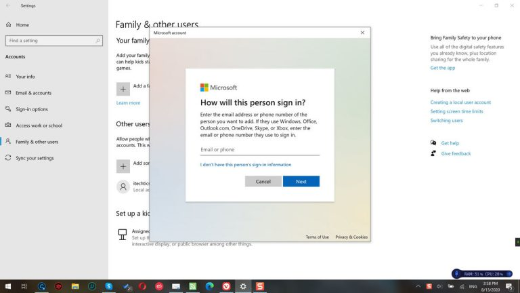
2. "Add account" click කරන්න.
3. Local account එකකට, "I don’t have this person’s sign-in information" > "Add a user without a Microsoft account" තෝරන්න.
4. username/password set කරන්න; "Change account type" හරහා type එක වෙනස් කරන්න.
Method 2: Control Panel
1. Control Panel > User Accounts > Manage another account open කරන්න.
2. User එකක් add කරන්න, account name/type වෙනස් කරන්න, හෝ password එක reset කරන්න.
3. ඉක්මන් local-account වෙනස්කම් වලට ප්රයෝජනවත්.
Method 3: Command Line (net user)
1. Command Prompt එක administrator විදිහට open කරන්න.
2. User එකක් create කරන්න: net user "Name" "Password" /add
3. admin කරන්න: net localgroup Administrators "Name" /add
4. Delete කරන්න: net user "Name" /delete
5. Password reset කරන්න: net user "Name" *
Method 4: netplwiz
1. classic User Accounts dialog එකට netplwiz run කරන්න.
2. Users add/remove කරන්න සහ group membership set කරන්න.
3. automatic sign-in (සුදුසු නම්) මෙතන configure කරන්න.
Troubleshooting
Problem: Local account එකක් add කරන්න බෑ.
Solution: "I don’t have this person’s sign-in information" තෝරලා ඊට පස්සේ "Add a user without a Microsoft account" තෝරන්න.
Problem: net user access denied.
Solution: Prompt එක administrator විදිහට run කරන්න.
Problem: Account type එක වෙනස් වෙන්නේ නෑ.
Solution: admin account එකක් පාවිච්චි කරන්න; අන්තිම administrator ව remove කරන්න බෑ.
Problem: Local password එක අමතක වුණා.
Solution: වෙන admin account එකකින් reset කරන්න (net user Name *) නැත්නම් Windows 10/11 වල security questions පාවිච්චි කරන්න.
Conclusion
Windows එකෙන් හැම edition එකකම user management ලේසි කරනවා: common tasks වලට Settings > Accounts, classic options වලට Control Panel හෝ netplwiz, සහ scripting සහ ඉක්මන් admin වෙනස්කම් වලට net user/localgroup පාවිච්චි කරන්න.