How to Enable the Built-in Administrator Account in Windows
Turn on the hidden Administrator account via Command Prompt, Local Users, or Group Policy.
Overview
Windows has a hidden built-in Administrator account that’s disabled by default. This guide shows how to enable it, plus how to create or promote other admin accounts — with the security reasons to keep it off normally.
Enabling the Windows Administrator account.
Warning: The built-in Administrator has no password by default and full privileges. Enable it only when needed, set a strong password, and disable it again afterward for security.
Key Takeaways
- The built-in Administrator is disabled by default.
- Enable it via Command Prompt, Local Users (Pro), or Group Policy.
- Prefer creating a normal admin account for daily use.
- Disable the built-in account when you’re done.
Method 1: Command Prompt
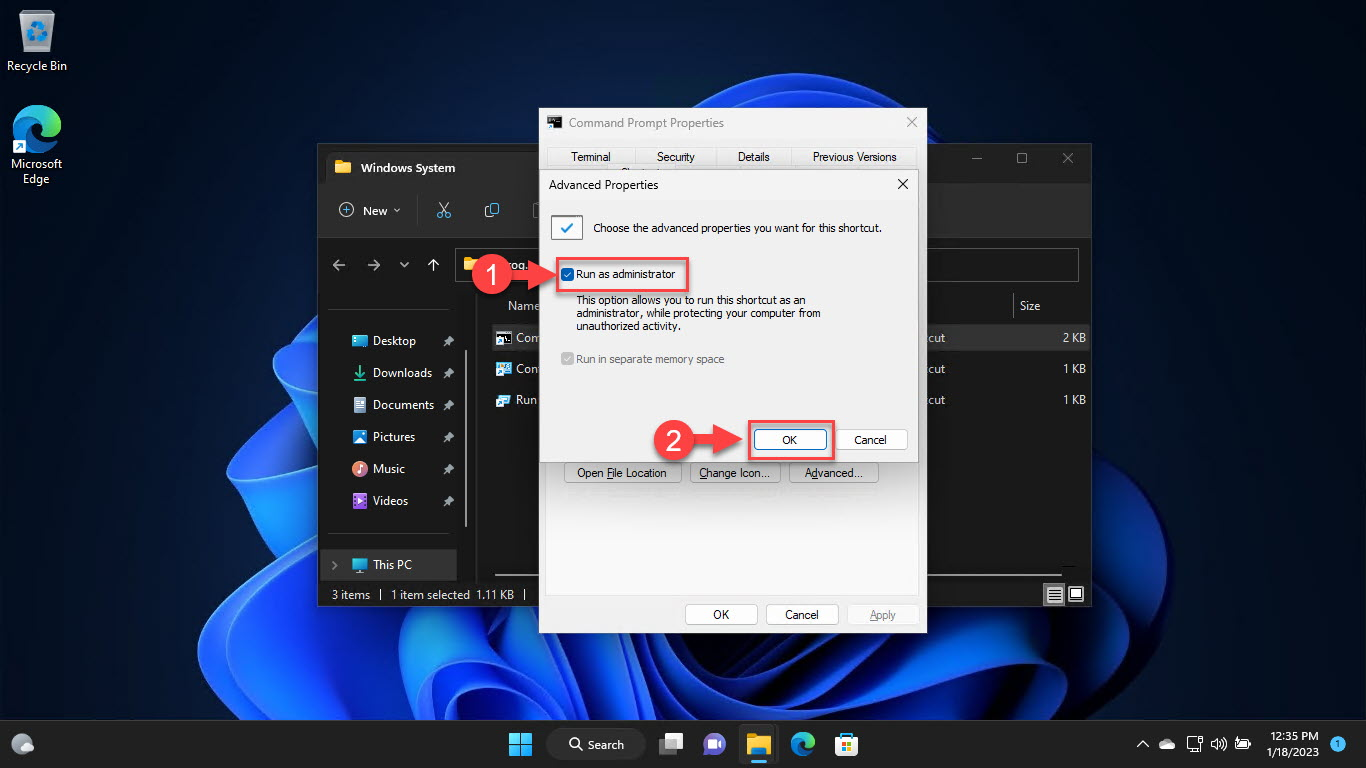
1. Open Command Prompt as administrator.
2. Enable: net user administrator /active:yes
3. Set a password: net user administrator *
4. Sign out; the Administrator account now appears.
5. Disable later: net user administrator /active:no
Method 2: Local Users and Groups (Pro)
1. Run lusrmgr.msc.
2. Open Users and double-click "Administrator".
3. Untick "Account is disabled" and click OK.
4. Set a password via right-click > Set Password.
Method 3: Group Policy (Pro)
1. Run secpol.msc (or gpedit.msc).
2. Go to Local Policies > Security Options.
3. Set "Accounts: Administrator account status" to Enabled.
4. Apply.
Better: Use a Normal Admin Account
1. Settings > Accounts > Other users > Add account.
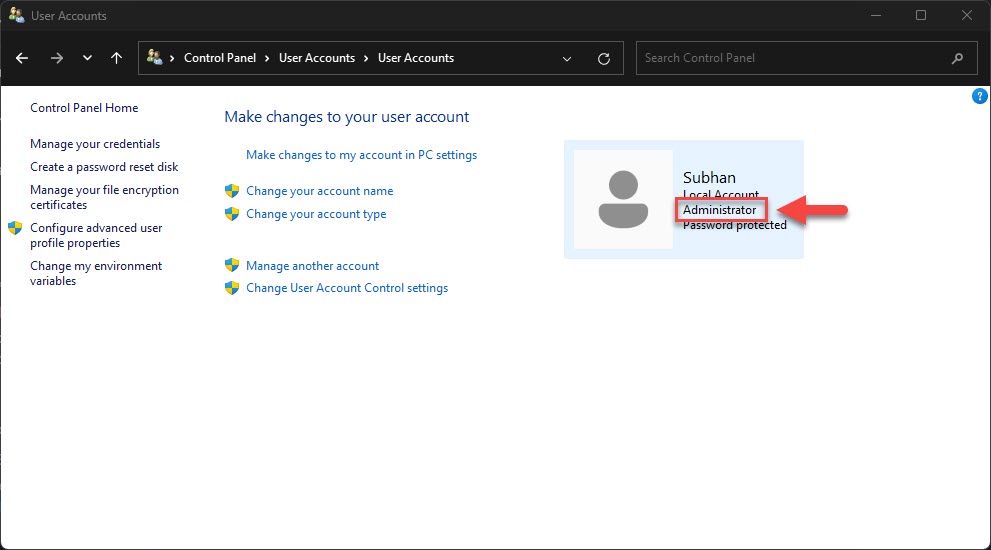
2. Create the account, then change its type to Administrator.
3. Use this for daily admin tasks instead of the built-in one.
Troubleshooting
Problem: lusrmgr.msc/secpol.msc missing.
Solution: You’re on Windows Home — use the Command Prompt method.
Problem: Account still hidden.
Solution: Sign out/restart after enabling; ensure the net user command reported success.
Problem: Security concern.
Solution: Set a strong password and disable the built-in Administrator when finished.
Problem: Locked out of admin.
Solution: Enable the built-in Administrator from an elevated prompt or Safe Mode to regain access, then create a new admin user.
Conclusion
Enable the built-in Administrator with "net user administrator /active:yes" (or via Local Users/Group Policy on Pro) when you need it — then set a strong password and disable it afterward. For everyday use, a dedicated administrator account is the safer choice.