Overview
Many tasks — installing software, changing system settings, running elevated commands — require administrator rights. If an action is blocked, it helps to confirm whether your account is an administrator or a standard user. This guide shows five ways to check.
Confirm whether your account has administrator rights.
Key Takeaways
- Administrators can install software and change any system setting; standard users cannot.
- Settings and Control Panel show your account type at a glance.
- Command Prompt and PowerShell can confirm membership in the Administrators group.
- You need an admin account to grant admin rights to another account.
Method 1 — Settings App
1. Open Settings > Accounts > Your info.
2. Under your name, it shows "Administrator" if your account has admin rights.
3. Check other accounts under Settings > Accounts > Other users.
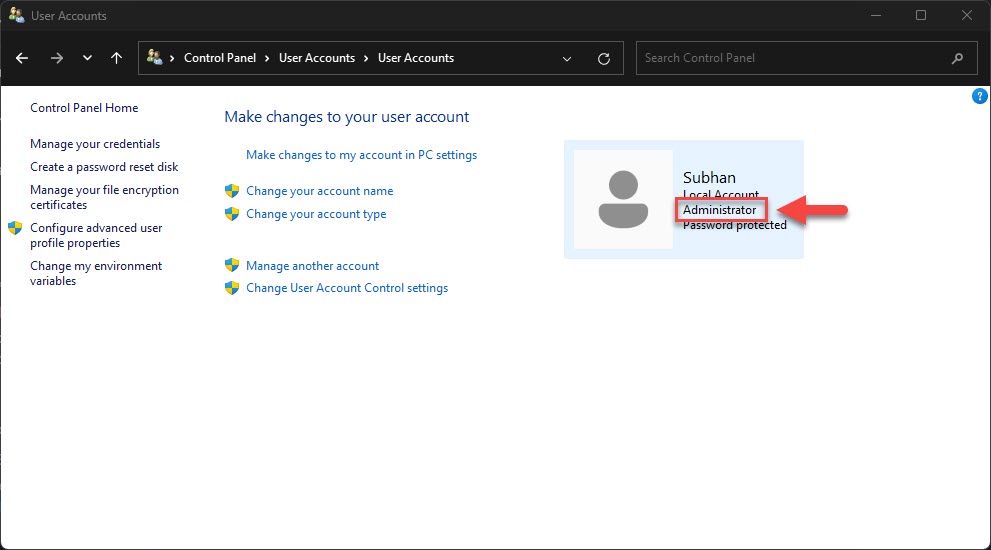
Your account type is shown in Settings > Accounts.
Method 2 — Control Panel
1. Press Windows key + R, type control, and press Enter.
2. Go to User Accounts > User Accounts.
3. Your account type (Administrator or Standard) is displayed next to your name.
Method 3 — Local Users and Groups
1. Press Windows key + R, type lusrmgr.msc, and press Enter (Pro/Enterprise).
2. Open Groups and double-click Administrators.
3. If your user name is listed, your account has admin rights.
Check Administrators group membership in Local Users and Groups.
Method 4 — Command Prompt
1. Open Command Prompt.
2. Run: net localgroup administrators — this lists all admin accounts.
3. Or check your account directly: net user "YourUserName" and look at the Local Group Memberships line.
Method 5 — PowerShell
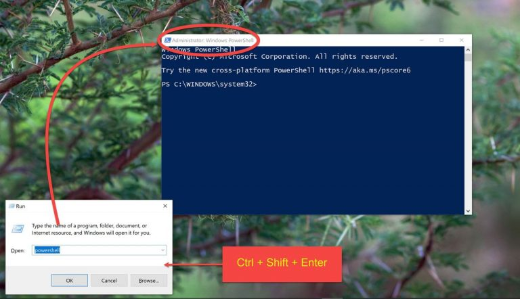
1. Open PowerShell.
2. Run: Get-LocalGroupMember -Group "Administrators"
3. Look for your account in the list to confirm admin rights.
Troubleshooting
Problem: lusrmgr.msc is not available.
Solution: It is only on Pro/Enterprise editions. On Home, use the Command Prompt or PowerShell method instead.
Problem: A task is blocked even though you are an admin.
Solution: You may still need to elevate — right-click the program and choose Run as administrator, and approve the UAC prompt.
Problem: You need admin rights but do not have them.
Solution: Ask an administrator on the PC to change your account type to Administrator (Settings > Accounts > Other users).
Problem: net user shows nothing useful.
Solution: Use net localgroup administrators or Get-LocalGroupMember Administrators to see exactly who is an admin.
Conclusion
Confirming your account type takes seconds. Settings and Control Panel are easiest for a quick check, while Command Prompt and PowerShell reliably show who belongs to the Administrators group.
</w:pBdr><w:spacing w:before="220" w:after="40"/></w:pPr><w:r><w:rPr><w:b/><w:bCs/><w:color w:val="0B5394"/><w:sz w:val="21"/><w:szCs w:val="21"/><w:rFonts w:ascii="Calibri" w:cs="Calibri" w:eastAsia="Calibri" w:hAnsi="Calibri"/></w:rPr><w:t xml:space="preserve">About TechHub
This guide is part of the TechHub Knowledge Base. For more step-by-step IT guides and support, visit techhub.com.lk.