Overview
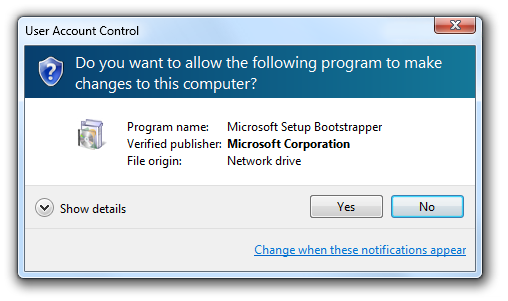
Some programs always request administrator rights and trigger a User Account Control (UAC) prompt, even when they do not strictly need elevation. This guide shows legitimate ways to run such apps as a standard user — useful when you do not have admin credentials handy or want to avoid unnecessary prompts.
You can run some apps as a standard user without the UAC prompt.
Warning: Only do this for software you trust. Running an app without elevation that genuinely needs admin rights may cause it to fail, and you should never bypass UAC for unknown or untrusted programs.
Key Takeaways
- The RUNASINVOKER compatibility setting runs an app with your current (standard) privileges.
- Some apps only request elevation out of habit and work fine without it.
- Tools like AdvancedRun give a graphical way to launch apps with chosen privileges.
- This will not grant rights the app actually needs — it simply skips the elevation request.
Why Run Without Elevation?
- Avoid repeated UAC prompts for apps that do not truly need admin rights.
- Run an app on a standard account without entering administrator credentials.
- Test how a program behaves with limited privileges.
Method 1 — RunAsInvoker via a Batch File
1. Open Notepad and enter: cmd /min /C "set __COMPAT_LAYER=RUNASINVOKER && start \"\" \"C:\\Path\\To\\Program.exe\""
2. Replace the path with your program’s full path.
3. Save the file with a .bat extension (for example RunNoUAC.bat).
4. Double-click the batch file to launch the program with standard privileges and no UAC prompt.
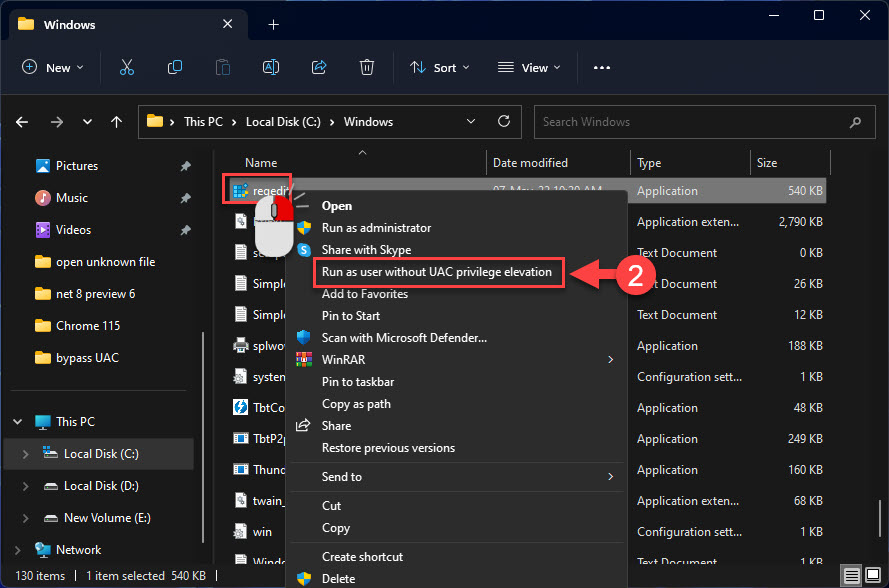
RunAsInvoker launches the program with your standard privileges.
Method 2 — Set Compatibility on the Shortcut
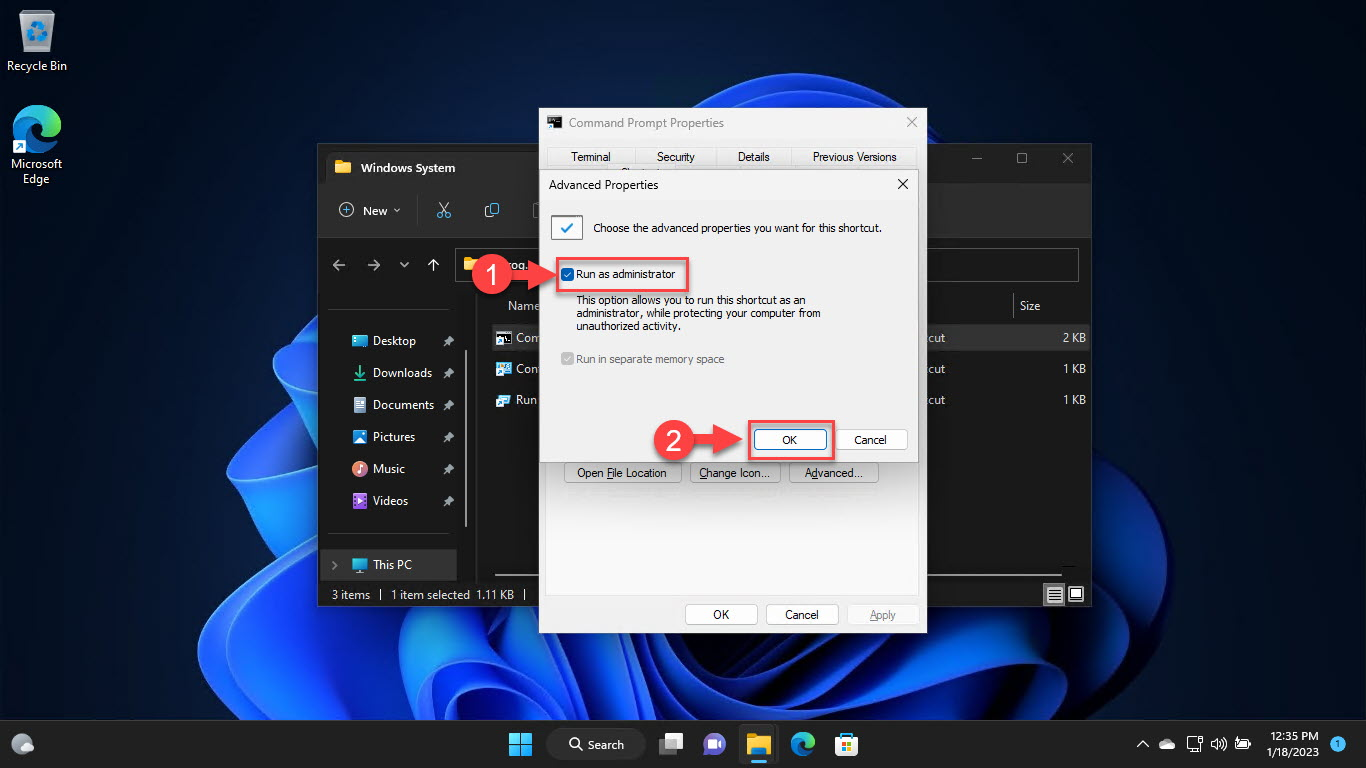
1. Confirm whether the program is set to always run as administrator (right-click > Properties > Compatibility).
2. If "Run this program as an administrator" is ticked, untick it and click OK.
3. Launch the program normally — if it does not truly need admin rights, it now runs without prompting.
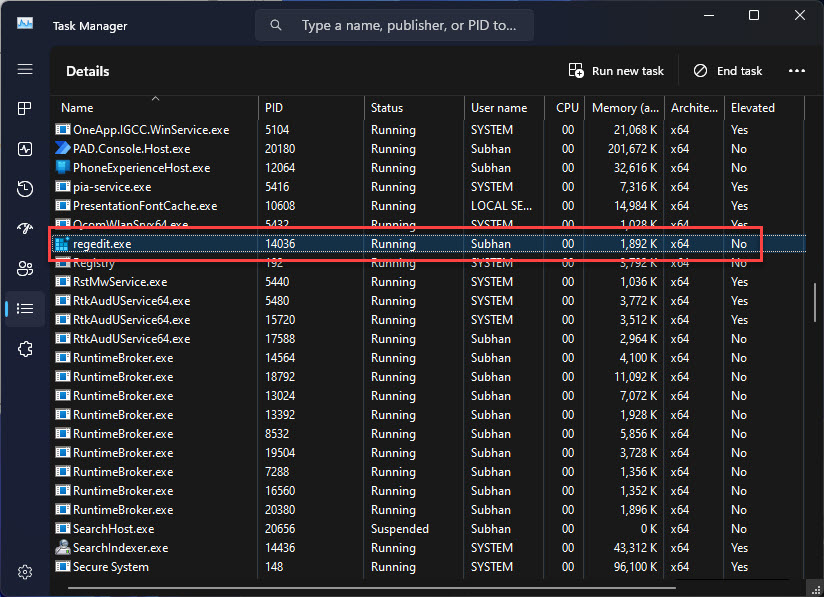
Check whether the program is set to always run as administrator.
Method 3 — AdvancedRun Tool
1. Download AdvancedRun from NirSoft (official) and extract it.
2. Open AdvancedRun and browse to the program you want to launch.
3. Set "Run As" to the current user / limited account.
4. Click Run to launch the app without elevation.
Method 4 — Command Prompt
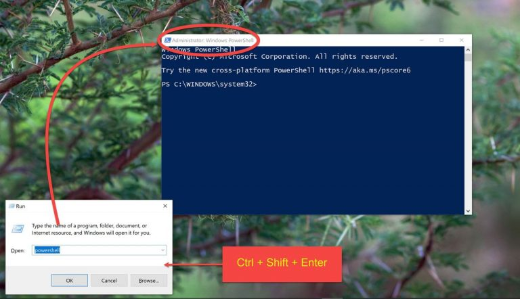
1. Open Command Prompt (standard, not elevated).
2. Run: set __COMPAT_LAYER=RUNASINVOKER
3. Then start the program: start "" "C:\Path\To\Program.exe"
4. The program launches using your current privileges.
Troubleshooting
Problem: The program fails or behaves oddly without elevation.
Solution: It genuinely needs administrator rights for some features. Run it elevated, or only use it without elevation for tasks that do not require admin access.
Problem: The batch file flashes and closes.
Solution: Check the program path is correct and properly quoted, and that the .exe exists at that location.
Problem: UAC still appears.
Solution: The app’s manifest forces elevation, which RUNASINVOKER cannot always override. Untick "Run as administrator" in the shortcut’s Compatibility tab as well.
Problem: You are unsure if it is safe.
Solution: Only apply these methods to trusted software. Never bypass UAC for programs from unknown sources.
Conclusion
The RUNASINVOKER setting is a clean way to launch trusted apps without an unnecessary UAC prompt. Use a batch file or AdvancedRun for convenience — but remember it only skips the prompt; it does not grant rights the app truly requires.
</w:pBdr><w:spacing w:before="220" w:after="40"/></w:pPr><w:r><w:rPr><w:b/><w:bCs/><w:color w:val="0B5394"/><w:sz w:val="21"/><w:szCs w:val="21"/><w:rFonts w:ascii="Calibri" w:cs="Calibri" w:eastAsia="Calibri" w:hAnsi="Calibri"/></w:rPr><w:t xml:space="preserve">About TechHub
This guide is part of the TechHub Knowledge Base. For more step-by-step IT guides and support, visit techhub.com.lk.