Overview
Listening (open) port එකක් කියන්නේ program එකක් incoming connections වලට බලාගෙන ඉන්න port එකක්. කුමන ports open ද — සහ ඒවා අයිති programs මොනවද — දැනගැනීමෙන් networking troubleshoot කරන්නත්, security risk එකක් වෙන්න පුළුවන් අනවශ්ය ports close කරන්නත් උදව් වෙනවා. මේ guide එකෙන් netstat සහ PowerShell පාවිච්චි කරලා listening ports list කරන හැටි පෙන්නනවා.
netstat හෝ PowerShell පාවිච්චි කරලා ඔබේ PC එක listen කරන ports check කරන්න.
Key Takeaways
- Listening port එකකට connections වලට බලාගෙන ඉන්න program එකක් තියෙනවා.
- Listening ports ඒවා අයිති process IDs එක්ක list කරන්න netstat -ano පාවිච්චි කරන්න.
- PowerShell එකේ Get-NetTCPConnection එකෙන් richer filtering එක්ක එකම information එක දෙනවා.
- Port එකක් භාවිතා කරන්නේ මොකක්ද identify කරන්න Task Manager එකේ PID එක program එකකට match කරන්න.
Types of Listening Ports
- TCP ports — connection-oriented; බොහෝ services (web, remote desktop, databases) මේවා පාවිච්චි කරනවා.
- UDP ports — connectionless; DNS, streaming, සහ සමහර games මේවා පාවිච්චි කරනවා.
- Well-known ports (0–1023) common services වලට reserved; higher ports apps dynamically පාවිච්චි කරනවා.
Find Listening Ports With Netstat (Command Prompt)
1. Command Prompt එක administrator විදිහට open කරන්න.
2. සියලුම connections සහ listening ports list කරන්න: netstat -an
3. Owning process ID එක ඇතුළත් කරන්න: netstat -ano (LISTENING state එක බලන්න).
4. එක් එක් port එකට program name එක පෙන්නන්න (admin ඕන): netstat -anb
5. PID එක note කරලා, program එකකට match කරන්න Task Manager > Details open කරන්න.
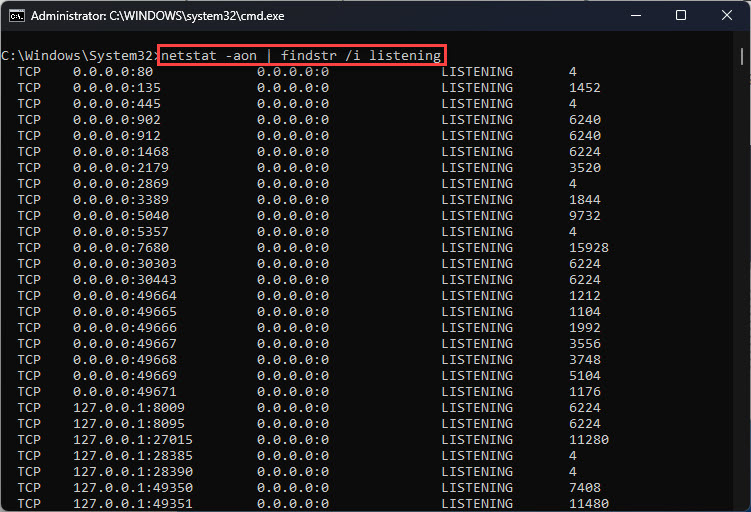
netstat මගින් Command Prompt එකේ listening ports සහ ඒවායේ states list කරනවා.
Find Listening Ports With PowerShell
1. PowerShell එක administrator විදිහට open කරන්න.
2. Listening TCP ports list කරන්න: Get-NetTCPConnection -State Listen
3. Port එකයි owning process එකයි පෙන්නන්න: Get-NetTCPConnection -State Listen | Select-Object LocalAddress,LocalPort,OwningProcess
4. Program එක identify කරන්න: Get-Process -Id (the OwningProcess number).
PowerShell එකේ Get-NetTCPConnection එකෙන් listening ports පැහැදිලිව filter කරනවා.
Tip: Specific port එකක් භාවිතා කරන්නේ මොකක්ද හොයන්න run කරන්න: netstat -ano | findstr :PORTNUMBER (උදාහරණයක් findstr :443).
Troubleshooting
Problem: netstat -anb එකෙන් program name එකට කිසිවක් පෙන්නන්නේ නෑ.
Solution: Command Prompt එක administrator විදිහට run කරන්න — -b switch එකට process names කියවන්න elevation ඕන.
Problem: ඔබ හඳුනගන්නේ නැති port එකක් listen කරනවා.
Solution: එහි PID එක Task Manager > Details එකේ program එකකට match කරන්න. Unknown හෝ suspicious නම්, program එක investigate කරලා malware scan කරන්න.
Problem: App එකක් භාවිතා කරන port එකක් free කරගන්න ඕන.
Solution: netstat -ano | findstr :PORT එකෙන් PID එක හොයලා, ඒ process එක end කරන්න (taskkill /PID number /F) නැත්නම් අදාළ service එක stop කරන්න.
Problem: Service එකක් listen කරන්න ඕන නමුත් කරන්නේ නෑ.
Solution: Service එක run වෙනවද confirm කරලා, firewall rules check කරලා, app එක expected address සහ port එකට bind වෙලාද verify කරන්න.
Conclusion
netstat -ano සහ PowerShell එකේ Get-NetTCPConnection එකෙන් කුමන ports open ද, ඒවා භාවිතා කරන්නේ මොකක්ද ඉක්මනට හෙළි කරනවා. Connectivity troubleshoot කරන්නත්, අවශ්ය නැති ports spot කරලා close කරන්නත් ඒවා පාවිච්චි කරන්න.
About TechHub
මේ guide එක TechHub Knowledge Base එකේ කොටසක්. තව step-by-step IT guides සහ support වලට techhub.com.lk එකට යන්න.