Overview
When an app freezes or you want to end a process from a script, the command line is faster and more flexible than Task Manager. This guide shows how to list and kill processes using Command Prompt (taskkill), PowerShell (Stop-Process), WMIC, and the Sysinternals PsKill tool.
The command line lets you terminate processes quickly and in scripts.
Key Takeaways
- Use taskkill in Command Prompt, or Stop-Process in PowerShell.
- Identify a process first by its name or PID (process ID).
- Add the force option (/F or -Force) to end unresponsive processes.
- Command-line termination is ideal for scripts and remote management.
Why Use the Command Line?
The command line lets you terminate processes by name or ID, end multiple processes at once, and include the action in automation scripts — things the graphical Task Manager cannot do as efficiently.
Method 1 — Command Prompt (taskkill)
1. Open Command Prompt as administrator.
2. List running processes: tasklist
3. Kill by process ID: taskkill /PID 1234 /F
4. Kill by image name: taskkill /IM notepad.exe /F (the /F forces termination)
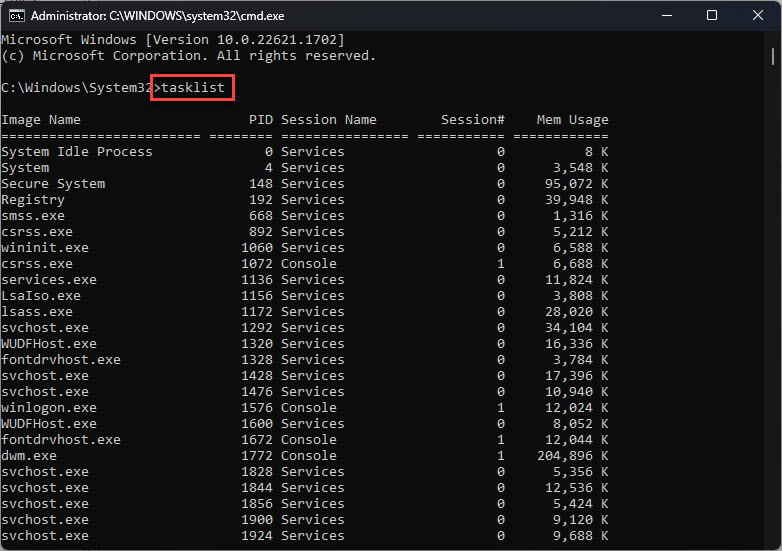
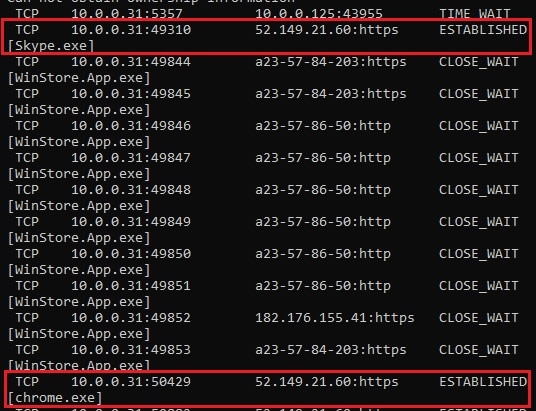
List running processes with tasklist before killing one.
Method 2 — PowerShell (Stop-Process)
1. Open PowerShell as administrator.
2. List processes: Get-Process
3. Kill by name: Stop-Process -Name "notepad" -Force
4. Kill by ID: Stop-Process -Id 1234 -Force
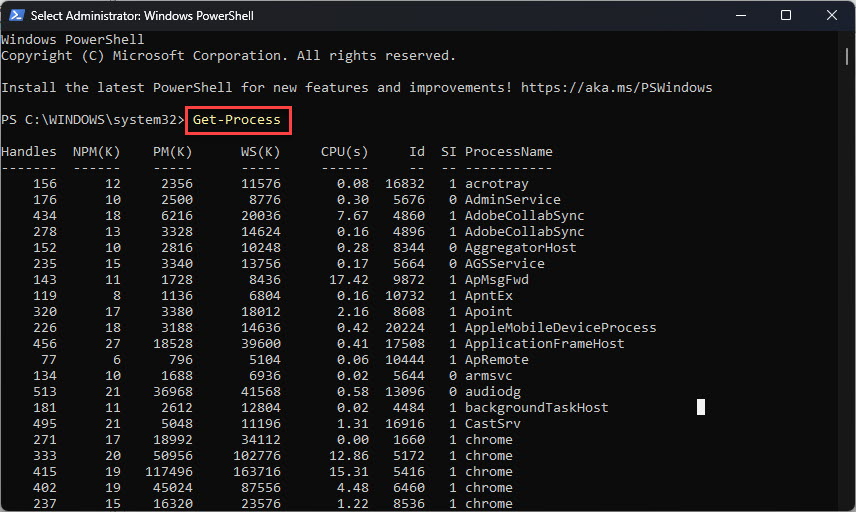
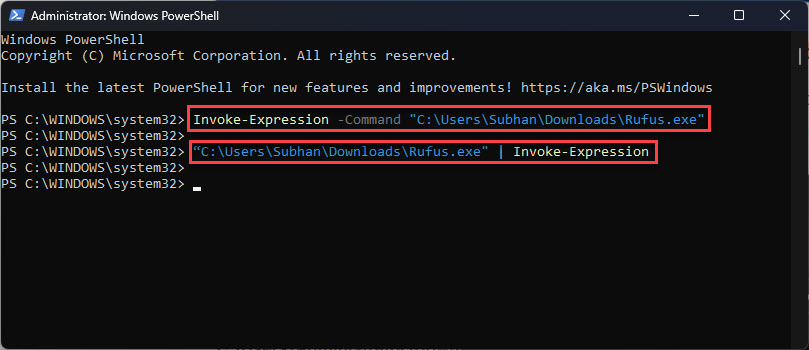
Use Get-Process and Stop-Process in PowerShell.
Method 3 — WMIC
1. Open Command Prompt as administrator.
2. Kill by name: wmic process where name="notepad.exe" delete
3. Kill by PID: wmic process where processid=1234 delete
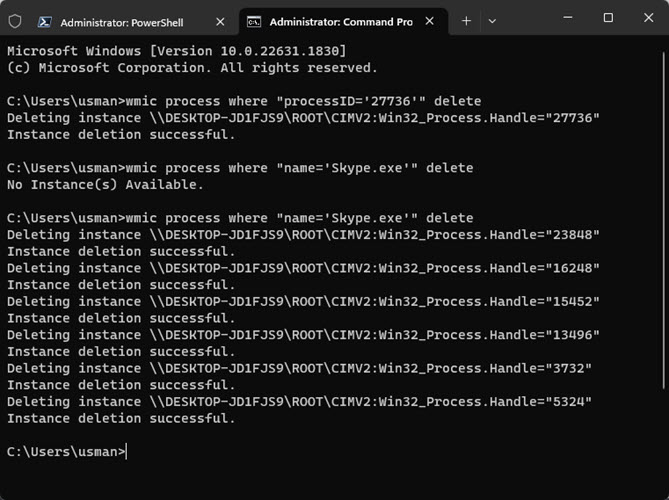
WMIC can delete a process by name or PID.
Note: WMIC is deprecated in the latest Windows versions; prefer taskkill or PowerShell going forward.
Method 4 — Sysinternals PsKill
1. Download PsTools from Microsoft Sysinternals (official) and extract it.
2. Open Command Prompt in that folder.
3. Kill by name or PID: pskill notepad (or pskill 1234).
4. PsKill can also terminate processes on remote computers.
Troubleshooting
Problem: "Access denied" when killing a process.
Solution: Run Command Prompt or PowerShell as administrator. System processes may still be protected.
Problem: The process restarts immediately after you kill it.
Solution: A service or parent process is relaunching it. Stop the related service, or end the parent process tree (taskkill /T).
Problem: You do not know the PID.
Solution: Run tasklist (or Get-Process) to find the name and PID, then target it.
Problem: taskkill says the process could not be terminated.
Solution: Add /F to force it, and ensure you have permission. Some protected system processes cannot be ended.
Conclusion
taskkill and PowerShell’s Stop-Process are the go-to ways to end processes from the command line, by name or PID. Add the force flag for stuck apps, and use PsKill when you need to reach a remote machine.
</w:pBdr><w:spacing w:before="220" w:after="40"/></w:pPr><w:r><w:rPr><w:b/><w:bCs/><w:color w:val="0B5394"/><w:sz w:val="21"/><w:szCs w:val="21"/><w:rFonts w:ascii="Calibri" w:cs="Calibri" w:eastAsia="Calibri" w:hAnsi="Calibri"/></w:rPr><w:t xml:space="preserve">About TechHub
This guide is part of the TechHub Knowledge Base. For more step-by-step IT guides and support, visit techhub.com.lk.