Overview
If you have opened Task Manager and noticed a process called ctfmon.exe, you may wonder what it does and whether it is safe. Ctfmon.exe is a legitimate Windows component that supports alternative text input methods. This guide explains what the process is, whether it is a virus, and how to enable or disable it safely.
Key Takeaways
- ctfmon.exe (CTF Loader) manages alternative text input such as handwriting, speech, and language input.
- It is a genuine Windows file located in the System32 folder.
- Disabling it can break voice typing, the touch keyboard, and some language features.
- A copy of ctfmon.exe outside System32 may indicate malware and should be scanned.
What Is the ctfmon.exe Process?
Ctfmon.exe stands for Collaborative Translation Framework Monitor, often called the CTF Loader. It activates the Alternative User Input Text Input Processor and the Microsoft Office Language Bar. In practice, it enables features like the touch keyboard, handwriting recognition, speech input, and switching between input languages. Windows starts it automatically when these services are needed.
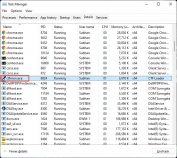
ctfmon.exe running in Task Manager.
Is ctfmon.exe a Virus?
The genuine ctfmon.exe is not a virus. However, malware sometimes disguises itself using the same file name. You can verify authenticity by checking its location.
1. Open Task Manager with Ctrl + Shift + Esc and go to the Details tab.
2. Right-click ctfmon.exe and choose Open file location.
3. Confirm the file is located in C:\Windows\System32.
4. If the file runs from any other folder, run a full scan with Windows Security or your antivirus.
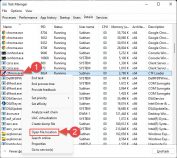
Verifying the file location of ctfmon.exe.
Note: A legitimate ctfmon.exe always lives in C:\Windows\System32. Treat any copy in another location as suspicious and scan your system.
How to Disable ctfmon.exe
You can stop the process, but remember it will restart when an input feature needs it. To keep it disabled, adjust startup and scheduled tasks.
Warning: Disabling ctfmon.exe can break the touch keyboard, handwriting, voice typing, and language switching. Only disable it if you do not use these features, and be ready to re-enable it if input tools stop working.
1. Open Task Manager, select ctfmon.exe on the Details tab, and click End task to stop it for the current session.
2. To prevent it from starting automatically, open Task Scheduler and browse to Task Scheduler Library > Microsoft > Windows > TextServicesFramework.
3. Disable the MsCtfMonitor task.
4. Restart the computer to apply the change.
How to Enable ctfmon.exe on Startup
If input features have stopped working, re-enable the process.
1. Open Task Scheduler and go to Microsoft > Windows > TextServicesFramework.
2. Right-click the MsCtfMonitor task and choose Enable.
3. Alternatively, run ctfmon.exe directly from C:\Windows\System32 to start it immediately.
4. Restart the PC so the process loads automatically with Windows.
Tip: If you only need ctfmon.exe occasionally, leave it enabled. It uses very little memory and only becomes active when an input feature requires it.
Troubleshooting
Problem: ctfmon.exe keeps restarting after I end the task.
Solution: This is normal — Windows relaunches it when an input feature is used. Disable the MsCtfMonitor scheduled task to keep it from restarting.
Problem: The touch keyboard or voice typing stopped working.
Solution: Re-enable the MsCtfMonitor task or run ctfmon.exe from System32, then restart. These features depend on the process.
Problem: I found ctfmon.exe outside System32.
Solution: That is a warning sign of malware. Run a full scan with Windows Security and remove any threats it finds.
Problem: ctfmon.exe is using unusually high resources.
Solution: Restart the PC and check for pending Windows updates. Persistent high usage from the genuine file is rare and often cleared by an update or reboot.
Conclusion
Ctfmon.exe is a normal, lightweight Windows process that powers alternative text input methods. In its genuine System32 location it is safe and best left running. You can disable it through Task Scheduler if you do not use touch, handwriting, or voice input, but re-enable it if those features stop responding.
About TechHub
This guide is part of the TechHub Knowledge Base. For more step-by-step IT guides and support, visit techhub.com.lk.