Overview
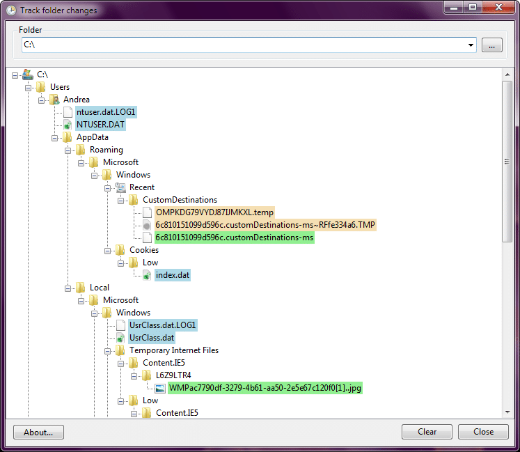
When you install software, it often changes many files and registry entries beyond the obvious. Monitoring those changes helps with troubleshooting, clean uninstalls, and spotting suspicious behaviour. This guide covers seven tools that track file and registry changes.
Monitoring tools reveal exactly what files and registry keys change.
Key Takeaways
- Snapshot tools compare before/after states to show what changed.
- Real-time tools log file/registry activity as it happens.
- Use them to troubleshoot installs, build clean uninstallers, or investigate malware.
- Process Monitor (Sysinternals) is the most powerful real-time option.
Snapshot (Before/After) Tools
- Regshot — takes a registry/file snapshot before and after an install and lists the differences (free, lightweight).
- InstallWatch Pro — records changes during an installation for later review.
- SysTracer — captures full system snapshots and compares them.
- WhatChanged — quickly scans for changed files and registry keys.
Real-Time Monitoring Tools
- Process Monitor (ProcMon) — Sysinternals tool that logs live file, registry, and process activity with powerful filters.
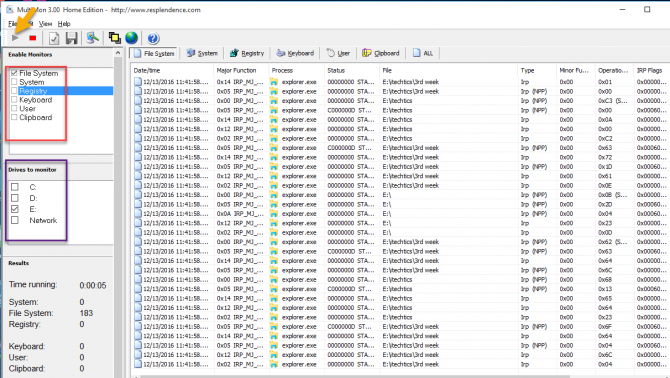
- MultiMon — monitors multiple change types in real time.
- RegistryChangesView (NirSoft) — compares registry snapshots to highlight changes.
How to Use a Snapshot Tool (Regshot Example)
1. Download Regshot from its official source and run it.
2. Click "1st shot" to capture the current state before installing anything.
3. Install or run the program you want to monitor.
4. Click "2nd shot", then Compare to get a report of all added/changed/deleted files and registry keys.
How to Use Process Monitor
1. Download Process Monitor from Microsoft Sysinternals and run it as administrator.
2. Set filters (e.g. by Process Name) to reduce noise.
3. Reproduce the action you want to inspect.
4. Review the captured file and registry operations in real time.
Warning: Download these tools only from their official sources (Sysinternals, NirSoft, or the vendor site).
Troubleshooting
Problem: Too many events to read in ProcMon.
Solution: Apply filters by process name, path, or operation to focus on what you need.
Problem: Snapshot comparison shows huge noise.
Solution: Close background apps before the first shot, and exclude volatile keys; Regshot lets you filter common noisy paths.
Problem: A tool needs admin rights.
Solution: Run it as administrator to capture system-level file and registry changes.
Problem: You want to build a clean uninstaller.
Solution: Use the snapshot diff to find every file/key an installer added, then remove them precisely.
Conclusion
To see what really changes on your system, use a snapshot tool like Regshot for before/after diffs, or Process Monitor for live detail. They are invaluable for troubleshooting installs, cleaning up software, and investigating suspicious activity.
</w:pBdr><w:spacing w:before="220" w:after="40"/></w:pPr><w:r><w:rPr><w:b/><w:bCs/><w:color w:val="0B5394"/><w:sz w:val="21"/><w:szCs w:val="21"/><w:rFonts w:ascii="Calibri" w:cs="Calibri" w:eastAsia="Calibri" w:hAnsi="Calibri"/></w:rPr><w:t xml:space="preserve">About TechHub
This guide is part of the TechHub Knowledge Base. For more step-by-step IT guides and support, visit techhub.com.lk.