How to Identify Which Programs Are Making Sound in Windows
Track down a mystery sound using the Volume Mixer and Process Monitor.
Overview
A random ding or ad audio with no visible window is annoying. Windows’ Volume Mixer shows which apps are producing sound, and Process Monitor can catch background culprits. This guide shows both.
Identifying which program is making sound.
Key Takeaways
- Volume Mixer lists apps currently playing audio.
- A bouncing level next to an app reveals the source.
- Process Monitor can catch background audio events.
- Browser tabs are a common hidden source.
Method 1: Volume Mixer
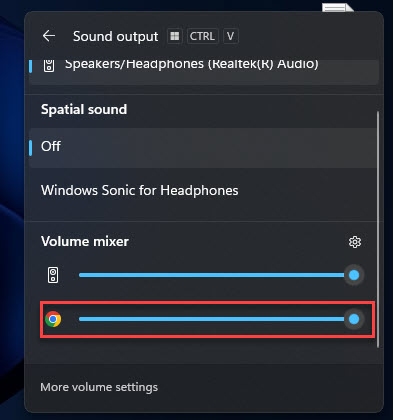
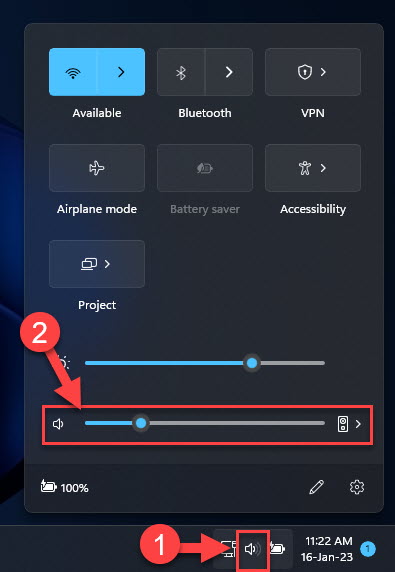
1. Right-click the speaker icon in the taskbar > Open Volume Mixer (or Settings > System > Sound > Volume mixer).
2. Watch the per-app volume bars while the sound plays.
3. The app whose level bounces is producing the audio.
4. Mute or lower that app to confirm.
The Volume Mixer shows active audio apps.
Method 2: Check Browser Tabs
1. If a browser is the source, look for the speaker icon on a tab.
2. Right-click the noisy tab > "Mute site".
3. Autoplaying ads/videos are a frequent hidden cause.
Method 3: Process Monitor (Advanced)
Note: Download Process Monitor only from Microsoft’s official Sysinternals site.
1. Run Process Monitor (Procmon).
2. Filter for audio-related activity (e.g., paths containing "audio" or the Windows audio service).
3. Correlate events with the time the sound plays to spot the process.
Troubleshooting
Problem: Nothing shows in the Mixer.
Solution: The sound may be a quick system event — watch closely, or use Process Monitor to catch it.
Problem: A background app has no window.
Solution: Find it in the Mixer or Task Manager, then close it; check startup apps for auto-launchers.
Problem: Browser keeps making noise.
Solution: Mute the offending tab/site and consider blocking autoplay in the browser settings.
Problem: Recurring system ding.
Solution: Check Sound settings > System Sounds, and look for a device connect/disconnect loop.
Conclusion
The Volume Mixer is the fastest way to see which app is making sound — watch the bouncing levels and mute the culprit. For elusive background audio, mute browser tabs or use Process Monitor to trace the responsible process.