Overview
Windows එකේ volume වෙනස් කරන්නත් audio tone එක (bass සහ treble) tweak කරන්නත් ක්රම කිහිපයක් තියෙනවා. මේ guide එකෙන් overall සහ per-app volume adjust කරන හැටිත්, bass එක shape කරන්න sound enhancements සහ equalizer use කරන හැටිත් cover කරනවා.
Windows එකේ volume levels adjust කිරීම.
Key Takeaways
- Keys, Quick Settings, හෝ Volume Mixer එකෙන් volume adjust කරන්න.
- Volume Mixer එකෙන් per-app levels set කරනවා.
- Bass Boost සහ equalizer තියෙන්නේ Sound applet එකේ enhancements වල.
- Third-party equalizers වලින් තව සියුම් tone control එකක් ලැබෙනවා.
Adjust Volume
1. ඉක්මන් changes වලට ඔබේ keyboard එකේ volume keys use කරන්න.
2. Taskbar එකේ speaker icon එක (Quick Settings) click කරලා slider එක drag කරන්න.
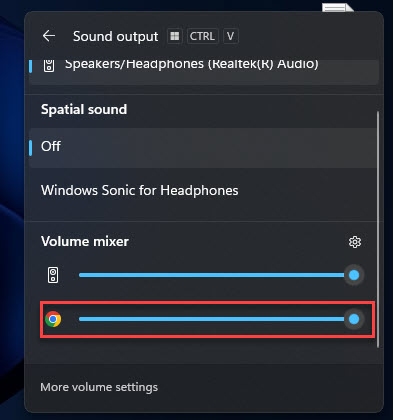
3. Per-app control එකට speaker icon එක right-click කරලා > Open Volume Mixer.
4. Mixer එකේ එක් එක් app එකේ level එක වෙන වෙනම set කරන්න.
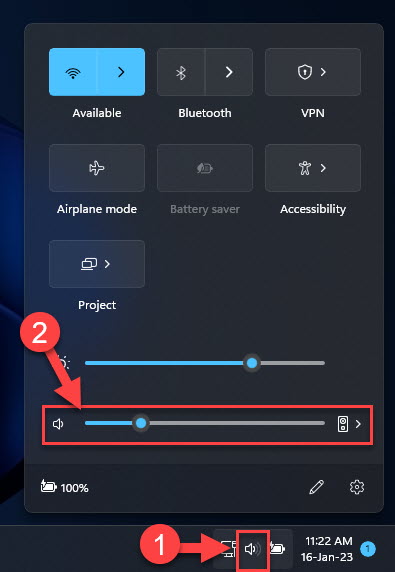
Quick Settings එකෙන් volume adjust කිරීම.
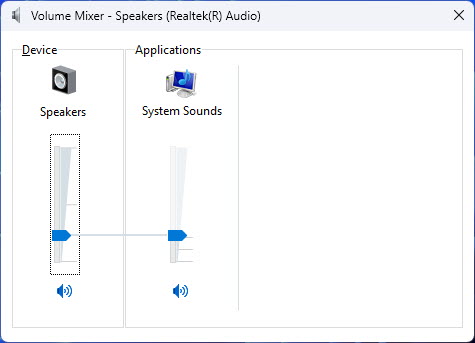
Per-app levels වලට Volume Mixer එක.
Adjust Bass (and Treble)
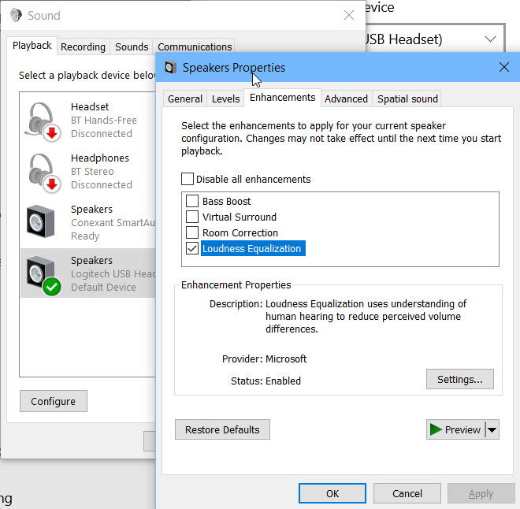
1. Sound applet එක open කරන්න: mmsys.cpl run කරන්න.
2. ඔබේ playback device එක select කරලා Properties click කරන්න.
3. Enhancements tab එකට යන්න.
4. "Bass Boost" enable කරන්න (එහි level එක configure කරන්න), හෝ low frequencies raise කරන්න Equalizer එක open කරන්න.
5. Changes apply කරලා test කරන්න.
Note: ඔබේ device එකට Enhancements tab එකක් නැත්නම්, එහි driver එක එය support කරන්නේ නැති වෙන්න පුළුවන් — third-party equalizer එකකින් මේ capability එක add කරන්න පුළුවන්.
Use a Third-Party Equalizer
1. හොඳ reputation එකක් තියෙන equalizer එකක් (උදා: Equalizer APO) එහි official source එකෙන් install කරන්න.
2. Bass වැඩි කරන්න low-frequency bands configure කරන්න.
3. සමබර sound එකකට treble/highs ත් ඒ වගේම adjust කරන්න.
Troubleshooting
Problem: Enhancements tab එකක් නෑ.
Solution: ඔබේ audio driver එක එය expose කරන්නේ නැති වෙන්න පුළුවන් — driver එක update කරන්න හෝ tone control එකට Equalizer APO use කරන්න.
Problem: Volume keys work වෙන්නේ නෑ.
Solution: OEM keyboard/hotkey software install කරන්න, හෝ keys map කරන්න; audio driver එක check කරන්න.
Problem: Bass boost එකෙන් distortion එනවා.
Solution: Boost level එක අඩු කරන්න; bass වැඩි වුණාම කුඩා speakers overdrive වෙනවා.
Problem: Per-app volume reset වෙනවා.
Solution: සමහර apps launch වෙනකොට තමන්ගේ volume එක reset කරනවා — app එක open කරාට පස්සේ එය set කරන්න.
Conclusion
Windows එකෙන් keyboard එකෙන්, Quick Settings වලින්, හෝ per-app Volume Mixer එකෙන් volume control කරන එක ලේසි කරලා තියෙනවා, Sound applet එකේ enhancements (Bass Boost සහ equalizer) එකෙන් tone එක shape කරනවා. නිශ්චිත bass සහ treble වලට Equalizer APO වගේ tool එකකින් සම්පූර්ණ control එකක් ලැබෙනවා.
About TechHub
මේ guide එක TechHub Knowledge Base එකේ කොටසක්. තව step-by-step IT guides සහ support වලට techhub.com.lk එකට යන්න.