Overview
Dev Drive is a Windows 11 storage volume built on the ReFS file system and tuned for developer workloads. It offers measurable performance gains for tasks like cloning repositories, restoring packages, and building projects, partly through a "performance mode" for security scanning. This guide explains what it is and how to set one up.
A Dev Drive is a ReFS volume optimized for developer workloads.
Key Takeaways
- Dev Drive uses ReFS and a performance mode for faster builds and package operations.
- It is designed for source code, package caches, and build output — not general files.
- You can create it from a virtual disk (VHD), unallocated space, or by resizing a volume.
- It requires a recent Windows 11 build and enough free space.
Benefits of a Dev Drive
- Faster file-heavy developer tasks such as git operations and npm/NuGet restores.
- A performance mode that lets Microsoft Defender scan asynchronously, reducing overhead.
- Better control over what security and filters apply to your developer files.
Requirements
- Windows 11 version 22H2 (with the relevant update) or later — 23H2 includes it.
- At least 16 GB of RAM recommended (8 GB minimum).
- A minimum of 50 GB of free disk space for the Dev Drive.
- Administrator rights to create the volume.
How to Create a Dev Drive
1. Open Settings > System > Storage > Advanced storage settings > Disks & volumes.
2. Click Create Dev Drive.
3. Choose a creation method: Create new VHD, Unallocated space, or Resize an existing volume.
4. Follow the prompts to set the size, drive letter, and label.
5. Finish — the new ReFS-based Dev Drive appears in File Explorer.
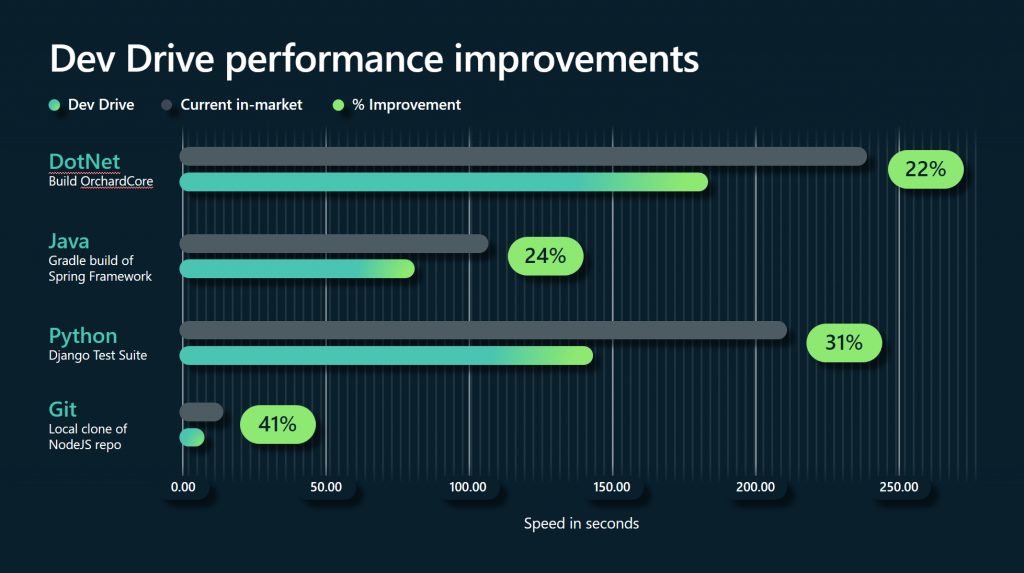
Dev Drive delivers performance improvements for developer workloads.
Creation Methods Explained
- Create new VHD — makes a virtual disk file that acts as the Dev Drive; easy and flexible.
- Use unallocated space — turns free, unpartitioned disk space into a Dev Drive.
- Resize an existing volume — shrinks another partition to free space for the Dev Drive.
How to Delete a Dev Drive
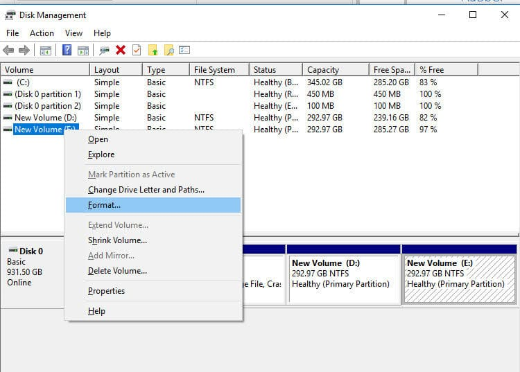
1. Open Settings > System > Storage > Disks & volumes.
2. Select the Dev Drive volume.
3. Choose Delete (or Format, depending on your need), and confirm.
4. If it was a VHD, you can also detach and delete the .vhdx file.
Troubleshooting
Problem: The Create Dev Drive option is missing.
Solution: Update Windows 11 to a build that includes Dev Drive (22H2 with the relevant update, or 23H2+), and ensure you have enough free space.
Problem: An app cannot use files on the Dev Drive.
Solution: Dev Drive uses ReFS, which a few tools do not fully support. Keep incompatible workloads on an NTFS volume.
Problem: Not enough space to create it.
Solution: Free up space or use the resize option to shrink another volume by at least 50 GB.
Problem: You want maximum performance.
Solution: Keep performance mode (trusted) enabled for your Dev Drive and store only developer files there, not general documents.
Conclusion
Dev Drive is a simple way to give your development files a faster, purpose-built home on Windows 11. Create one from a VHD or spare space, keep your code and packages on it, and enjoy quicker builds and restores.
</w:pBdr><w:spacing w:before="220" w:after="40"/></w:pPr><w:r><w:rPr><w:b/><w:bCs/><w:color w:val="0B5394"/><w:sz w:val="21"/><w:szCs w:val="21"/><w:rFonts w:ascii="Calibri" w:cs="Calibri" w:eastAsia="Calibri" w:hAnsi="Calibri"/></w:rPr><w:t xml:space="preserve">About TechHub
This guide is part of the TechHub Knowledge Base. For more step-by-step IT guides and support, visit techhub.com.lk.