Overview
ඔබේ PC එක 100% වුණත් ගොඩක් හෙමින් නම්, built-in features සහ third-party tools පාවිච්චි කරලා sound එක amplify කරන්න පුළුවන්. මේ guide එකෙන් Windows ගේ Loudness Equalization එකේ ඉඳන් VLC ගේ 300% boost එක සහ dedicated booster apps දක්වා හැම දේම කවර් කරනවා.
ඔබේ PC එකේ volume එක සාමාන්ය maximum එකට වඩා වැඩි කරන්න ක්රම කිහිපයක් තියෙනවා.
Warning: Volume එක 100% වලට වඩා ගොඩක් වැඩි කරන එකෙන් audio distort වෙන්න පුළුවන්, high levels වලදී speakers හෝ ඔබේ ඇහීම damage වෙන්නත් පුළුවන්. ටිකෙන් ටික වැඩි කරලා levels සාධාරණව තියාගන්න.
Key Takeaways
- මුලින්ම per-app volume එකයි default playback device එකයි check කරන්න.
- Loudness Equalization එක (audio enhancement එකක්) extra software නැතුව perceived volume එක වැඩි කරනවා.
- VLC වලට media 300% volume දක්වා play කරන්න පුළුවන්.
- Letasoft Sound Booster හෝ Equalizer APO වගේ booster apps system-wide amplify කරනවා.
First Checks
1. System volume එකයි app එකේම volume එකයි දෙකම වැඩි කරලා තියෙනවද කියලා තහවුරු කරගන්න.
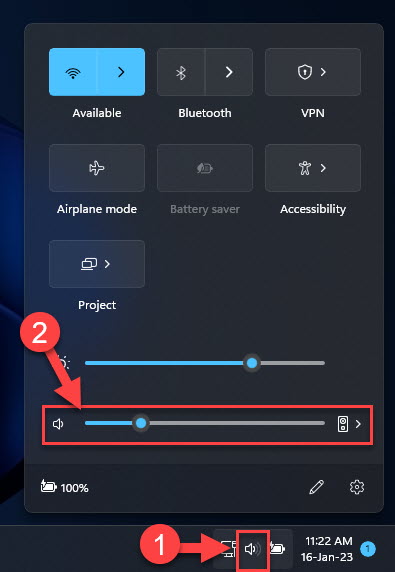
2. Volume mixer (හෝ Quick Settings) open කරලා specific app එකට level එක වැඩි කරන්න.
3. Settings > Sound වල හරි Output device එක select කරලා තියෙනවද කියලා තහවුරු කරගන්න.
4. Laptop speaker grilles වල දූවිලි clean කරන්න, ඒවා sound එක muffle කරන්න පුළුවන්.
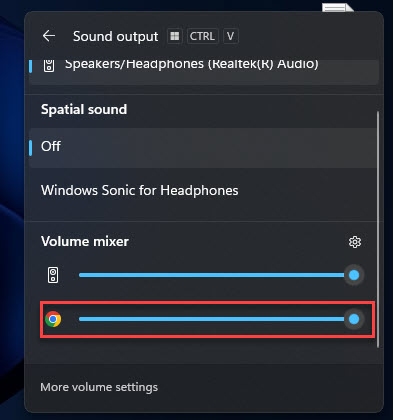
Volume mixer / Quick Settings වල per-app volume එක adjust කරන්න.
Method 1 — Enable Loudness Equalization
1. Windows key + R press කරලා, mmsys.cpl type කරලා, Enter press කරන්න.
2. Playback tab එකේ, ඔබේ device එක select කරලා Properties click කරන්න.
3. Enhancements tab එක open කරන්න.
4. Loudness Equalization tick කරලා, Apply — මේකෙන් quiet audio එක even කරලා වැඩි කරනවා.
Note: Enhancements tab එකක් නැත්නම්, එය පෙන්වන්න Microsoft High Definition Audio driver එකට switch වෙන්න (Enhancements tab එක restore කරන අපේ guide එක බලන්න).
Method 2 — Use VLC Media Player (up to 300%)
1. ඔබේ media එක VLC වල open කරන්න.
2. Volume slider එක 100% ට උඩට drag කරන්න — VLC වලට 300% දක්වා permit කරනවා.
3. Default cap එක වැඩි කරන්න, Tools > Preferences > Audio වලට ගිහින් maximum volume level එක set කරන්න.
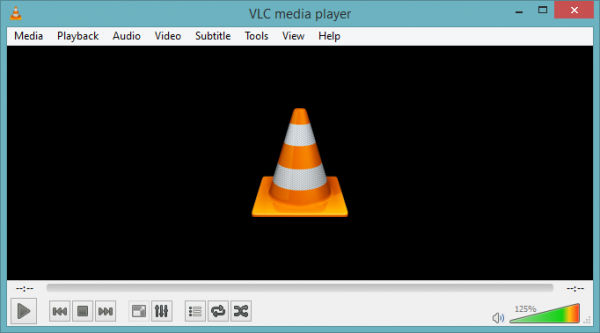
VLC වලට playback volume එක 300% දක්වා boost කරන්න පුළුවන්.
Method 3 — Sound Booster Software
- Letasoft Sound Booster — system-wide volume එක 100% ට වැඩියෙන් amplify කරනවා.
- Equalizer APO — gain add කරන්න පුළුවන් free, powerful system-wide equalizer එකක්.
- Reputable tools ඒවායේ official sites වලින් පාවිච්චි කරන්න, distortion වළක්වන්න gain එක පරිස්සමින් වැඩි කරන්න.
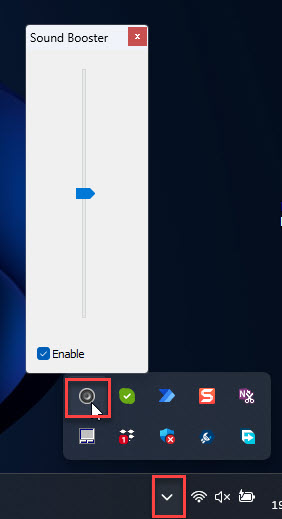
Letasoft Sound Booster එකෙන් system audio amplify කරනවා.
Other Fixes
- Audio troubleshooter එක run කරන්න (Settings > System > Troubleshoot).
- Device Manager වලින් හෝ manufacturer ගෙන් audio driver එක update හෝ reinstall කරන්න.
- වැඩි output එකකට වෙනත් playback device එකක් හෝ external speakers/headphones try කරන්න.
Troubleshooting
Problem: Boost කරනකොට audio distort වෙනවා.
Solution: Boost level එක අඩු කරන්න; ගොඩක් amplify කරනකොට signal එක clip වෙනවා. Loudness Equalization එක raw gain එකට වඩා මෘදුයි.
Problem: Loudness Equalization වලට Enhancements tab එකක් නෑ.
Solution: Enhancements tab එක පෙන්වන Microsoft High Definition Audio driver එකට switch වෙන්න.
Problem: Boost එක එක app එකක විතරයි වැඩ කරන්නේ.
Solution: හැම audio එකම amplify කරන්න Equalizer APO හෝ Letasoft Sound Booster වගේ system-wide tool එකක් පාවිච්චි කරන්න.
Problem: තාම හෙමිනුයි.
Solution: Speakers underpowered වෙන්න පුළුවන්. External speakers හෝ headphones පාවිච්චි කරන්න, නැත්නම් වැඩි output එකකට amplifier/DAC එකක්.
Conclusion
Loudness Equalization, VLC ගේ 300% slider එක, හෝ trusted booster app එකක් එක්ක Windows audio එක 100% ට වඩා push කරන්න පුළුවන්. Distortion වළක්වන්න සහ speakers සහ ඇහීම protect කරගන්න ටිකෙන් ටික වැඩි කරන්න.
About TechHub
මේ guide එක TechHub Knowledge Base එකේ කොටසක්. තව step-by-step IT guides සහ support වලට techhub.com.lk එකට යන්න.