Overview
The Volume Mixer lets you set the volume of each app separately, so you can mute a browser while keeping music playing. This guide lists the quickest ways to open it.
Key Takeaways
- The Volume Mixer sets per-app volume levels.
- You can open it from the taskbar sound icon or Settings.
- Windows 11 includes it in the sound quick settings.
- It is ideal for balancing multiple audio sources.
Ways to Open It
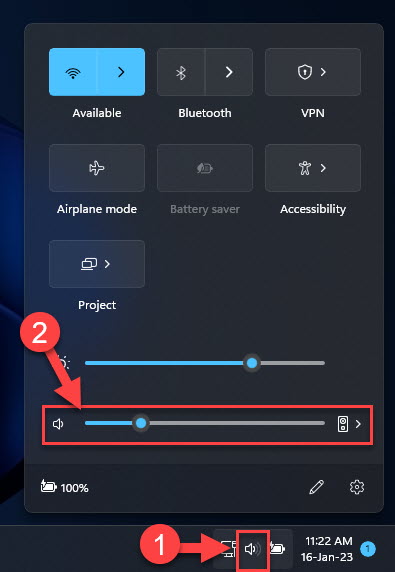
1. Right-click the speaker icon in the taskbar and choose Open Volume mixer.
2. Or open Settings > System > Sound > Volume mixer.
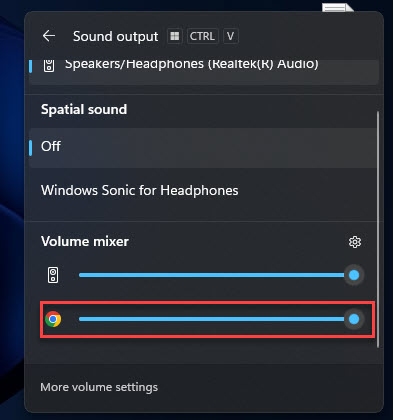
3. On Windows 11, click the volume quick setting and expand the mixer.
4. Search for Volume mixer in the Start menu.
Opening the Volume Mixer from the taskbar sound icon.
Adjust App Volumes
1. Find the app whose volume you want to change.
2. Drag its slider up or down independently of the master volume.
3. Mute a single app with its speaker icon.
4. Assign different output devices per app on Windows 11 if desired.
Tip: The mixer also lets you route different apps to different output devices on Windows 11.
Troubleshooting
Problem: An app is missing from the mixer.
Solution: The app must be actively playing audio to appear; start playback and recheck.
Problem: The Open Volume mixer option is gone.
Solution: Open it from Settings > System > Sound instead of the taskbar.
Problem: App volume resets each launch.
Solution: Some apps reset their level on start; set it after opening the app.
Problem: No sound despite mixer levels being up.
Solution: Confirm the correct output device is selected and not muted at the system level.
Conclusion
The Volume Mixer gives you precise, per-app audio control. Open it from the taskbar or Sound settings and balance every source exactly how you like.
About TechHub
This guide is part of the TechHub Knowledge Base. For more step-by-step IT guides and support, visit techhub.com.lk.