Overview
Windows Sonic for Headphones කියන්නේ ඕනෑම stereo headphones එකක 3D, positional audio simulate කරන Microsoft's free spatial-sound feature එක. ඒකෙන් games සහ movies වඩාත් immersive කරන්න පුළුවන්. මේ guide එකෙන් ඒක පැහැදිලි කරලා, Windows 10 සහ 11 වල enable කරන ආකාරය පෙන්නනවා.
Windows Sonic එකෙන් ඕනෑම headphones එකකට free spatial (3D) sound එකතු කරනවා.
Key Takeaways
- Windows Sonic කියන්නේ Windows එකේ built-in free spatial-sound engine එකක්.
- ඕනෑම stereo headphones එකක වැඩ කරනවා — special hardware ඕන නෑ.
- Taskbar volume icon එකෙන්, Settings එකෙන්, හෝ device Properties එකෙන් enable කරන්න.
- Dolby Atmos සහ DTS කියන්නේ ඒවායේම apps එක්ක paid alternatives.
Spatial Sound කියන්නේ මොකක්ද?
Spatial sound එකෙන් audio ඔබ වටේ 3D space එකක position කරනවා, ඒ නිසා sounds specific directions සහ distances වලින් එනවා වගේ දැනෙනවා — left/right stereo විතරක් නෙවෙයි. Windows Sonic audio process කරලා මේ effect එක ordinary headphones වල හදනවා.
Pros සහ Cons
- Pro — free, ඕනෑම headphones එකක වැඩ කරනවා, වඩාත් immersive positional audio.
- Pro — gaming, movies, සහ shooters වල footstep awareness වලට useful.
- Con — සමහරුන්ට hardware/paid options එක්ක බලද්දී effect එක subtle.
- Con — original stereo mix එක ටිකක් වෙනස් කරන්න පුළුවන්; හැමෝම prefer කරන්නේ නෑ.
Windows 10 එකේ Windows Sonic Enable කරන්න
1. Taskbar එකේ speaker/volume icon එක right-click කරන්න.
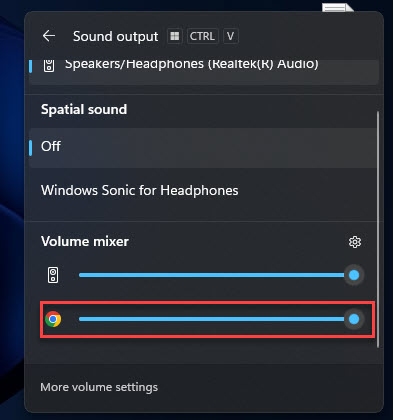
2. Spatial sound (Off) මතින් hover කරන්න.
3. Windows Sonic for Headphones තෝරන්න.
4. නැත්නම්, Sound settings > Device properties > Spatial sound open කරලා Windows Sonic තෝරන්න.
Windows 11 එකේ Windows Sonic Enable කරන්න
1. Settings > System > Sound open කරන්න.
2. ඔබේ output device එක (headphones) select කරන්න.
3. Spatial sound යටතේ, Windows Sonic for Headphones තෝරන්න.
4. ඉක්මනට switch කරන්න volume icon එක right-click > Spatial sound ත් පාවිච්චි කරන්න පුළුවන්.
Frequently Asked Questions
Problem: හැම headphones එකකම compatible ද?
Solution: ඔව් — Windows Sonic ඕනෑම stereo headphones එකක වැඩ කරනවා; special hardware ඕන නෑ.
Problem: Stereo එකට වඩා වෙනස මොකක්ද?
Solution: Stereo කියන්නේ left/right විතරයි; spatial sound එකෙන් වඩා 3D experience එකකට direction සහ height simulate කරනවා.
Problem: Extra hardware ඕනද?
Solution: Windows Sonic වලට නෑ. Dolby Atmos for Headphones සහ DTS වලට ඒවායේ apps ඕන, paid licence එකකුත් ඕන වෙන්න පුළුවන්.
Problem: මට ඒක නරකට ඇහෙනවා.
Solution: Spatial processing subjective. Original stereo mix එක prefer නම් Spatial sound එක Off කරන්න.
Conclusion
Windows Sonic for Headphones කියන්නේ immersive spatial audio එකතු කරන free, ලේසි ක්රමයක්. Volume icon එකෙන් හෝ Sound settings එකෙන් enable කරලා, games සහ movies වල try කරලා, plain stereo prefer නම් off කරන්න.
About TechHub
මේ guide එක TechHub Knowledge Base එකේ කොටසක්. තව step-by-step IT guides සහ support වලට techhub.com.lk එකට යන්න.