Overview
Knowing your RAM size, speed, and type helps with upgrades, troubleshooting, and gaming. Windows lets you check all of this from the command line or built-in tools. This guide shows the quickest ways to get full memory details.
Check your RAM size, speed, and type from the command line.
Key Takeaways
- PowerShell’s Get-CimInstance Win32_PhysicalMemory gives full per-module detail.
- SystemInfo and Task Manager show total and available RAM quickly.
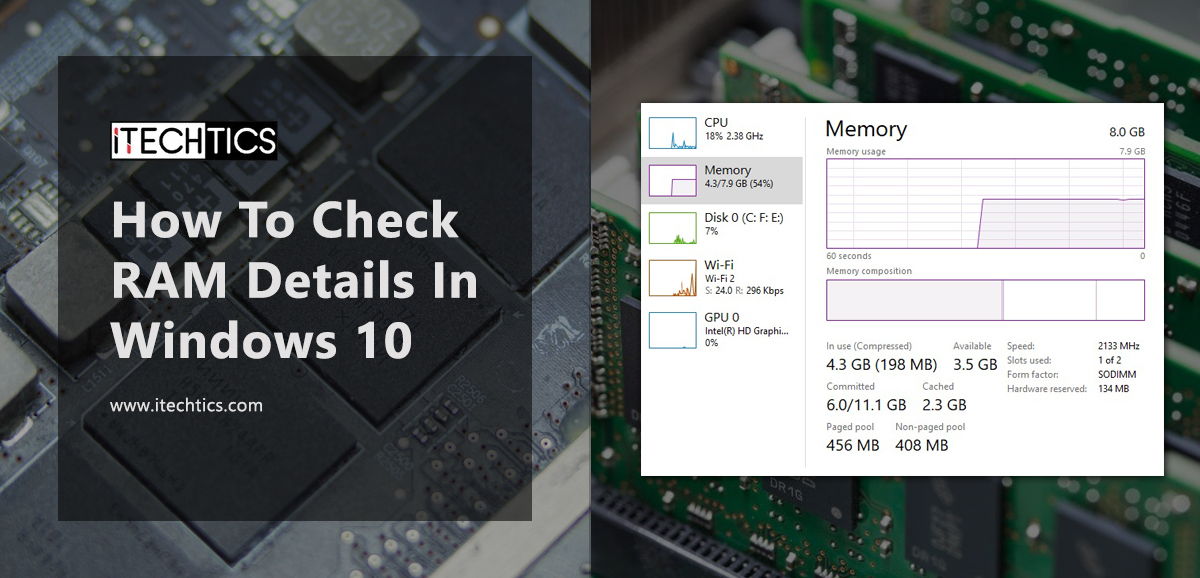
- Task Manager > Performance > Memory shows speed, slots used, and form factor.
- Match RAM type (DDR4/DDR5) and speed when upgrading.
Method 1 — PowerShell (Detailed)
1. Open PowerShell.
2. Run: Get-CimInstance Win32_PhysicalMemory | Select-Object Capacity,Speed,Manufacturer,PartNumber,DeviceLocator
3. Capacity is in bytes (divide by 1GB), Speed is in MHz, and DeviceLocator shows the slot.
4. For total memory: (Get-CimInstance Win32_ComputerSystem).TotalPhysicalMemory
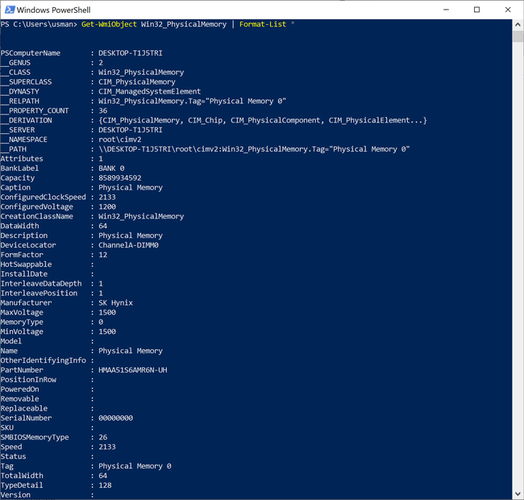
Detailed RAM information from PowerShell.
Method 2 — SystemInfo Command
1. Open Command Prompt.
2. Run: systeminfo | findstr /C:"Total Physical Memory" /C:"Available Physical Memory"
3. This shows installed and available RAM.
Method 3 — Task Manager
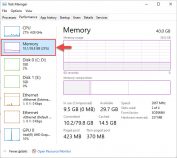
1. Press Ctrl + Shift + Esc and open the Performance tab.
2. Select Memory.
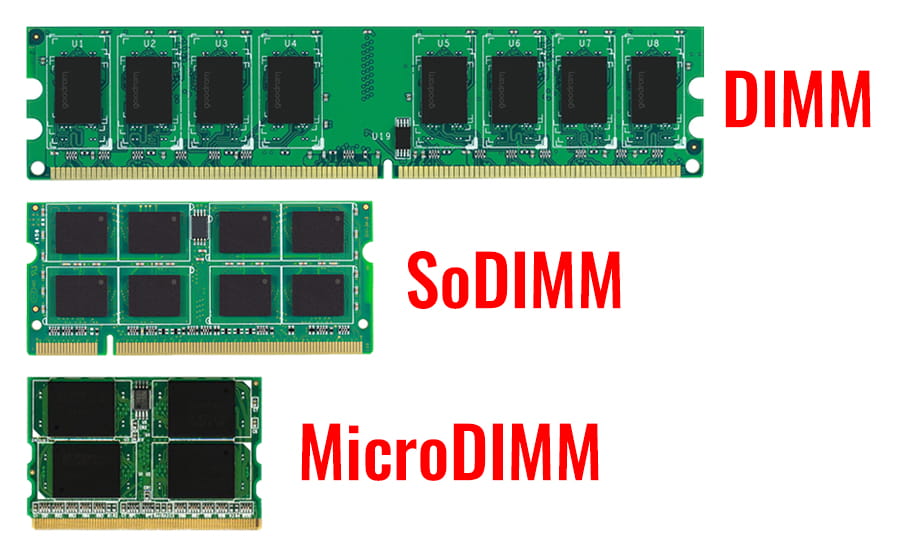
3. See total RAM, speed (MHz), slots used, and form factor (DIMM/SODIMM).
Method 4 — System Information and DxDiag
1. Press Windows key + R, type msinfo32, and press Enter to see Installed Physical Memory.
2. Or run dxdiag and check the Memory value on the System tab.
Check RAM Type (DDR4 vs DDR5)
1. Open Task Manager > Performance > Memory and look for the type, or use CPU-Z for full SPD detail.
2. In PowerShell, Get-CimInstance Win32_PhysicalMemory includes SMBIOSMemoryType (e.g. 26 = DDR4, 34 = DDR5).
3. Match the type and speed when buying additional RAM.
Frequently Asked Questions
Problem: When should I upgrade RAM?
Solution: If memory usage is consistently high in Task Manager and apps slow down or swap to disk, more RAM will help.
Problem: What is the maximum RAM I can install?
Solution: Check your motherboard/laptop specifications for the maximum supported capacity and speed per slot.
Problem: PowerShell capacity looks wrong.
Solution: Capacity is in bytes — divide by 1073741824 to get GB.
Problem: WMIC commands fail.
Solution: WMIC is deprecated; use the equivalent Get-CimInstance Win32_PhysicalMemory in PowerShell.
Conclusion
For full RAM detail, PowerShell’s Get-CimInstance Win32_PhysicalMemory is the most complete; Task Manager and SystemInfo are great for quick checks. Note the type and speed before upgrading so your new modules match.
</w:pBdr><w:spacing w:before="220" w:after="40"/></w:pPr><w:r><w:rPr><w:b/><w:bCs/><w:color w:val="0B5394"/><w:sz w:val="21"/><w:szCs w:val="21"/><w:rFonts w:ascii="Calibri" w:cs="Calibri" w:eastAsia="Calibri" w:hAnsi="Calibri"/></w:rPr><w:t xml:space="preserve">About TechHub
This guide is part of the TechHub Knowledge Base. For more step-by-step IT guides and support, visit techhub.com.lk.