Overview
RAM comes in different physical sizes (form factors) for different devices. This reference explains DIMM, SODIMM, and MicroDIMM — where each is used and how they differ — and how to check your RAM in Windows.
RAM form factors compared.
Key Takeaways
- DIMM is the full-size module for desktops and servers.
- SODIMM is the smaller module for laptops and mini-PCs.
- MicroDIMM is smaller still, for ultra-compact/legacy devices.
- Form factor must match your motherboard’s slots.
DIMM
The Dual In-line Memory Module is the standard, full-length RAM stick used in desktop PCs and servers. It has more pins and a larger physical size than laptop memory.
SODIMM
The Small Outline DIMM is roughly half the length of a DIMM, designed for laptops, all-in-ones, mini-PCs, and some small-form-factor systems where space is limited.
MicroDIMM
The Micro DIMM is even smaller, historically used in subnotebooks and some embedded/legacy devices. It’s uncommon in modern consumer hardware.
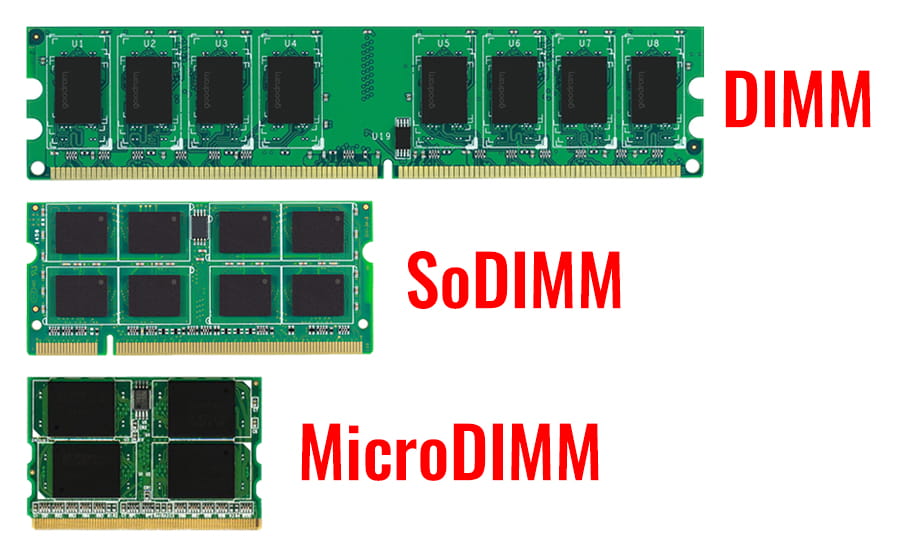
Relative sizes of DIMM, SODIMM, and MicroDIMM.
Comparison
- Size: DIMM > SODIMM > MicroDIMM.
- Use: DIMM = desktops/servers; SODIMM = laptops/mini-PCs; MicroDIMM = ultra-compact/legacy.
- Pins/keying differ, so modules are not interchangeable across form factors.
- Always match the module type to your system.
How to Check Your RAM in Windows
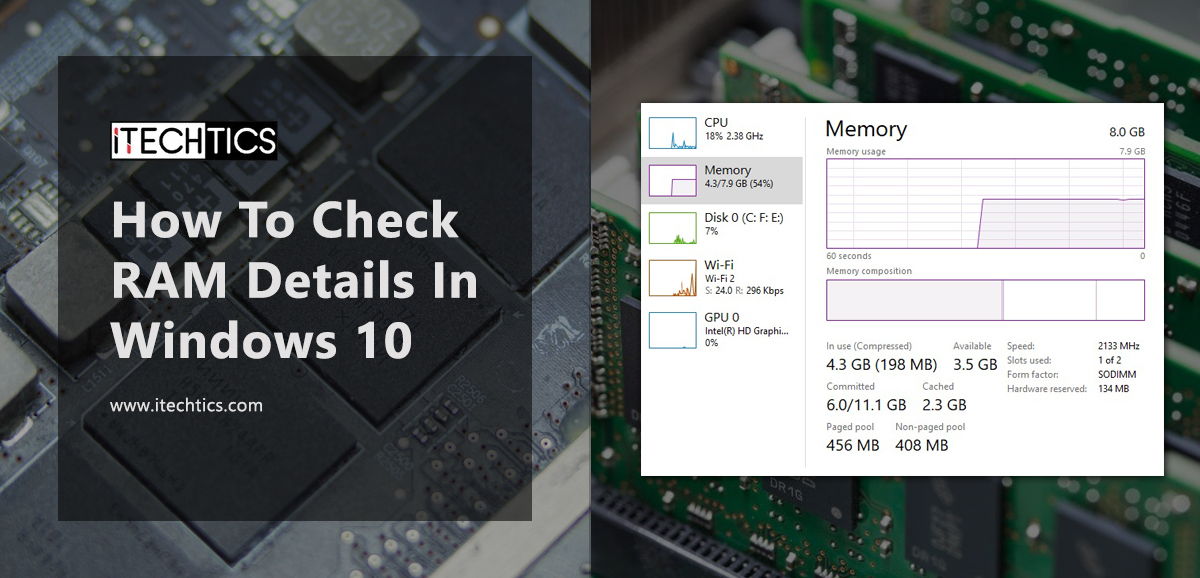
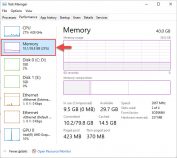
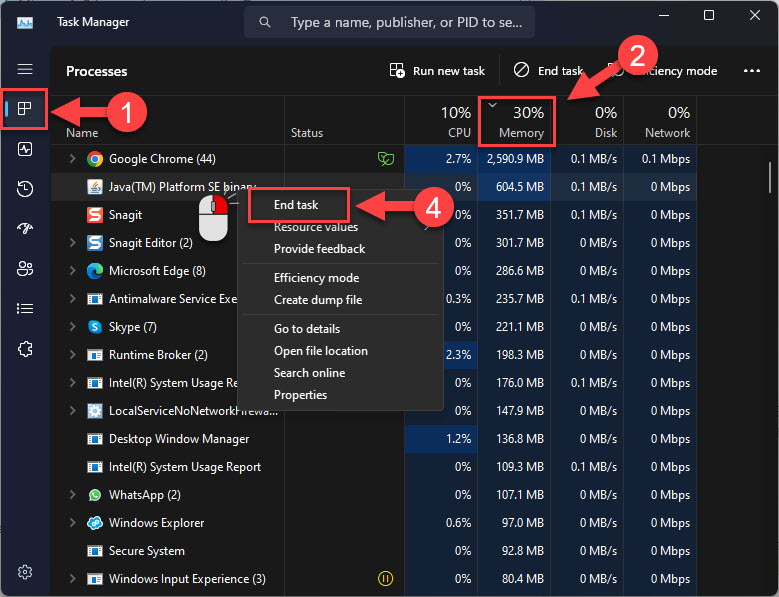
1. Open Task Manager > Performance > Memory to see capacity, speed, and slots used.
2. For the form factor, check your device/motherboard specs or use a tool like CPU-Z.
3. Match any upgrade to the correct type, speed, and capacity your board supports.
Conclusion
DIMM, SODIMM, and MicroDIMM are physically different memory modules for different devices — desktops, laptops, and ultra-compact systems respectively. Before upgrading, confirm your system’s form factor and supported speed/capacity so the new RAM fits and works.
</w:pBdr><w:spacing w:before="220" w:after="40"/></w:pPr><w:r><w:rPr><w:b/><w:bCs/><w:color w:val="0B5394"/><w:sz w:val="21"/><w:szCs w:val="21"/><w:rFonts w:ascii="Calibri" w:cs="Calibri" w:eastAsia="Calibri" w:hAnsi="Calibri"/></w:rPr><w:t xml:space="preserve">About TechHub
This guide is part of the TechHub Knowledge Base. For more step-by-step IT guides and support, visit techhub.com.lk.