Overview
Private or Incognito browsing stops your browser from saving history, cookies, and form data on the device. This guide shows how to open a private window in each major browser, and how administrators or parents can disable private mode entirely.
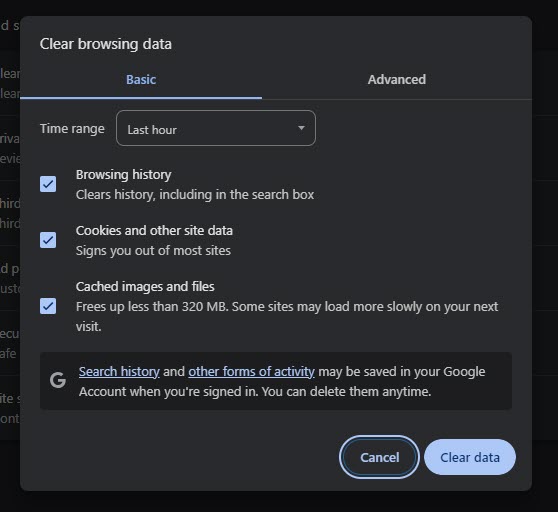
Private/Incognito browsing avoids saving local history and cookies.
Warning: Private browsing only prevents local history; it does not make you anonymous online. Your employer, ISP, and websites can still see your activity.
Key Takeaways
- Private mode avoids saving local history, cookies, and form data.
- Most browsers open it with Ctrl + Shift + N (Firefox uses Ctrl + Shift + P).
- You can disable private mode via the registry or browser policies.
- Private mode is not anonymity — only local privacy.
Open a Private Window (Shortcuts)
- Chrome — Ctrl + Shift + N (Incognito).
- Microsoft Edge — Ctrl + Shift + N (InPrivate).
- Firefox — Ctrl + Shift + P (Private Window).
- Opera, Vivaldi, Brave — Ctrl + Shift + N for a private/guest window.
Open Incognito in Chrome
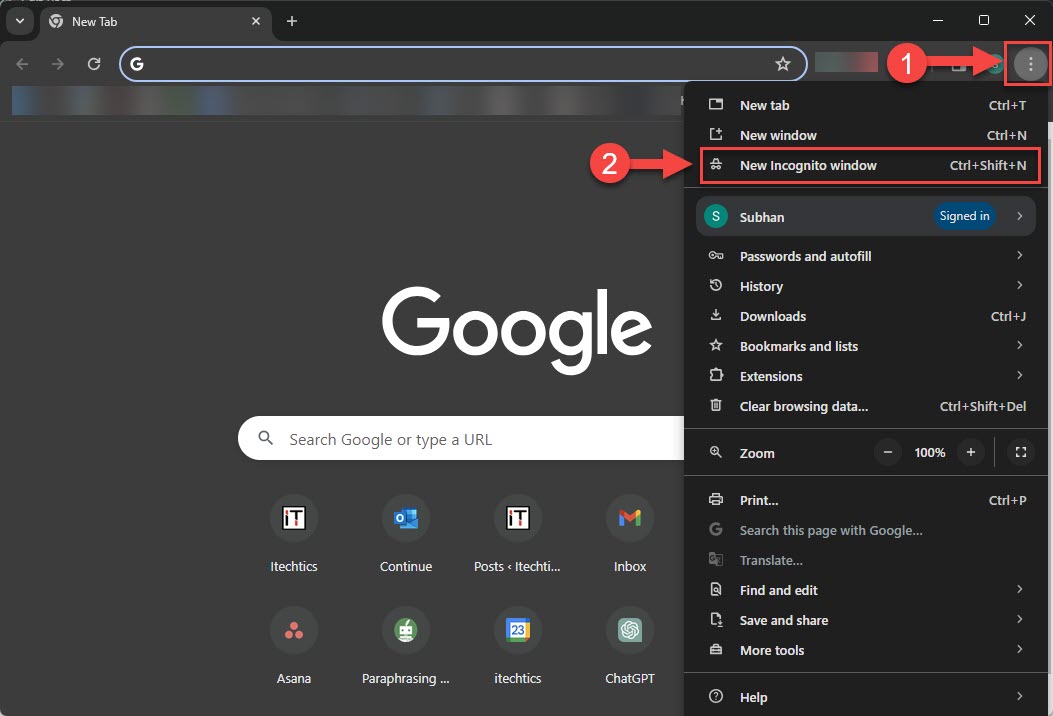
1. Click the three-dot menu in the top-right.
2. Choose New Incognito window (or press Ctrl + Shift + N).
3. Browse — history and cookies are discarded when you close all Incognito windows.
Disable Incognito Mode in Chrome
Warning: Editing the registry incorrectly can cause problems. Back it up first.
1. Open Registry Editor and go to HKEY_LOCAL_MACHINE\SOFTWARE\Policies\Google\Chrome (create the keys if missing).
2. Create a DWORD named IncognitoModeAvailability and set it to 1 (1 = disabled).
3. Restart Chrome — the Incognito option disappears. Set it to 0 to re-enable.
Disable InPrivate in Microsoft Edge
1. Open Registry Editor and go to HKEY_LOCAL_MACHINE\SOFTWARE\Policies\Microsoft\Edge (create if needed).
2. Create a DWORD named InPrivateModeAvailability and set it to 1.
3. Restart Edge to apply.
Disable Private Browsing in Firefox
1. Use a policies.json file (or the Group Policy templates) in the Firefox distribution folder.
2. Set the policy DisablePrivateBrowsing to true.
3. Restart Firefox — the Private Window option is removed.
Troubleshooting
Problem: The Incognito/InPrivate option is missing unexpectedly.
Solution: A policy or registry value disabled it. Check the relevant policy key and set availability back to enabled (0).
Problem: The registry change had no effect.
Solution: Ensure you edited the HKLM Policies path correctly, created the value as a DWORD, and fully restarted the browser.
Problem: You want private mode for everyone but not kids.
Solution: Use the per-machine policy to disable it, combined with a standard (non-admin) child account so they cannot change it.
Problem: Private mode did not hide my activity from work.
Solution: It only clears local data. Network administrators and websites can still see your browsing.
Conclusion
Private browsing is a quick way to avoid saving local history — open it with Ctrl + Shift + N (or Ctrl + Shift + P in Firefox). To remove it entirely, use the browser’s policy or registry setting, remembering that private mode is about local privacy, not anonymity.
</w:pBdr><w:spacing w:before="220" w:after="40"/></w:pPr><w:r><w:rPr><w:b/><w:bCs/><w:color w:val="0B5394"/><w:sz w:val="21"/><w:szCs w:val="21"/><w:rFonts w:ascii="Calibri" w:cs="Calibri" w:eastAsia="Calibri" w:hAnsi="Calibri"/></w:rPr><w:t xml:space="preserve">About TechHub
This guide is part of the TechHub Knowledge Base. For more step-by-step IT guides and support, visit techhub.com.lk.