Overview
Browser එකක් හරියට වැඩ නොකරන්නේ බොහෝවිට extension එකක්, theme එකක් හෝ corrupted setting එකක් නිසා. ඒක "safe mode" එකක — extensions සහ customizations disable කරලා — run කරන එකෙන් හේතුව හොයාගන්න ලේසියි. Firefox වල built-in Troubleshoot Mode එකක් තියෙනවා; අනිත් browsers වලට private window එකක් (default විදිහට extensions disable කරනවා) හෝ clean profile එකක් පාවිච්චි කරන්න. මේ guide එකෙන් ඒ හැම එකක්ම cover කරනවා.
Browser එකක් extensions නැතුව run කරන එකෙන් problems isolate කරන්න පුළුවන්.
Key Takeaways
- බොහෝ Chromium browsers වල true safe mode එකක් නෑ — private/incognito window එකක් extensions disable කරනවා.
- Firefox වල real Troubleshoot Mode එකක් තියෙනවා — add-ons disable කරලා settings ටිකක් තාවකාලිකව reset කරනවා.
- Safe mode එකේදී problem එක නැති වුණොත්, extension එකක් හෝ setting එකක් තමයි හේතුව.
- Culprit එක හොයන්න extensions එකක් බැගින් ආපහු enable කරන්න.
Google Chrome
1. Chrome open කරලා Ctrl + Shift + N press කරලා Incognito window එකක් open කරන්න.
2. Incognito default විදිහට extensions disable කරනවා, safe mode එකක් වගේ.
3. නැත්නම් chrome://extensions එකේ extensions ඔක්කොම disable කරන්න, නැත්නම් clean setup එකක් test කරන්න අලුත් profile එකක් හදන්න.
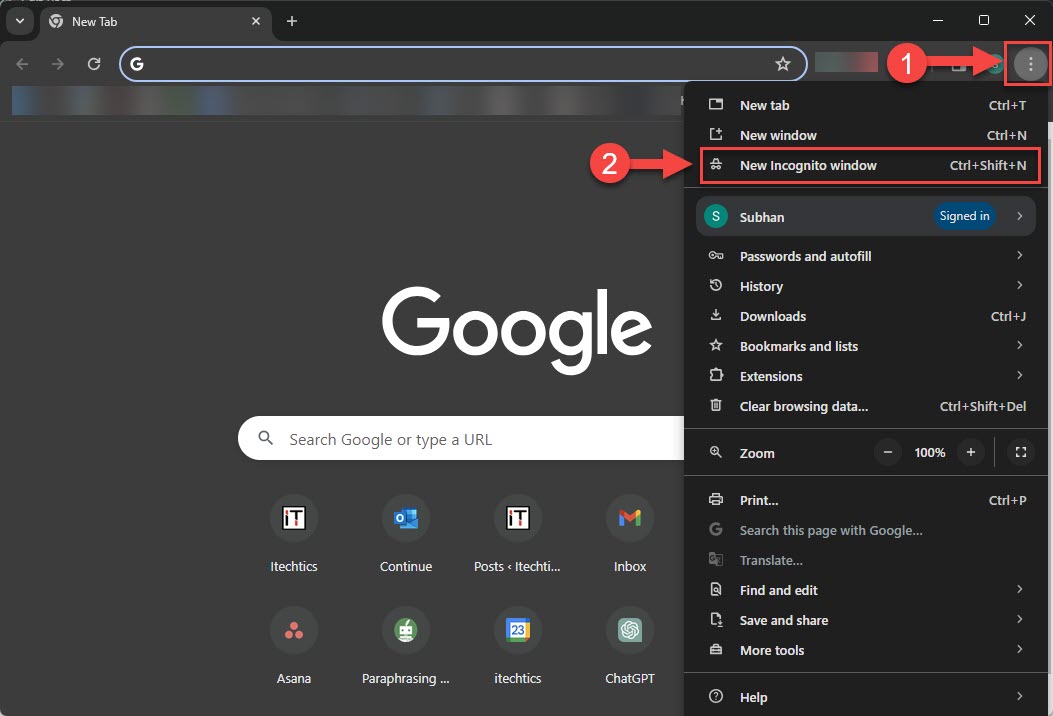
Chrome එකේ Incognito window එකක් extensions නැතුව run වෙනවා.
Mozilla Firefox (Troubleshoot Mode)
1. Menu (ඉරි තුන) > Help > Troubleshoot Mode click කරන්න.
2. Restart confirm කරලා, dialog එකේ Open click කරන්න.
3. Firefox add-ons disable කරලා, session එකට settings ටිකක් reset කරලා restart වෙනවා.
4. Firefox normal විදිහට restart කරලා exit වෙන්න.
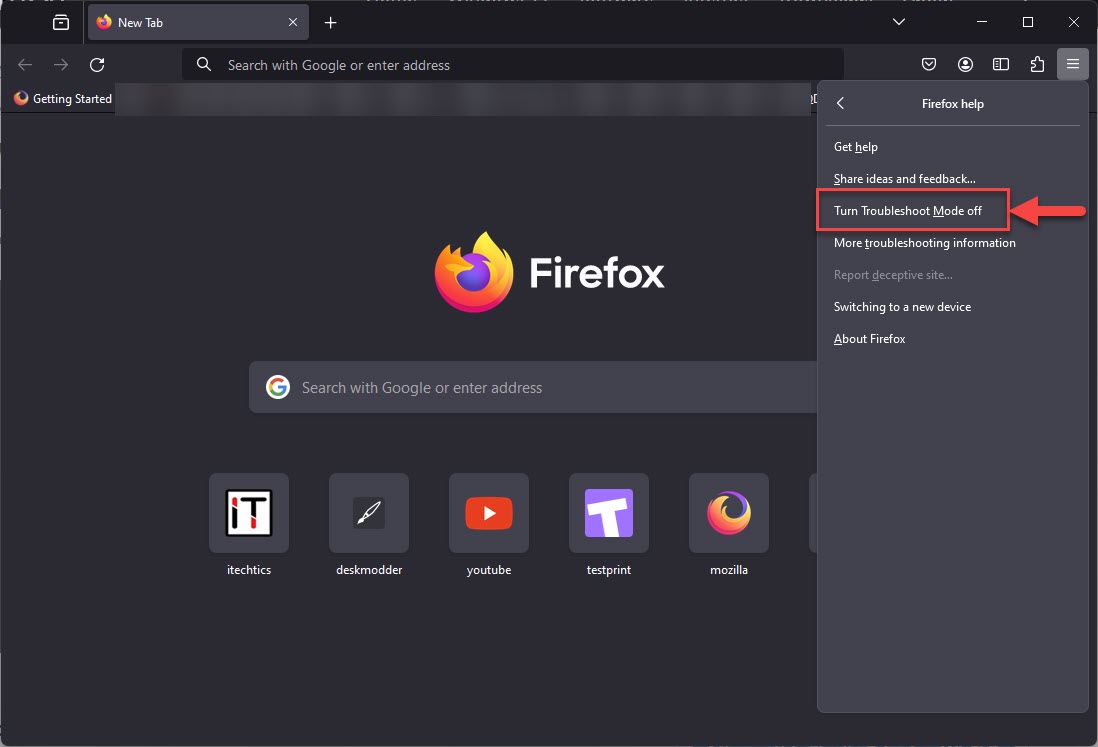
Firefox Troubleshoot Mode එකෙන් normal restart එකකින් exit වෙන්න.
Microsoft Edge
1. Edge open කරලා Ctrl + Shift + N press කරලා InPrivate window එකක් open කරන්න.
2. InPrivate වල extensions default විදිහට disable (explicitly allow කරලා නැත්නම්).
3. නැත්නම් test කරන්න edge://extensions එකේ extensions disable කරන්න.
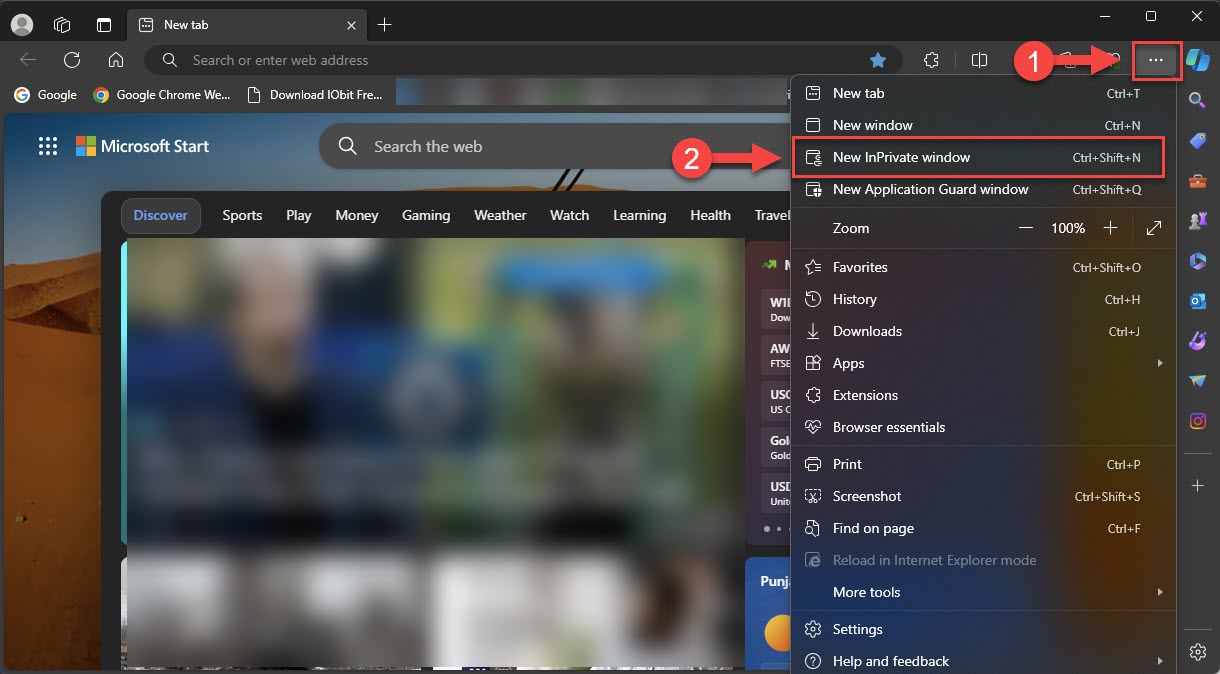
Edge එකේ InPrivate window එකක් extensions නැතුව run වෙනවා.
Opera, Vivaldi, සහ Brave
- Private window එකක් (Ctrl + Shift + N) open කරන්න — extensions default විදිහට disable.
- නැත්නම් browser එකේ extensions page එකේ extensions off කරන්න.
- Brave: private window එකක් extensions disable කරනවා; issues isolate කරන්න එතන test කරන්න.
Troubleshooting
Problem: Safe mode එකේත් problem එක තියෙනවා.
Solution: ඒක extension එකක් නෙවෙයි. Cache clear කරන්න, browser settings reset කරන්න, නැත්නම් අලුත්ම profile එකක් test කරන්න.
Problem: Extension එකක් තමයි හේතුව.
Solution: Normal mode එකේ, extensions ඔක්කොම disable කරලා, එකක් බැගින් ආපහු enable කරලා කොයි එකද browser එක break කරන්නේ කියලා හොයන්න.
Problem: Safe mode එකේ විතරයි browse කරන්න පුළුවන්.
Solution: Corrupted profile එකක් හෝ extension එකක් වැරදි. Browser එක reset කරන්න, අලුත් profile එකක් හදන්න, problematic extensions reinstall කරන්න.
Problem: Incognito එකේත් extension එකක් load වෙනවා.
Solution: සමහර extensions private mode එකේ allow කරලා. Fully test කරන්න ඒ extension එකේ "Allow in Incognito/InPrivate" off කරන්න.
Conclusion
Browser එකක් troubleshoot කරන්න, ඒක extensions නැතුව run කරන්න: Firefox එකේ Troubleshoot Mode හෝ අනිත් ඒවා වල private/incognito window එකක්. Issue එක නැති වුණොත්, extension එකක් හෝ setting එකක් වැරදි — culprit එක pinpoint කරන්න එකක් බැගින් ආපහු enable කරන්න.
About TechHub
මේ guide එක TechHub Knowledge Base එකේ කොටසක්. තව step-by-step IT guides සහ support වලට techhub.com.lk එකට යන්න.