Overview
Microsoft එකෙන් Internet Explorer retire කරලා දැන් support කරන්නෙත් නෑ, ඒ නිසා දවසේ browsing එකට හෝ security-sensitive tasks වලට එය පාවිච්චි කරන්න හොඳ නෑ. වාසනාවකට, modern browsers වේගවත් සහ ආරක්ෂිතයි, තවම පරණ engine එක ඕන කරන කලාතුරකින් legacy sites සහ internal applications වලට Microsoft Edge එකේ built-in IE Mode එකක් තියෙනවා.
Key Takeaways
- Internet Explorer end-of-life වෙලා, security updates ලැබෙන්නේ නෑ — general browsing එකට එය පාවිච්චිය නවත්තන්න.
- Microsoft Edge තමයි official successor එක, legacy compatibility එකට IE Mode එකත් ඇතුළත්.
- Chrome, Firefox, සහ Brave කියන්නේ ශක්තිමත් cross-platform alternatives.
- ඇත්තටම එය require කරන නිශ්චිත sites වලට විතරක් IE-style rendering එකට fall back වෙන්න.
WARNING: Internet Explorer එකට තවදුරටත් security patches ලැබෙන්නේ නැති නිසා, open web එක browse කරන්න එය පාවිච්චි කිරීමෙන් ඔයා unpatched vulnerabilities වලට නිරාවරණය වෙනවා. IE-based rendering එක trusted internal හෝ legacy sites වලට විතරක් reserve කරන්න.
Best Overall: Microsoft Edge
Edge එක Chrome වගේම Chromium engine එකෙන්ම හදලා, ඒ නිසා එය වේගවත්, modern extensions support කරනවා, Windows එකේ Internet Explorer එකට officially supported replacement එකයි. එය IE Mode හරහා IE-specific features ඉස්සරහට ගෙනියනවත් කරනවා.
Using IE Mode in Microsoft Edge
1. Edge open කරලා Settings > Default browser වෙත යන්න.
2. "Allow sites to be reloaded in Internet Explorer mode" එක Allow කරලා Edge restart කරන්න.
3. Legacy site එක open කරලා, three-dot menu එක click කරලා "Reload in Internet Explorer mode" තෝරන්න.
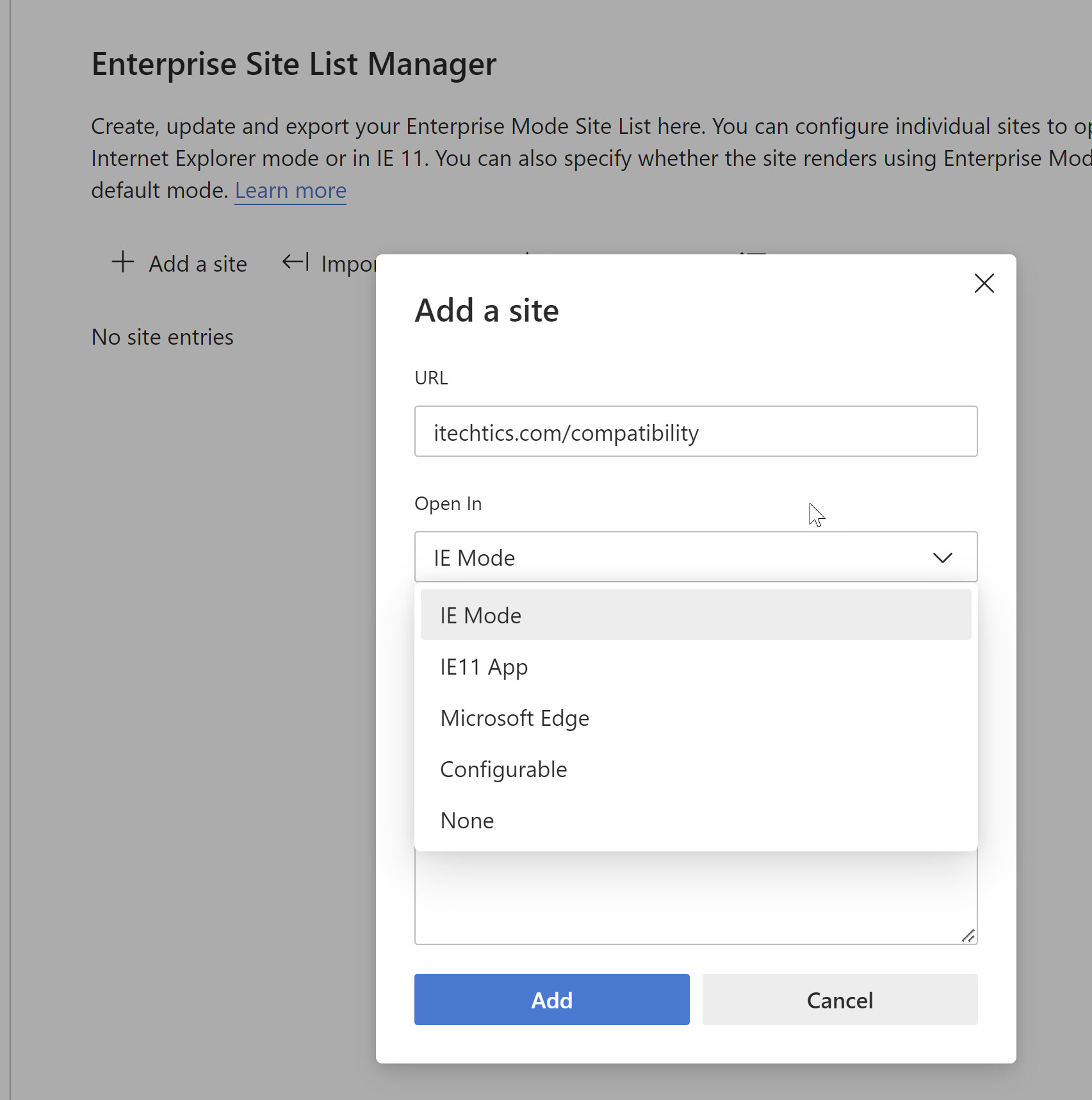
4. එය persistent කරන්න, "Internet Explorer mode pages" යටතේ site එක add කරන්න.
Microsoft Edge එක ඇතුළේ legacy site එකක් Internet Explorer mode එකේ reload කරන එක.
Other Strong Alternatives
- Google Chrome — වැඩිපුරම පාවිච්චි වෙන browser එක, විශාල extension library එකකුයි cross-device sync එකකුයි එක්ක.
- Mozilla Firefox — ශක්තිමත් customisation එකක් තියෙන independent, privacy-focused browser එකක්.
- Brave — built-in ad සහ tracker blocking තියෙන Chromium browser එකක්.
When You Must Run a Legacy IE-Only App
1. මුලින්ම Edge IE Mode try කරන්න, එය legacy intranet සහ ActiveX sites වලින් වැඩි ප්රමාණයක් cover කරනවා.
2. Full IE environment එකක් නොවැළැක්විය හැකි නම්, එය ඔයාගේ main system එකේ නෙවෙයි isolated virtual machine එකක් ඇතුළේ run කරන්න.
3. නිරාවරණය limit කරන්න VM එක offline තියාගන්න හෝ නිශ්චිත legacy application එකට restrict කරන්න.
NOTE: Security-sensitive sites වලට IE user agent එක spoof කරන විතරක් browser add-ons වළක්වන්න; ඒවා real IE engine එක ලබා දෙන්නේ නෑ සහ අනපේක්ෂිත විදිහට behave කරන්න පුළුවන්.
Troubleshooting
Problem: Site එකක් modern browser එකකවත් තවම Internet Explorer ඕන කියලා කියනවා.
Solution: එය Microsoft Edge එකේ open කරලා page එක Internet Explorer mode එකේ reload කරන්න, එයින් genuine IE engine එක ලබා දෙනවා.
Problem: Edge එකේ IE Mode option එක missing.
Solution: Settings > Default browser යටතේ "Allow sites to be reloaded in Internet Explorer mode" enable කරලා, Edge restart කරන්න.
Problem: පරණ favourites සහ passwords Internet Explorer එකෙන් move කරන්න ඕන.
Solution: Edge එකේ, Settings > Profiles > Import browser data use කරලා source එක විදිහට Internet Explorer select කරන්න.
Problem: Legacy web app එකක් ActiveX controls මත රඳා පවතිනවා.
Solution: Edge IE Mode use කරන්න, එය approved sites වලට ActiveX support කරනවා, නැත්නම් app එක dedicated, isolated virtual machine එකක run කරන්න.
Conclusion
Internet Explorer එකෙන් browsing දිගටම කරන්න හේතුවක් නෑ. Microsoft Edge, Chrome, හෝ Firefox ඔයාගේ daily browser එක කරගන්න, තවම පරණ engine එක ඕන කරන අඩු වෙමින් යන legacy sites ගණනට Edge IE Mode එක මත රඳා පවතින්න.
About TechHub
මේ guide එක TechHub Knowledge Base එකේ කොටසක්. තව step-by-step IT guides සහ support වලට techhub.com.lk එකට යන්න.