Overview
SSDs come in different form factors (shapes) and interfaces (how they connect), which determine their speed and compatibility. The big distinction is SATA vs NVMe. This guide explains the types and shows how to check what you have.
SSDs differ by form factor and interface — SATA vs NVMe matters most.
Key Takeaways
- Form factor is the shape (2.5-inch, M.2, mSATA, U.2); interface is the connection (SATA, PCIe/NVMe).
- NVMe (over PCIe) is far faster than SATA.
- An M.2 slot can be SATA or NVMe — check before buying.
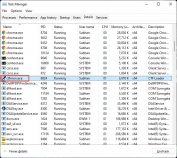
- Use Task Manager or Defragment tool to identify SATA vs NVMe.
Transfer Protocols
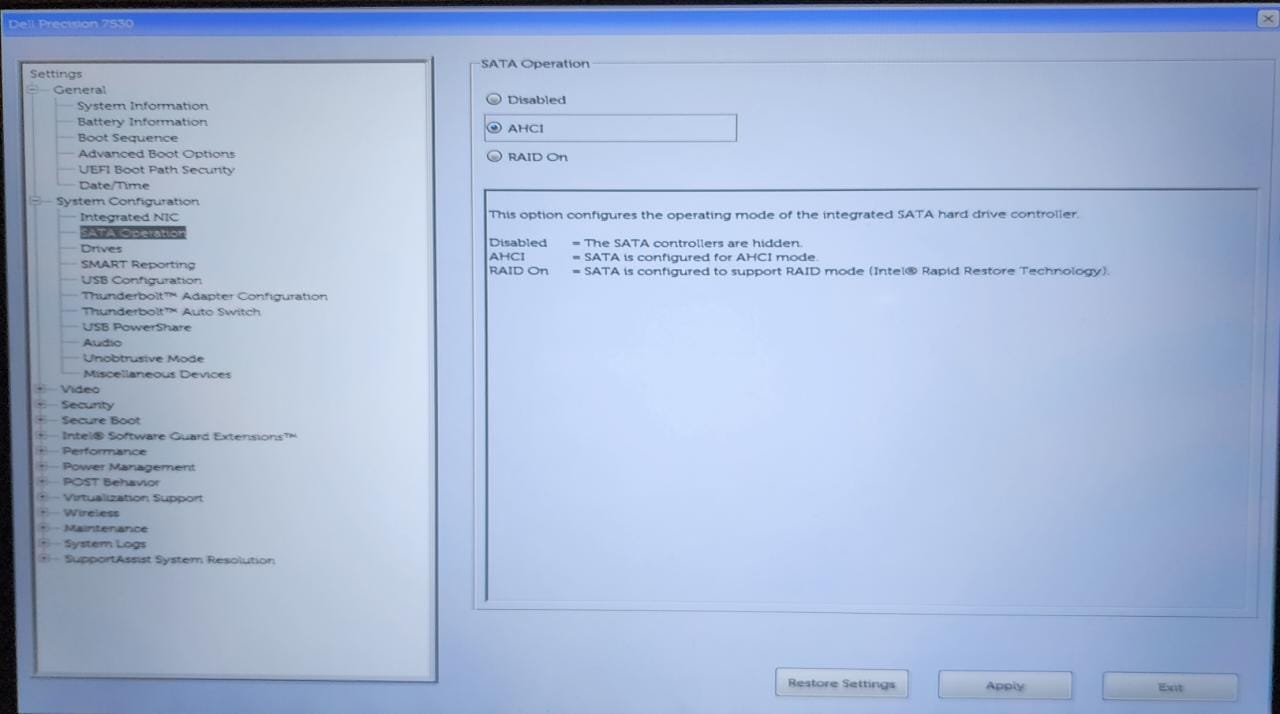
- AHCI (SATA) — the older protocol; fine for everyday use but speed-limited (~550 MB/s).
- NVMe — designed for flash over PCIe; multiple gigabytes per second, much lower latency.
Form Factors
- 2.5-inch — looks like a small laptop hard drive; uses a SATA cable.
- M.2 — a small stick that plugs into an M.2 slot (can be SATA or NVMe).
- mSATA — an older small form factor (SATA only).
- U.2 — enterprise/workstation NVMe drives.
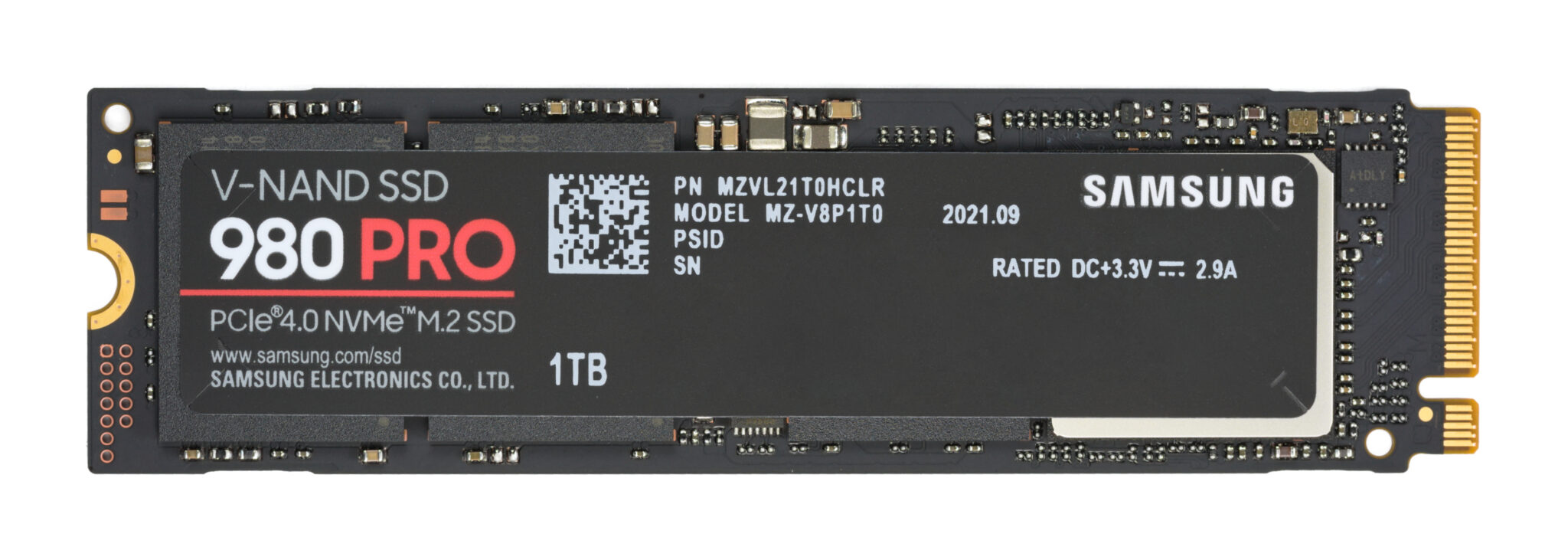
An M.2 SSD — note that M.2 can be SATA or NVMe.
Interfaces
- SATA — up to ~550 MB/s; widely compatible.
- PCIe (NVMe) — multi-gigabyte speeds; needs an NVMe-capable slot.
- SATA Express and IDE — older/legacy interfaces you rarely see today.
How to Check Your SSD Type on Windows
1. Open the Defragment and Optimize Drives tool (search "defragment"); SSDs show as "Solid state drive".
2. For SATA vs NVMe: open Device Manager > Disk drives and note the model, then look it up, or use Task Manager > Performance > Disk.
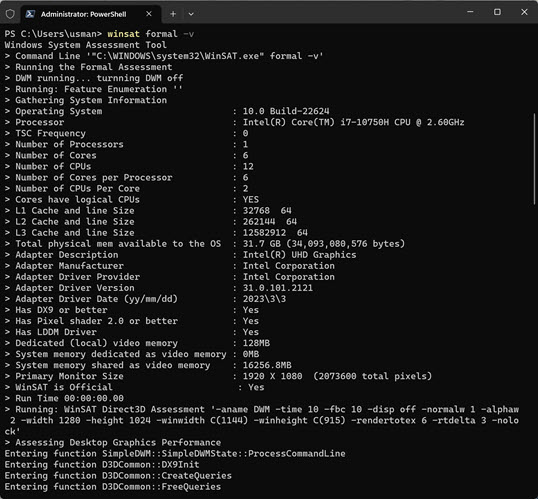
3. PowerShell: Get-PhysicalDisk | Select FriendlyName, MediaType, BusType (BusType shows SATA or NVMe).
4. Or use a tool like CrystalDiskInfo for full detail.
Frequently Asked Questions
Problem: Is my M.2 drive SATA or NVMe?
Solution: Run Get-PhysicalDisk in PowerShell and check BusType (SATA vs NVMe), or look up the exact model.
Problem: Will any M.2 SSD fit my slot?
Solution: Not always — check whether your M.2 slot supports SATA, NVMe (PCIe), or both, and the keying (B/M).
Problem: NVMe vs SATA — is the speed difference noticeable?
Solution: For large file transfers and heavy workloads, yes; for general use both feel fast.
Problem: My SSD shows as an HDD.
Solution: Check the Optimize Drives tool; if mislabeled, update storage drivers and firmware.
Conclusion
SSDs vary by form factor and interface, with NVMe (PCIe) being much faster than SATA. Check your drive with PowerShell’s Get-PhysicalDisk or the Optimize Drives tool, and verify slot compatibility before upgrading.
</w:pBdr><w:spacing w:before="220" w:after="40"/></w:pPr><w:r><w:rPr><w:b/><w:bCs/><w:color w:val="0B5394"/><w:sz w:val="21"/><w:szCs w:val="21"/><w:rFonts w:ascii="Calibri" w:cs="Calibri" w:eastAsia="Calibri" w:hAnsi="Calibri"/></w:rPr><w:t xml:space="preserve">About TechHub
This guide is part of the TechHub Knowledge Base. For more step-by-step IT guides and support, visit techhub.com.lk.