Overview
NVIDIA GeForce Game Ready Driver 551.61 (WHQL) කියන්නේ gaming-focused GPU driver එකක් — අලුත් titles වලට support එකතු කරලා bugs කිහිපයක් resolve කරනවා. මේ guide එකෙන් මේ release එකේ මොකද වෙනස් වුණේ කියලා summarize කරලා, driver එක safely download, install, සහ roll back කරන ආකාරය පෙන්නනවා.
GeForce Game Ready 551.61 කියන්නේ NVIDIA එකෙන් WHQL-certified gaming driver එකක්.
Key Takeaways
- 551.61 කියන්නේ 2024 පෙබරවාරි 22 එදා release වුණ WHQL-certified Game Ready driver එකක්.
- ඒක Nightingale වලට DLSS 3 එක්ක Game Ready support එකතු කරලා bugs කිහිපයක් fix කරනවා.
- Download කරන්නේ NVIDIA's official site එකෙන් හෝ NVIDIA app / GeForce Experience හරහා විතරයි.
- Problems ආවොත් කලින් driver එකකට roll back කරන්න පුළුවන්.
Release Details
- Driver version: 551.61
- Driver type: Game Ready (WHQL)
- Approximate size: 634 MB
- Supported systems: Windows 11 සහ Windows 10 (64-bit)
- Release date: 2024 පෙබරවාරි 22
අලුත් සහ Fixed දේවල්
- අලුත් title Nightingale වලට DLSS 3 එක්ක Game Ready support එකතු කරනවා.
- Tom Clancy's Rainbow Six Siege එකේ Vulkan API එක්ක stability issues fix කරනවා.
- RTX Video HDR enabled වෙලා තියෙනකොට custom HDR brightness values එක්ක tone-mapping fix කරනවා.
- Chrome සහ Edge එකේ Windows HDR enabled වෙලා තියෙනකොට SDR video playback එකේ poor black levels fix කරනවා.
- Games quit කළාට පස්සේ NVIDIA Freestyle filter settings save නොවෙන එක fix කරනවා.
- Adobe Substance 3D එකේ viewport සහ Vulkan launch issues fix කරනවා.
Driver එක Download කරන්නේ කොහොමද
1. Official NVIDIA Drivers page එක (nvidia.com/Download) හෝ NVIDIA app එක open කරන්න.
2. ඔබේ GPU model, operating system, සහ Game Ready Driver type එක select කරන්න.
3. Version 551.61 හොයලා Download click කරන්න.
4. Installer එක save කරලා run කරන්න කලින් download එක complete වුණාද verify කරන්න.
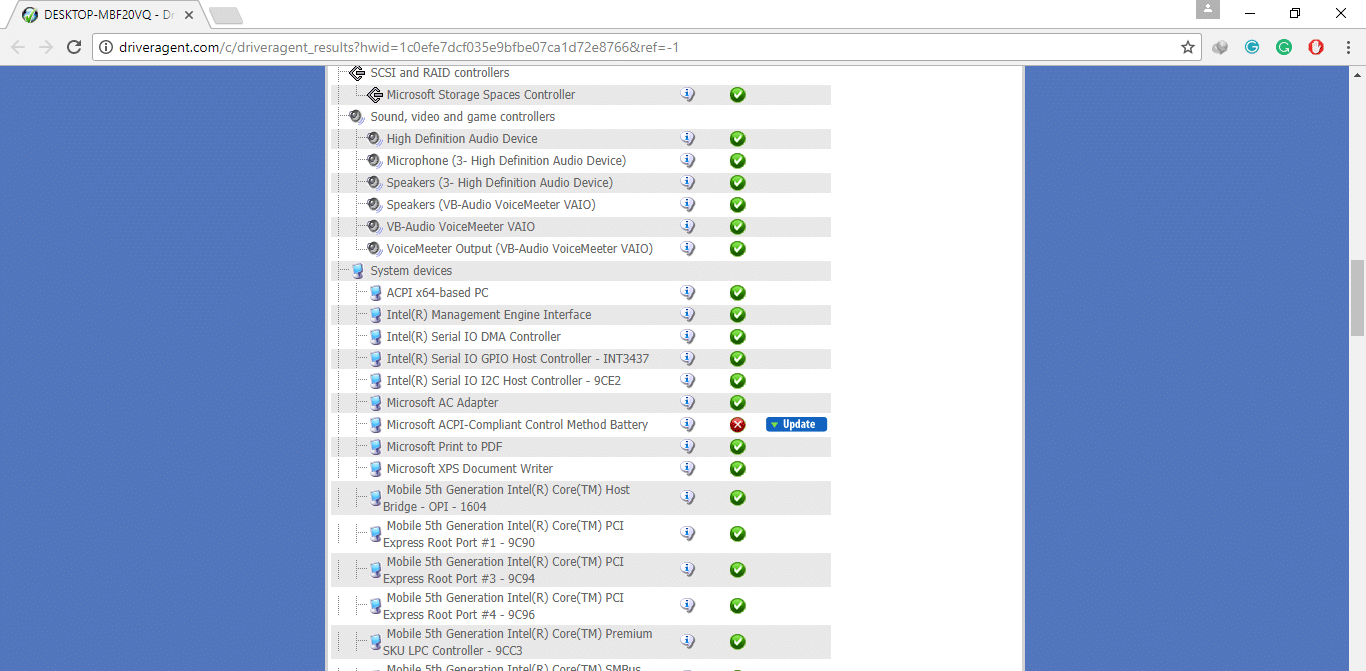
Warning: GeForce drivers download කරන්නේ NVIDIA's official website එකෙන් හෝ NVIDIA app එකෙන් විතරයි. Third-party driver sites unwanted හෝ unsafe software bundle කරන්න පුළුවන්.
Install කරන්නේ කොහොමද
1. Download කරපු installer එක run කරලා licence agreement එක accept කරන්න.
2. NVIDIA Graphics Driver තෝරන්න (ඕන නම් විතරයි GeForce Experience/NVIDIA app add කරන්න).
3. Custom (Advanced) තෝරලා, පරණ driver remnants clear කරන්න Perform a clean installation tick කරන්න.
4. Installer එක complete වෙන්න දෙන්න; screen එක flicker වෙන්න පුළුවන්, restart එකක් ඉල්ලන්න පුළුවන්.
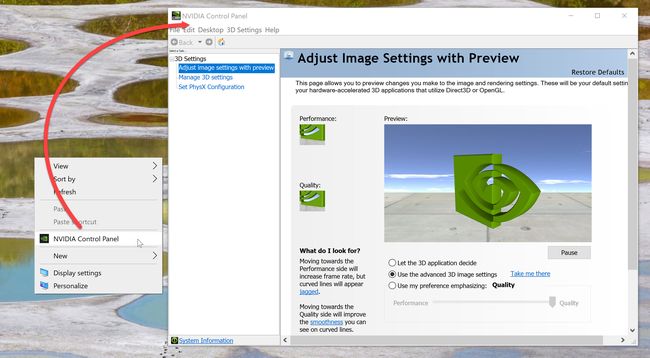
5. Prompt වුණොත් restart කරලා, NVIDIA Control Panel එකේ System Information යටතේ version එක verify කරන්න.
Tip: Clean installation එකකින් කලින් driver එකේ leftover settings remove කරලා ගොඩක් upgrade glitches resolve කරනවා.
Roll Back හෝ Uninstall කරන්නේ කොහොමද
1. Roll back කරන්න: Device Manager > Display adapters open කරලා, NVIDIA GPU එක right-click කරලා, Properties > Driver tab > Roll Back Driver තෝරන්න.
2. Uninstall කරන්න: Settings > Apps > Installed apps open කරලා NVIDIA Graphics Driver එක remove කරලා restart කරන්න.
3. Reinstall කරන්න කලින් thorough removal එකකට, Safe Mode එකේ Display Driver Uninstaller (DDU) පාවිච්චි කරන්න.
Troubleshooting
Problem: Install කළාට පස්සේ black screen හෝ flicker.
Solution: PC එක restart කරන්න. තියෙනවා නම්, Safe Mode එකට boot කරලා, driver එක remove කරන්න DDU run කරලා, clean installation එකක් එක්ක 551.61 reinstall කරන්න.
Problem: Installer කියනවා ඔබේ hardware එකට incompatible කියලා.
Solution: වැරදි GPU එකක් හෝ OS එකක් තෝරලා. Driver එක ඔබේ GPU model එකයි Windows version එකයි වලට හරියටම match කරලා NVIDIA එකෙන් re-download කරන්න.
Problem: Update කළාට පස්සේ game performance එක drop වුණා.
Solution: Device Manager එකෙන් කලින් driver එකට roll back කරන්න, නැත්නම් ඔබේ game එකට බලපෑවේ නම් මේ release එකේ Open Issues බලන්න.
Problem: Installation එක අතරමගදී fail වෙනවා.
Solution: Background apps close කරලා, antivirus තාවකාලිකව disable කරලා, clean installation select කරලා installer එක administrator විදිහට run කරන්න.
Conclusion
GeForce 551.61 කියන්නේ අලුත් title support එකතු කරලා issues කිහිපයක් fix කරන solid Game Ready update එකක්. NVIDIA's official channels එකෙන් download කරලා, clean-install option එකෙන් install කරලා, game එකක් misbehave වුණොත් ලේසියෙන් roll back කරන්න.
About TechHub
මේ guide එක TechHub Knowledge Base එකේ කොටසක්. තව step-by-step IT guides සහ support වලට techhub.com.lk එකට යන්න.