Overview
Computer Management (compmgmt.msc) bundles many administrative tools — Task Scheduler, Event Viewer, Device Manager, Disk Management, Services, and Local Users and Groups — into one console. This guide shows eight quick ways to open it.
Computer Management bundles key admin tools into one console.
Key Takeaways
- compmgmt.msc is a central hub for Windows administrative tools.
- The fastest ways are the Run box, the Win + X menu, and right-clicking This PC > Manage.
- You can also open it from Command Prompt, PowerShell, Search, or a shortcut.
- It can even manage a remote computer.
What Is Computer Management?
It is a Microsoft Management Console (MMC) snap-in collection that gives administrators access to system tools in one window — useful for managing disks, devices, services, scheduled tasks, and event logs.
8 Ways to Open It
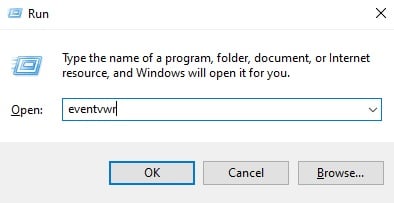
- Run box — press Windows key + R, type compmgmt.msc, and press Enter.
- Power User menu — press Windows key + X and choose Computer Management.
- Right-click This PC — in File Explorer, right-click This PC and choose Manage.
- Windows Search — type "Computer Management" and open it.
- Control Panel — go to System and Security > Windows Tools > Computer Management.
- Command Prompt / PowerShell — type compmgmt.msc and press Enter.
- Create a shortcut — make a desktop shortcut to compmgmt.msc.
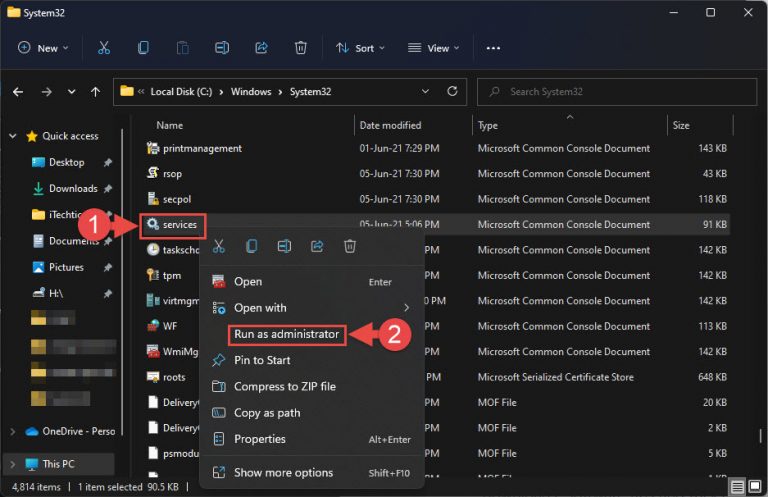
- Run as administrator — right-click any of the above and choose Run as administrator for full access.
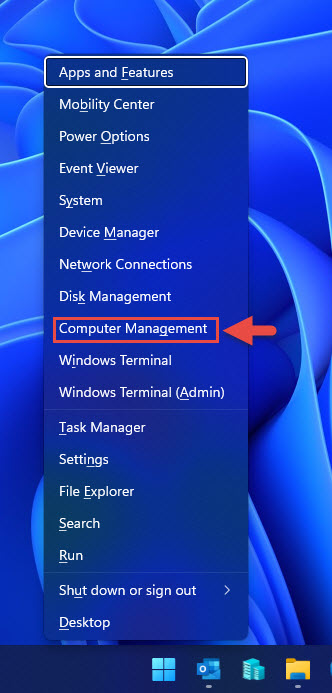
The Win + X (Power User) menu includes Computer Management.
Open Computer Management for a Remote PC
1. Open Computer Management.
2. Right-click "Computer Management (Local)" at the top and choose "Connect to another computer".
3. Enter the remote computer name and click OK (you need appropriate permissions).
Troubleshooting
Problem: Some tools are missing or read-only.
Solution: Run Computer Management as administrator to get full access to all snap-ins.
Problem: compmgmt.msc is not found.
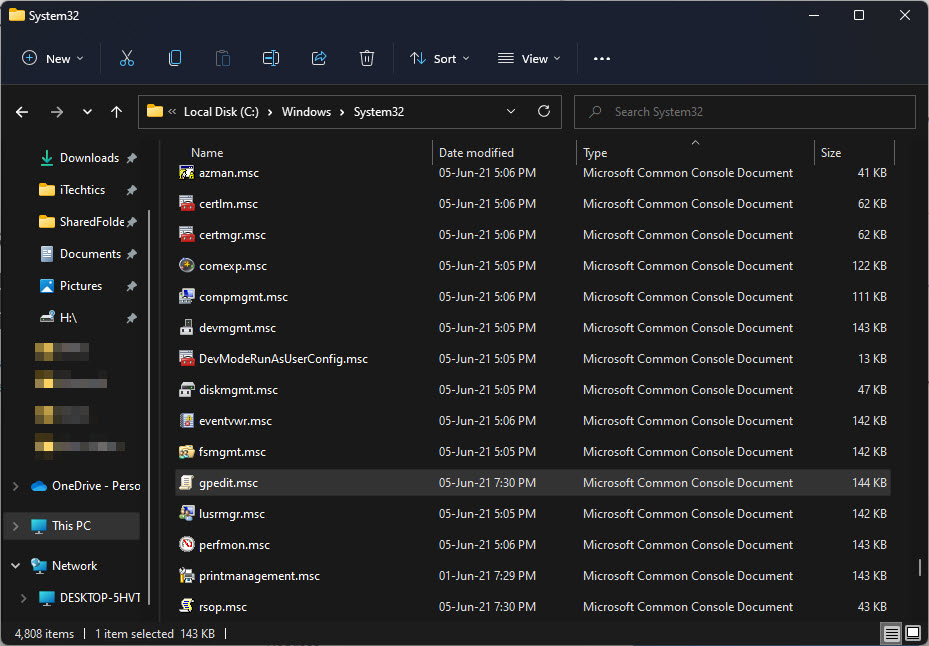
Solution: Run it from C:\Windows\System32\compmgmt.msc, or repair Windows if the file is missing.
Problem: Cannot connect to a remote PC.
Solution: Ensure you have admin rights on the remote machine, the firewall allows remote management, and the relevant services are running.
Problem: Manage option missing on This PC.
Solution: Show This PC on the desktop (Desktop icon settings), or use the Run box / Win + X menu instead.
Conclusion
Computer Management puts the key admin tools in one place. The Run box (compmgmt.msc), Win + X menu, and right-click This PC > Manage are the quickest ways in — run it as administrator for full control.
</w:pBdr><w:spacing w:before="220" w:after="40"/></w:pPr><w:r><w:rPr><w:b/><w:bCs/><w:color w:val="0B5394"/><w:sz w:val="21"/><w:szCs w:val="21"/><w:rFonts w:ascii="Calibri" w:cs="Calibri" w:eastAsia="Calibri" w:hAnsi="Calibri"/></w:rPr><w:t xml:space="preserve">About TechHub
This guide is part of the TechHub Knowledge Base. For more step-by-step IT guides and support, visit techhub.com.lk.