Overview
Windows includes a set of powerful management consoles built on the Microsoft Management Console (MMC) framework. Each snap-in handles a specific administrative area, from devices to services to users. Knowing them speeds up troubleshooting and configuration. This guide introduces the most useful ones.
Key Takeaways
- Management consoles are launched by short .msc commands from Run.
- Each console focuses on one area such as devices, disks, or services.
- Most require administrator rights to make changes.
- You can combine snap-ins into a custom console with mmc.
Essential Consoles
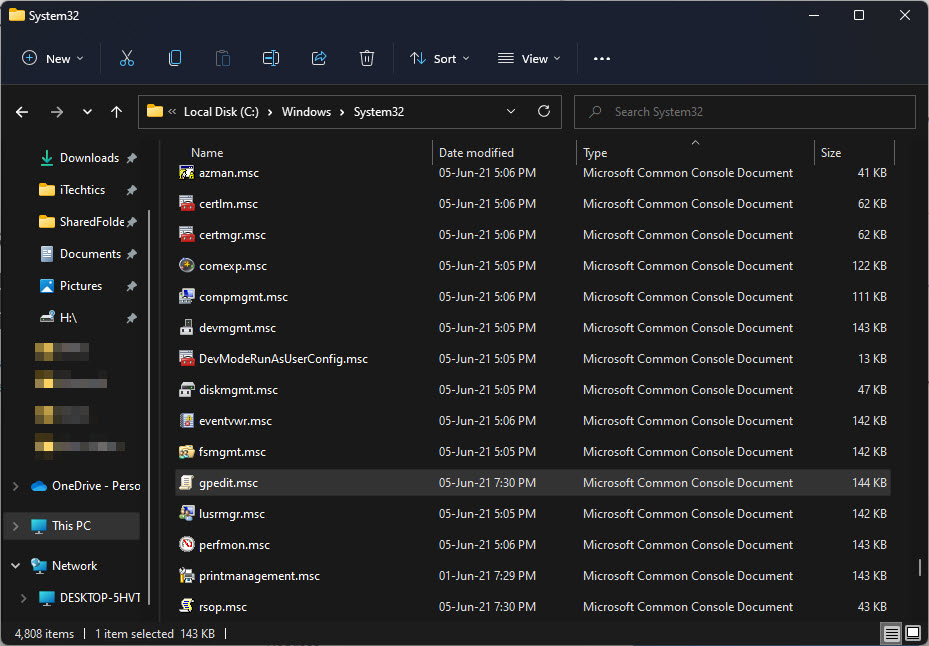
- devmgmt.msc — Device Manager for hardware and drivers.
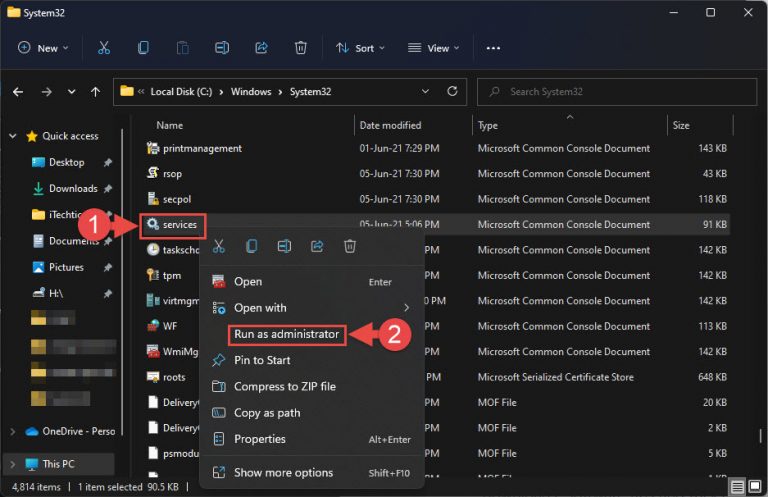
- services.msc — Services for background service control.
- diskmgmt.msc — Disk Management for partitions and volumes.
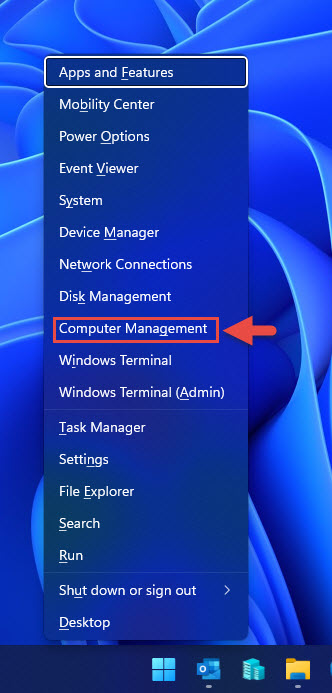
- compmgmt.msc — Computer Management, which bundles several tools together.
- gpedit.msc — Group Policy Editor for system policies (Pro and Enterprise).
Build a Custom Console
1. Press Windows + R, type mmc, and press Enter.
2. Choose File > Add/Remove Snap-in.
3. Select the snap-ins you use most and add them.
4. Save the console as an .msc file for quick reuse.
Tip: A saved custom console with your favorite snap-ins puts every tool you need one double-click away.
Troubleshooting
Problem: A console command is not recognized.
Solution: Confirm the exact .msc name; some consoles like gpedit.msc are unavailable on Windows Home.
Problem: You cannot make changes in a console.
Solution: Reopen it with administrator rights, since many snap-ins require elevation to modify settings.
Problem: A snap-in fails to load.
Solution: Ensure the related Windows feature or role is installed, as some snap-ins depend on optional components.
Problem: Your custom console will not save.
Solution: Save it to a folder where your account has write access, such as your user profile.
Conclusion
Windows management consoles are the backbone of advanced administration. Learn the key .msc commands and build a custom console to work faster and more confidently.
About TechHub
This guide is part of the TechHub Knowledge Base. For more step-by-step IT guides and support, visit techhub.com.lk.