Overview
When a PC has several network connections, the default names like "Ethernet 2" are hard to tell apart. Renaming your networks and adapters makes managing them far clearer. This guide covers renaming through Settings, Control Panel, and PowerShell.
Key Takeaways
- You can rename both network profiles and the physical adapters.
- Network Connections in Control Panel renames adapters directly.
- PowerShell renames adapters in bulk or by script.
- Clear names simplify firewall rules and troubleshooting.
Rename an Adapter
1. Press Windows + R, type ncpa.cpl, and press Enter.
2. Right-click the adapter you want to rename and choose Rename.
3. Type a descriptive name such as Office-LAN and press Enter.
4. Repeat for any other adapters.
Rename With PowerShell
1. Open PowerShell as an administrator.
2. List adapters with: Get-NetAdapter
3. Rename one with: Rename-NetAdapter -Name "Ethernet" -NewName "Office-LAN"
4. Run Get-NetAdapter again to confirm the new name.
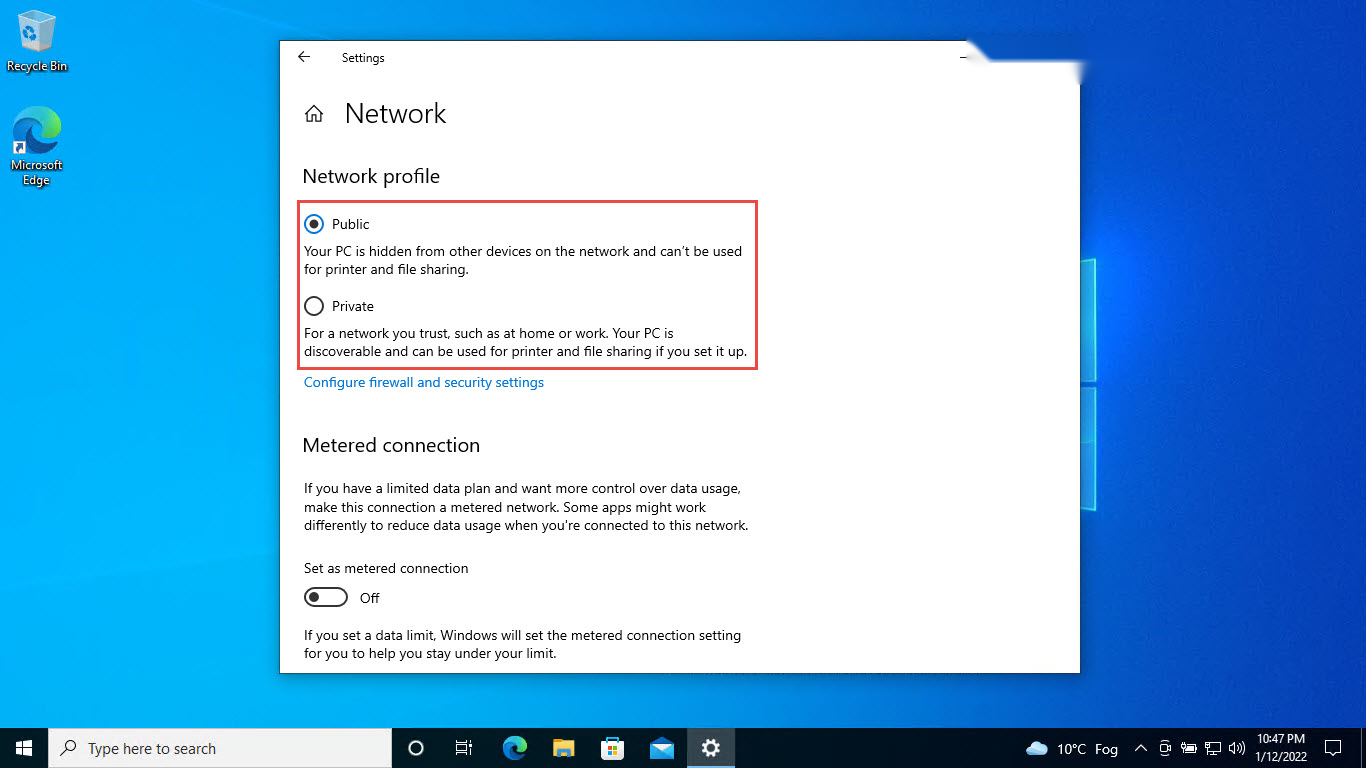
Note: Renaming the network profile (the network name you connect to) is separate and is done through the sharing or policy settings, not the adapter.
Troubleshooting
Problem: The Rename option is greyed out.
Solution: Open Network Connections with administrator rights to rename adapters.
Problem: PowerShell cannot find the adapter name.
Solution: Run Get-NetAdapter first and copy the exact current name, including spaces.
Problem: The new name reverts.
Solution: Ensure no management software or policy is enforcing adapter names on the device.
Problem: Two adapters have confusingly similar names.
Solution: Use the adapter description or MAC address from Get-NetAdapter to tell them apart before renaming.
Conclusion
Descriptive adapter names remove guesswork when configuring networking. Rename them through Network Connections for a quick fix or PowerShell for scripted, consistent naming.
About TechHub
This guide is part of the TechHub Knowledge Base. For more step-by-step IT guides and support, visit techhub.com.lk.