Overview
Screen resolution එකෙන් ඔබේ display එකේ pixels කීයක් පෙන්නනවද කියලා තීරණය වෙනවා, DPI scaling එකෙන් text සහ interface elements කොච්චර ලොකුවට පෙනෙනවද කියලා control වෙනවා. මේ දෙකම හරියට තියාගන්න එකෙන් හැම දෙයක්ම crisp සහ පහසු ප්රමාණයකින් තියෙනවා, විශේෂයෙන් high-resolution monitors වල. මේ guide එකෙන් ඒවා adjust කරන හැටි විස්තර කරනවා.
Key Takeaways
- Resolution සහ scaling කියන්නේ එකිනෙකට වෙනස්, එකට වැඩ කරන settings දෙකක්.
- තියුණුම image එකට හැමවිටම ඔබේ display එකේ native resolution එක පාවිච්චි කරන්න.
- Scaling වලින් resolution වෙනස් නොකර text සහ apps ලොකු කරනවා.
- Per-app scaling overrides වලින් blurry legacy programs වලට උදව් වෙනවා.
Set Resolution and Scaling
1. Desktop එක right-click කරලා Display settings තෝරන්න.
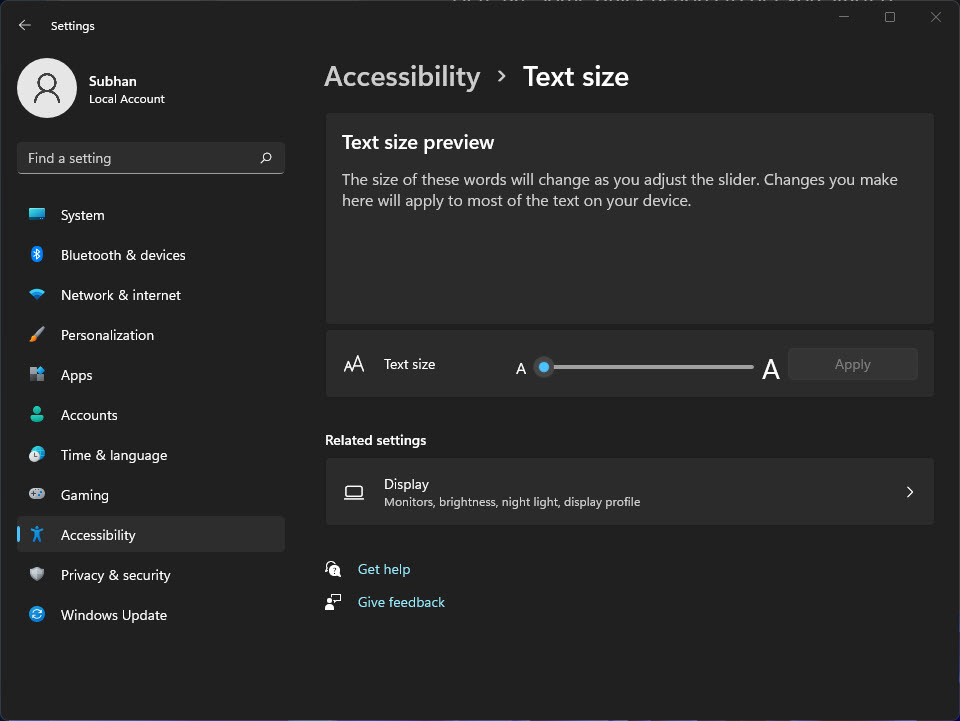
2. Scale එක යටතේ, 100%, 125%, හෝ 150% වගේ percentage එකක් තෝරන්න.
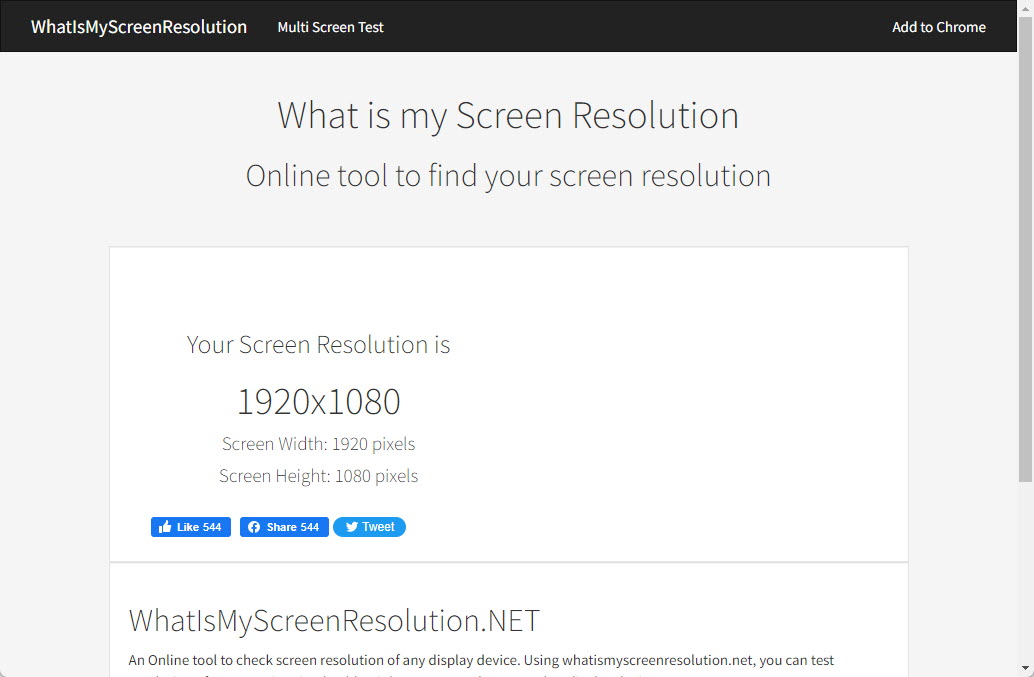
3. Display resolution එක යටතේ, Recommended (native) කියලා markවෙලා තියෙන option එක තෝරන්න.
4. Scaling එක සම්පූර්ණයෙන් apply වෙන්න prompt කළොත් sign out වෙලා නැවත sign in වෙන්න.
Fix Blurry Legacy Apps
1. App එකේ shortcut එක right-click කරලා Properties > Compatibility open කරන්න.
2. Change high DPI settings click කරන්න.
3. Override high DPI scaling behavior enable කරලා ඒක System (Enhanced) විදිහට set කරන්න.
4. Apply කරලා, clarity එක check කරන්න app එක නැවත open කරන්න.
Tip: Multi-monitor setups වල ඔබට හැම display එකකටම ඒවගේ sizes සහ resolutions match වෙන්න වෙනස් scale එකක් set කරන්න පුළුවන්.
Troubleshooting
Problem: Scaling කරාට පස්සේ text blurry විදිහට පෙනෙනවා.
Solution: Display එක ඒකේ native resolution එක පාවිච්චි කරනවද කියලා confirm කරලා, scaling එක පිරිසිදුව apply වෙන්න sign out වෙලා නැවත sign in වෙන්න.
Problem: Recommended resolution එක available නෑ.
Solution: Windows වලින් display එකේ සම්පූර්ණ resolution list එක offer කරන්න ඔබේ graphics driver එක update කරන්න.
Problem: පරණ program එකක text එක පොඩියි හෝ fuzzy වෙලා.
Solution: shortcut එකේ compatibility settings වල per-app high-DPI override එක පාවිච්චි කරන්න.
Problem: Monitors දෙකක් size එකෙන් mismatch විදිහට පෙනෙනවා.
Solution: Interface elements consistent විදිහට පෙනෙන්න හැම display එකකටම වෙනම scale එකක් set කරන්න.
Conclusion
Native resolution එක හරි scaling එකත් එක්ක pair කරන එකෙන් ඔබට තියුණු, පහසු display එකක් ලැබෙනවා. Scaling වලින් විතරක් fix කරන්න බැරි legacy programs ටික per-app overrides වලින් හදනවා.
About TechHub
මේ guide එක TechHub Knowledge Base එකේ කොටසක්. තව step-by-step IT guides සහ support වලට techhub.com.lk එකට යන්න.