Overview
Screen resolution controls how sharp and how large everything appears. This guide shows three ways to change it in Windows — the built-in Settings app, a command-line approach, and a lightweight hotkey tool.
Changing screen resolution in Windows.
Key Takeaways
- Use your display’s native resolution for the sharpest image.
- Settings is the simplest way to change resolution.
- Tools like QRes/HRC let you switch via command or hotkey.
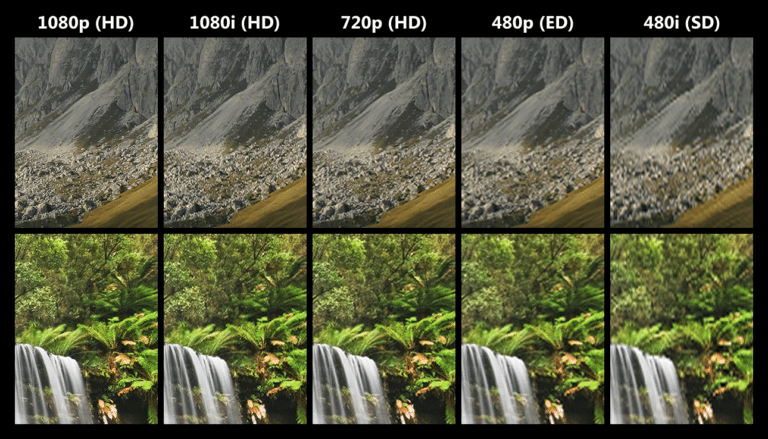
- Wrong resolution can look blurry or stretched.
Check Your Current Resolution
1. Open Settings > System > Display.
2. Scroll to "Display resolution".
3. The current value is shown; "(Recommended)" marks the native resolution.
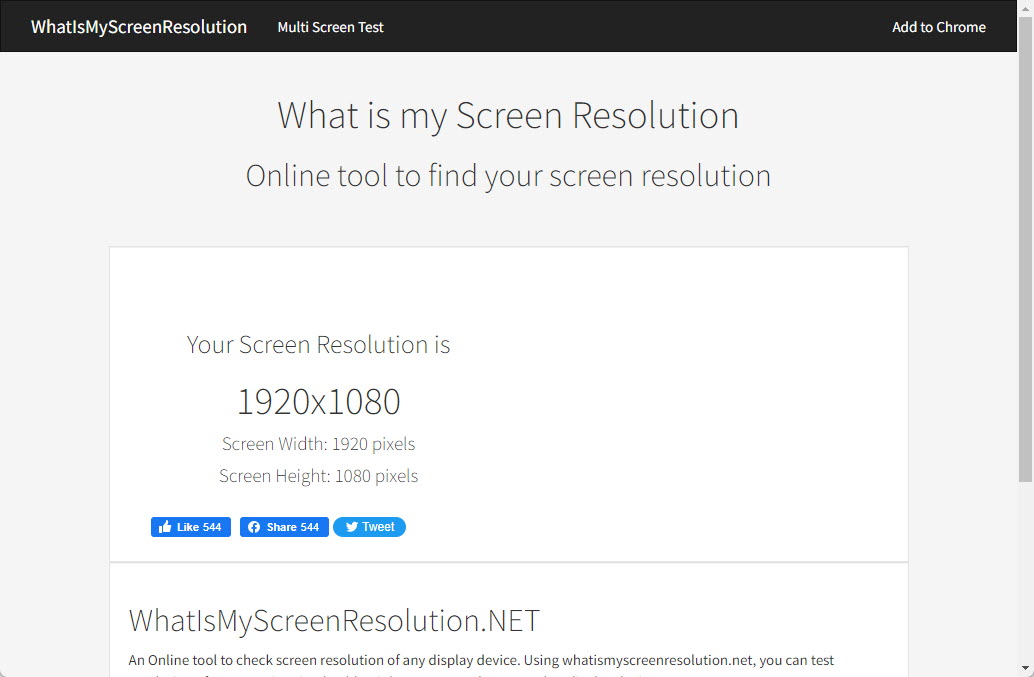
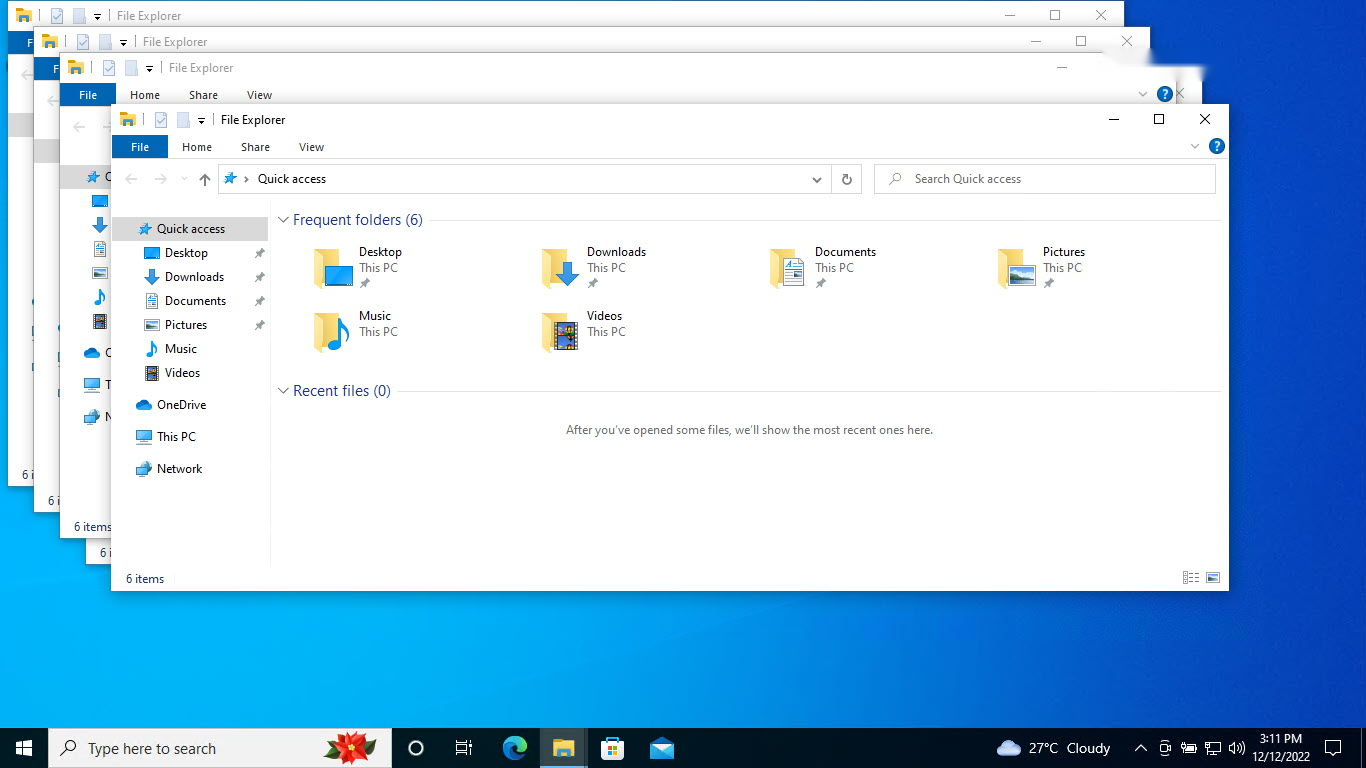
Checking the current screen resolution.
Method 1: Windows Settings
1. Open Settings > System > Display.
2. Under "Display resolution", open the dropdown.
3. Choose a resolution (prefer the Recommended one).
4. Click "Keep changes" within the prompt to confirm.
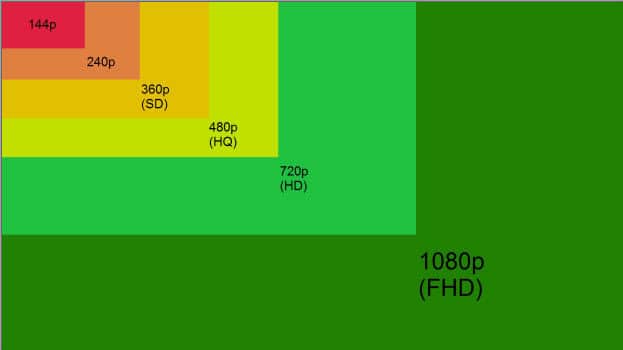
Choosing from available resolutions.
Method 2: Command Line (QRes)
Note: Download command-line resolution tools like QRes only from reputable, official sources.
1. Download a tool such as QRes.
2. Run: QRes.exe /x:1920 /y:1080 (adjust to your target).
3. Script it for quick resolution switches if needed.
Method 3: HotKey Resolution Changer
1. Download HotKey Resolution Changer (HRC) from its official source.
2. Assign hotkeys to specific resolutions.
3. Press the hotkey to switch instantly.
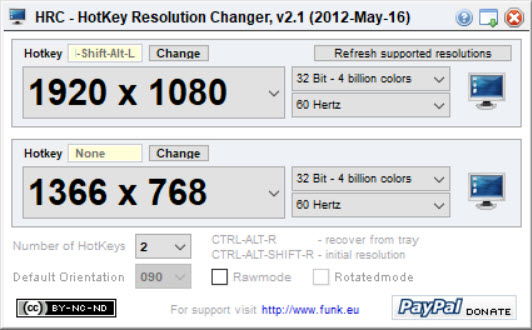
HotKey Resolution Changer.
Troubleshooting
Problem: The desired resolution isn’t listed.
Solution: Update the GPU driver and monitor driver; the correct driver exposes all supported modes.
Problem: Screen looks blurry.
Solution: Set the native/Recommended resolution and match the scaling under Display settings.
Problem: Screen went black after changing.
Solution: Wait 15 seconds — Windows reverts automatically if you don’t confirm; or boot into Safe Mode to reset.
Problem: Resolution resets after reboot.
Solution: A driver or dual-GPU conflict may override it; update drivers and set resolution in the GPU control panel too.
Conclusion
Changing resolution is easiest through Settings > System > Display, where the Recommended value gives the sharpest image. For quick switching, command-line tools like QRes or a hotkey utility offer fast alternatives.
</w:pBdr><w:spacing w:before="220" w:after="40"/></w:pPr><w:r><w:rPr><w:b/><w:bCs/><w:color w:val="0B5394"/><w:sz w:val="21"/><w:szCs w:val="21"/><w:rFonts w:ascii="Calibri" w:cs="Calibri" w:eastAsia="Calibri" w:hAnsi="Calibri"/></w:rPr><w:t xml:space="preserve">About TechHub
This guide is part of the TechHub Knowledge Base. For more step-by-step IT guides and support, visit techhub.com.lk.