What Are Windows Administrative Tools (Windows Tools) and How to Use Them
A tour of the built-in advanced tools for managing, diagnosing, and maintaining Windows.
Overview
Windows Administrative Tools (called "Windows Tools" in Windows 11) is a folder of advanced utilities for managing and troubleshooting your PC — Event Viewer, Disk Cleanup, Computer Management, and more. This guide explains the key tools and how to open them.
Windows Administrative Tools.
Key Takeaways
- "Windows Tools" gathers advanced admin utilities in one place.
- Access it from the Start menu or Control Panel.
- Most tools have quick Run commands too.
- Many require administrator rights.
How to Open Windows Tools
1. Windows 11: Start > All apps > Windows Tools.
2. Or open Control Panel > System and Security > Windows Tools.
3. Or run individual tools directly from the Run dialog (Windows + R).
Key Tools and What They Do
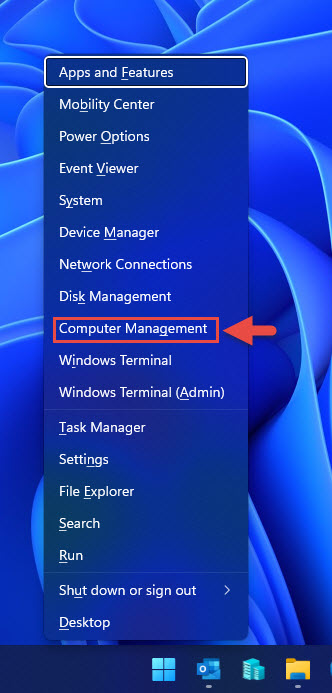
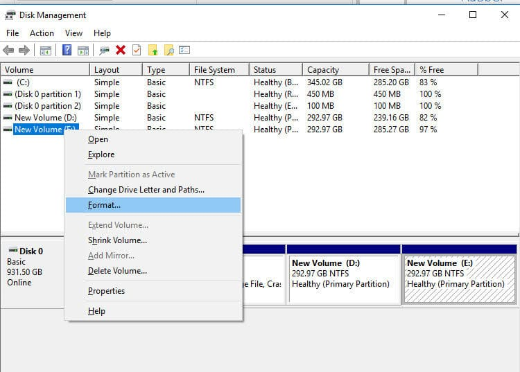
- Computer Management (compmgmt.msc) — disks, services, users, and Device Manager in one console.
- Event Viewer (eventvwr.msc) — system, application, and security logs.
- Disk Cleanup (cleanmgr) — free up disk space.
- Defragment and Optimize Drives (dfrgui) — optimize/trim drives.
- Services (services.msc) — start/stop and configure background services.
- Task Scheduler (taskschd.msc) — automate tasks on triggers.
- Registry Editor (regedit) — edit the Windows Registry (with care).
- System Information (msinfo32) — detailed hardware/software details.
Advanced/Optional Tools
- Local Security Policy (secpol.msc) — security settings (Pro+).
- Hyper-V Manager — manage virtual machines (if enabled).
- Component Services (dcomcnfg) — COM/DCOM configuration.
- iSCSI Initiator — connect to network storage targets.
Troubleshooting
Problem: A tool won’t open / "access denied".
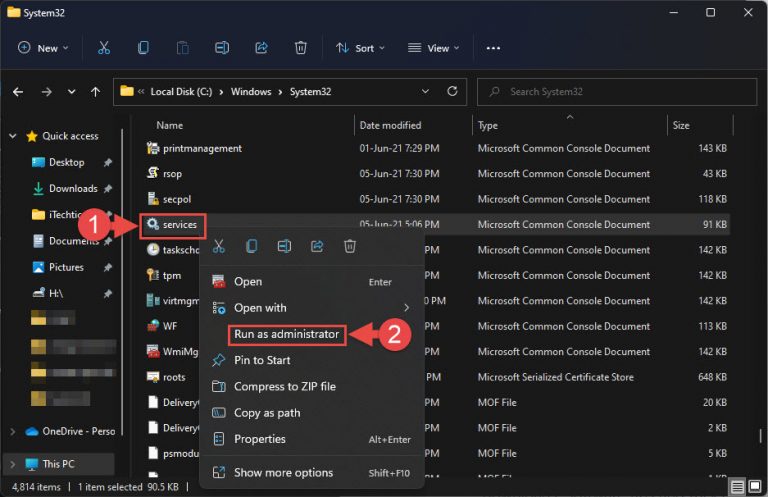
Solution: Right-click and Run as administrator; many admin tools require elevation.
Problem: secpol.msc or Hyper-V Manager missing.
Solution: They’re Pro/Enterprise features (or need enabling); Home lacks some by default.
Problem: Can’t find Windows Tools.
Solution: Search "Windows Tools" in Start, or open Control Panel > System and Security.
Problem: Prefer quick access.
Solution: Use Run commands (e.g., eventvwr.msc, services.msc) to open tools directly.
Conclusion
Windows Tools puts the OS’s advanced utilities — Event Viewer, Computer Management, Services, Task Scheduler, and more — in one place. Open it from Start or Control Panel, or launch tools directly with their Run commands, and run them as administrator when needed.