Overview
Most Control Panel tasks run fine under a standard session, but some applets need administrator rights to change protected settings. Because Control Panel does not offer a simple Run as administrator entry, you have to launch it in an elevated context. This guide covers the practical ways to do that.
Key Takeaways
- Control Panel itself has no direct Run as administrator right-click option.
- Launching it from an elevated Command Prompt or Task Manager gives it admin rights.
- Individual .cpl applets can be opened elevated with the control command.
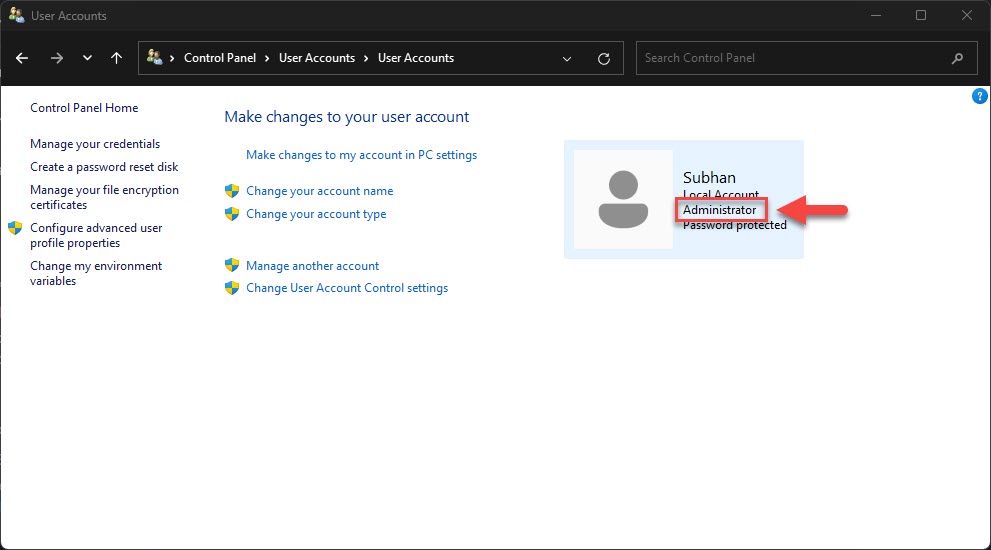
- You must be signed in with an administrator account or know an admin password.
Launch from an Elevated Command Prompt
1. Press the Start button, type cmd, and choose Run as administrator.
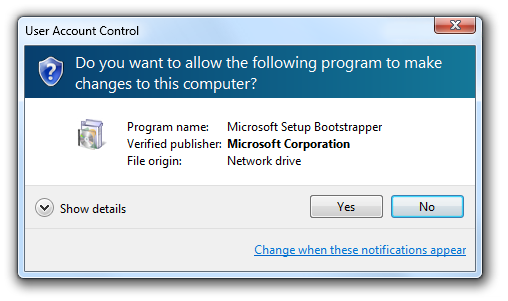
2. Approve the User Account Control prompt.
3. Type control and press Enter to open Control Panel with administrator rights.
4. To open a specific applet, use control followed by its name, such as control firewall.cpl.
Opening Control Panel from an elevated Command Prompt.
Launch from Task Manager
1. Press Ctrl + Shift + Esc to open Task Manager.
2. Click Run new task (or File > Run new task).
3. Type control in the box.
4. Check Create this task with administrative privileges, then click OK.
<w:bottom w:val="single" w:color="DEEAF6" w:sz="4"/><w:left w:val="single" w:color="0B5394" w:sz="24" w:space="10"/><w:right w:val="single" w:color="DEEAF6" w:sz="4"/></w:pBdr><w:shd w:fill="DEEAF6" w:color="auto" w:val="clear"/><w:spacing w:before="120" w:after="120"/></w:pPr><w:r><w:rPr><w:b/><w:bCs/><w:color w:val="0B5394"/><w:sz w:val="22"/><w:szCs w:val="22"/><w:rFonts w:ascii="Calibri" w:cs="Calibri" w:eastAsia="Calibri" w:hAnsi="Calibri"/></w:rPr><w:t xml:space="preserve">Note: Running Control Panel elevated affects only that session. Applets you open from within it inherit the elevated rights.
Create an Elevated Shortcut
1. Right-click the desktop and choose New > Shortcut.
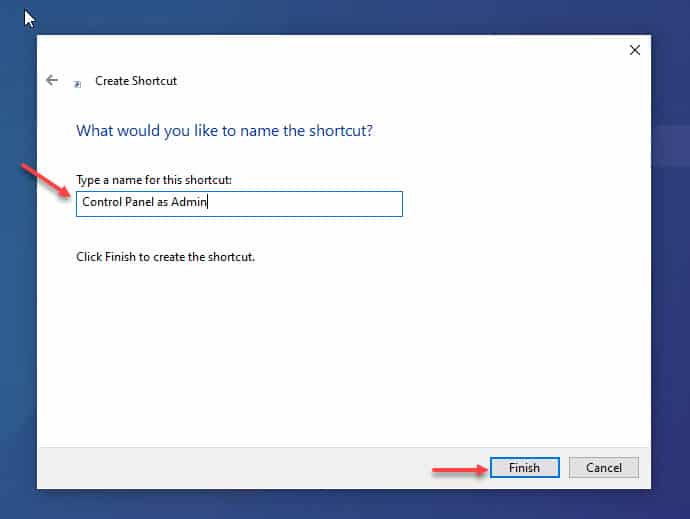
2. Enter control as the location and give the shortcut a name.
3. Right-click the finished shortcut and choose Properties > Advanced.
4. Tick Run as administrator, click OK, and use this shortcut whenever you need elevated access.
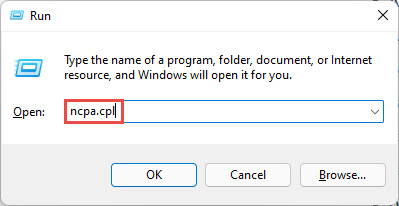
<w:bottom w:val="single" w:color="E2F0D9" w:sz="4"/><w:left w:val="single" w:color="2E7D32" w:sz="24" w:space="10"/><w:right w:val="single" w:color="E2F0D9" w:sz="4"/></w:pBdr><w:shd w:fill="E2F0D9" w:color="auto" w:val="clear"/><w:spacing w:before="120" w:after="120"/></w:pPr><w:r><w:rPr><w:b/><w:bCs/><w:color w:val="2E7D32"/><w:sz w:val="22"/><w:szCs w:val="22"/><w:rFonts w:ascii="Calibri" w:cs="Calibri" w:eastAsia="Calibri" w:hAnsi="Calibri"/></w:rPr><w:t xml:space="preserve">Tip: Common applet commands include control desk.cpl (Display), control ncpa.cpl (Network Connections), and control appwiz.cpl (Programs and Features).
Troubleshooting
Problem: The Run as administrator option is missing.
Solution: Control Panel has no direct elevation option; launch it from an elevated Command Prompt, Task Manager, or an elevated shortcut instead.
Problem: You are not prompted for elevation.
Solution: Confirm User Account Control is enabled and that you are using an administrator account or have admin credentials to enter.
Problem: A setting is still greyed out.
Solution: Some options are controlled by Group Policy; check gpedit.msc or contact your administrator on a managed device.
Problem: The applet opens without admin rights.
Solution: Open the parent Control Panel elevated first, then launch the applet from inside it so it inherits the rights.
Conclusion
When a Control Panel setting refuses to change, elevation is usually the missing piece. Launch Control Panel from an elevated Command Prompt or Task Manager, or build a Run-as-administrator shortcut for quick access, and protected settings will open right up.
About TechHub
This guide is part of the TechHub Knowledge Base. For more step-by-step IT guides and support, visit techhub.com.lk.