Overview
A proxy server routes your internet traffic through an intermediary, which is useful in some networks but can block sites, slow browsing, or cause connection errors when it is misconfigured or left over from malware. This guide shows several reliable ways to disable a proxy in Windows so your device connects directly to the internet again.
Key Takeaways
- Proxy settings live under Settings > Network & Internet > Proxy.
- Both automatic (script) and manual proxy options must be turned off.
- Registry and PowerShell methods help when the Settings toggle is locked.
- An unexpected proxy can be a sign of unwanted software — scan if you did not set it.
Disable the Proxy in Windows Settings
1. Press Windows + I to open Settings.
2. Go to Network & Internet, then select Proxy.
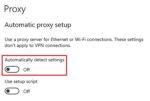
3. Under Automatic proxy setup, turn off Automatically detect settings and Use setup script.
4. Under Manual proxy setup, turn off Use a proxy server and click Save.
5. Close and reopen your browser to confirm the change took effect.
The Proxy settings page in Windows.
Disable the Proxy via Internet Options
1. Press Windows + R, type inetcpl.cpl, and press Enter.
2. Open the Connections tab and click LAN settings.
3. Clear the Use a proxy server for your LAN checkbox.
4. Check Automatically detect settings if your network needs it, then click OK.
Disable the Proxy with PowerShell
1. Open PowerShell as Administrator.
2. Run: Set-ItemProperty -Path 'HKCU:\Software\Microsoft\Windows\CurrentVersion\Internet Settings' -Name ProxyEnable -Value 0.
3. Run: Remove-ItemProperty -Path 'HKCU:\Software\Microsoft\Windows\CurrentVersion\Internet Settings' -Name ProxyServer -ErrorAction SilentlyContinue.
4. Close PowerShell and restart your browser.
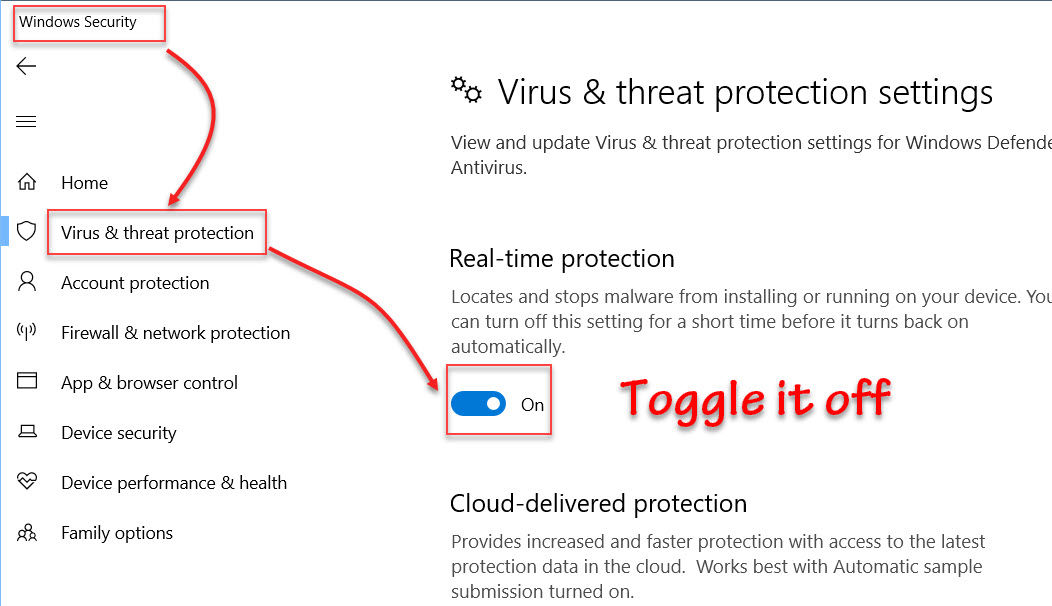
<w:bottom w:val="single" w:color="FBE4E4" w:sz="4"/><w:left w:val="single" w:color="C0392B" w:sz="24" w:space="10"/><w:right w:val="single" w:color="FBE4E4" w:sz="4"/></w:pBdr><w:shd w:fill="FBE4E4" w:color="auto" w:val="clear"/><w:spacing w:before="120" w:after="120"/></w:pPr><w:r><w:rPr><w:b/><w:bCs/><w:color w:val="C0392B"/><w:sz w:val="22"/><w:szCs w:val="22"/><w:rFonts w:ascii="Calibri" w:cs="Calibri" w:eastAsia="Calibri" w:hAnsi="Calibri"/></w:rPr><w:t xml:space="preserve">Warning: If a proxy keeps switching itself back on, run a full scan with Windows Security or Microsoft Defender — persistent proxy changes are a common symptom of adware.
Troubleshooting
Problem: The proxy toggle is greyed out.
Solution: A Group Policy or workplace configuration may control it; contact your administrator or check gpedit.msc under Internet Explorer settings.
Problem: The proxy re-enables after reboot.
Solution: Scan for adware, then remove the ProxyServer value in the registry and set ProxyEnable to 0 again.
Problem: No internet even after disabling the proxy.
Solution: Run netsh winsock reset and netsh int ip reset in an elevated Command Prompt, then restart.
Problem: Browser still uses a proxy.
Solution: Check the browser's own network settings — some browsers keep an independent proxy configuration separate from Windows.
Conclusion
Disabling a proxy is straightforward once you know where the settings hide. Turn off both automatic and manual options, back them up with the registry or PowerShell method if needed, and scan for malware if the proxy stubbornly returns. Your connection should then flow directly and reliably.
About TechHub
This guide is part of the TechHub Knowledge Base. For more step-by-step IT guides and support, visit techhub.com.lk.