Overview
Network shares are usually opened through File Explorer, but the command line is faster for scripts, remote sessions, and quick file transfers. Using UNC paths, mapped drives, and a few core commands, you can browse and copy files on any accessible share directly from Command Prompt or PowerShell. This guide covers the essential techniques.
Key Takeaways
- A UNC path takes the form \\ServerName\ShareName.
- Use pushd to jump into a UNC path with a temporary drive letter.
- net use maps a share to a persistent drive letter.
- PowerShell can access shares directly and mount them with New-PSDrive.
Open a Share with pushd
1. Open Command Prompt by pressing Windows + R, typing cmd, and pressing Enter.
2. Type pushd \\ServerName\ShareName and press Enter.
3. Windows assigns a temporary drive letter and moves you into the share, so you can run dir, copy, and other commands.
4. When finished, type popd to release the temporary drive letter.
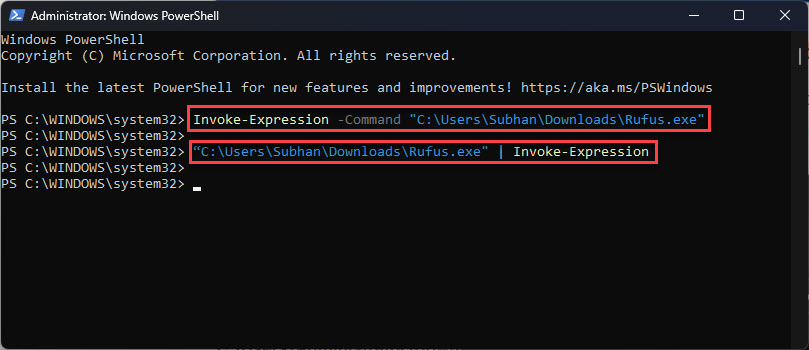
Accessing a UNC path from Command Prompt.
Map a Drive with net use
1. In Command Prompt, type net use Z: \\ServerName\ShareName and press Enter.
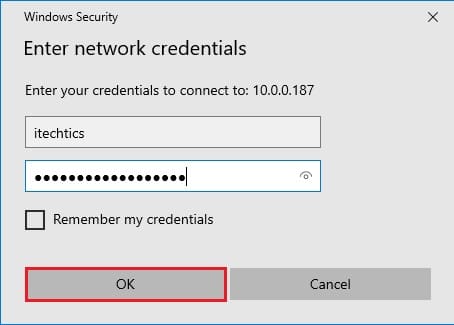
2. Add /user:DOMAIN\username to supply credentials for a protected share.
3. Add /persistent:yes to keep the mapping after a reboot.
4. Access the share as drive Z:, and run net use Z: /delete to remove it later.
<w:bottom w:val="single" w:color="DEEAF6" w:sz="4"/><w:left w:val="single" w:color="0B5394" w:sz="24" w:space="10"/><w:right w:val="single" w:color="DEEAF6" w:sz="4"/></w:pBdr><w:shd w:fill="DEEAF6" w:color="auto" w:val="clear"/><w:spacing w:before="120" w:after="120"/></w:pPr><w:r><w:rPr><w:b/><w:bCs/><w:color w:val="0B5394"/><w:sz w:val="22"/><w:szCs w:val="22"/><w:rFonts w:ascii="Calibri" w:cs="Calibri" w:eastAsia="Calibri" w:hAnsi="Calibri"/></w:rPr><w:t xml:space="preserve">Note: Command Prompt cannot cd directly into a UNC path. Use pushd or map a drive letter with net use instead.
Access Shares in PowerShell
1. Open PowerShell from the Start menu.
2. List a share's contents with Get-ChildItem \\ServerName\ShareName.
3. Copy files with Copy-Item \\ServerName\ShareName\file.txt C:\Local.
4. Mount a persistent drive with New-PSDrive -Name X -PSProvider FileSystem -Root \\ServerName\ShareName -Persist.
<w:bottom w:val="single" w:color="E2F0D9" w:sz="4"/><w:left w:val="single" w:color="2E7D32" w:sz="24" w:space="10"/><w:right w:val="single" w:color="E2F0D9" w:sz="4"/></w:pBdr><w:shd w:fill="E2F0D9" w:color="auto" w:val="clear"/><w:spacing w:before="120" w:after="120"/></w:pPr><w:r><w:rPr><w:b/><w:bCs/><w:color w:val="2E7D32"/><w:sz w:val="22"/><w:szCs w:val="22"/><w:rFonts w:ascii="Calibri" w:cs="Calibri" w:eastAsia="Calibri" w:hAnsi="Calibri"/></w:rPr><w:t xml:space="preserve">Tip: For a share on another network, connect the VPN first so the server name resolves before you run these commands.
Troubleshooting
Problem: The system cannot find the network path.
Solution: Verify the server name and share spelling, confirm the host is online, and ping the server to check connectivity.
Problem: Access is denied.
Solution: Supply valid credentials with net use ... /user:, and confirm your account has permission on the share.
Problem: The mapped drive disappears after reboot.
Solution: Recreate it with net use ... /persistent:yes or New-PSDrive -Persist so it survives restarts.
Problem: Multiple connections error to the same server.
Solution: Run net use * /delete to clear existing sessions, then map the share again with a single credential set.
Conclusion
Once you know pushd, net use, and the PowerShell equivalents, network shares are just as reachable from the command line as any local folder. These commands are the backbone of file-transfer scripts and remote administration, saving time whenever you work without a graphical interface.
About TechHub
This guide is part of the TechHub Knowledge Base. For more step-by-step IT guides and support, visit techhub.com.lk.