Overview
Environment variables store system-wide and per-user settings that programs read at runtime — the most well-known being PATH, which tells Windows where to find executables. This guide shows how to display environment variables and how to add, edit, or remove them using the graphical editor, Command Prompt, and PowerShell.
Environment variables store settings that programs read at runtime.
Key Takeaways
- There are two scopes: user variables (your account) and system variables (all users).
- Edit them in the GUI via System Properties > Environment Variables.
- Use setx in Command Prompt or [Environment]::SetEnvironmentVariable in PowerShell to set them by script.
- Editing PATH lets you run programs from any folder by name.
Display Environment Variables
1. Open Command Prompt and type set to list all current variables.
2. To see one variable, type echo %VARIABLE_NAME% (for example echo %PATH%).
3. In PowerShell, run Get-ChildItem Env: to list them, or $Env:PATH for a single one.
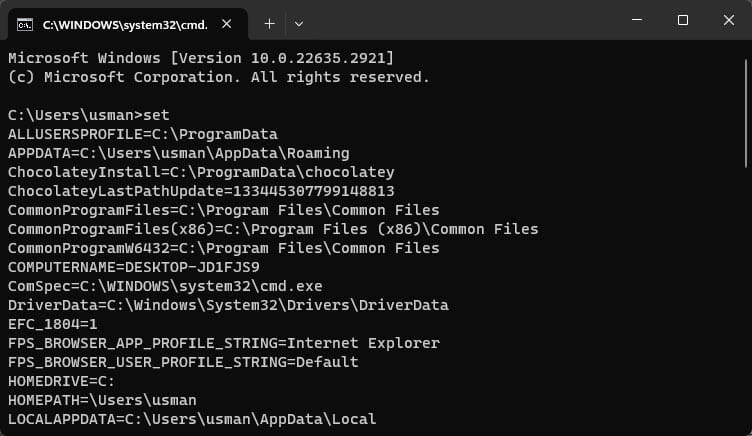
The set command displays all environment variables in Command Prompt.
Manage Variables Using the GUI
1. Press Windows key + R, type SystemPropertiesAdvanced, and press Enter.
2. Click Environment Variables.
3. Under User variables (for your account) or System variables (all users), select a variable and click Edit, or click New to add one.
4. To edit PATH, select Path, click Edit, then add, change, or remove entries.
5. Click OK on each dialog to save.
Note: Open a new Command Prompt or PowerShell window after changing variables — existing windows keep the old values until restarted.
Set Variables From the Command Line
1. Open Command Prompt.
2. To set a user variable permanently, run: setx MY_VAR "value"
3. To set it for all users (run as administrator), add the /M switch: setx MY_VAR "value" /M
4. Close and reopen the terminal for the change to take effect.
Set Variables With PowerShell
1. Open PowerShell.
2. For the current user: [Environment]::SetEnvironmentVariable("MY_VAR","value","User")
3. For all users (run as administrator): [Environment]::SetEnvironmentVariable("MY_VAR","value","Machine")
4. Reopen the terminal to use the new value.
Third-Party Editors
Tools such as Rapid Environment Editor provide a friendlier interface for managing variables and the PATH, with validation and easy reordering. They are optional — the built-in editor is enough for most users.
Troubleshooting
Problem: A new variable is not recognised.
Solution: Open a fresh terminal window. Running programs and shells only read environment variables at startup.
Problem: A command is "not recognised" after editing PATH.
Solution: Check the PATH entry points to the correct folder and has no typo, then reopen the terminal. Avoid trailing spaces in entries.
Problem: setx truncates a long PATH.
Solution: Edit PATH in the GUI (Environment Variables dialog) instead — setx has a length limit that can cut long values.
Problem: You changed the wrong scope.
Solution: Remember user variables affect only your account and system variables affect everyone. Edit the correct section.
Conclusion
Environment variables are easy to manage once you know where to look. Use the GUI for everyday edits and PATH changes, and setx or PowerShell when you want to script them — just remember to reopen your terminal afterward.
</w:pBdr><w:spacing w:before="220" w:after="40"/></w:pPr><w:r><w:rPr><w:b/><w:bCs/><w:color w:val="0B5394"/><w:sz w:val="21"/><w:szCs w:val="21"/><w:rFonts w:ascii="Calibri" w:cs="Calibri" w:eastAsia="Calibri" w:hAnsi="Calibri"/></w:rPr><w:t xml:space="preserve">About TechHub
This guide is part of the TechHub Knowledge Base. For more step-by-step IT guides and support, visit techhub.com.lk.