Overview
Microsoft Defender Antivirus is the built-in protection in Windows. Occasionally you may need to disable it temporarily — for example to install trusted software it wrongly blocks, or to test another security product. This guide shows several ways to turn Defender off and, just as importantly, how to turn it back on. Use these methods responsibly.
Warning: Disabling Defender leaves your PC unprotected. Only do this temporarily and for a specific reason, keep your PC offline if possible, and re-enable protection (or install an alternative antivirus) as soon as you are done.
Check whether Microsoft Defender is currently running before making changes.
Key Takeaways
- The Windows Security app disables Defender only temporarily — it re-enables itself after a restart.
- Turn off Tamper Protection first, or the registry and Group Policy methods will be reverted automatically.
- Permanent methods (Group Policy, Registry) should be reversed when you no longer need them.
- Re-enabling Defender is as important as disabling it — do not leave your PC unprotected.
Before You Begin: Disable Tamper Protection
1. Open Windows Security > Virus & threat protection.
2. Under Virus & threat protection settings, click Manage settings.
3. Turn Tamper Protection off (this allows other methods to take effect).
Method 1 — Temporarily Disable in Windows Security
1. Open Windows Security from the Start menu.
2. Go to Virus & threat protection > Manage settings.
3. Turn off Real-time protection.
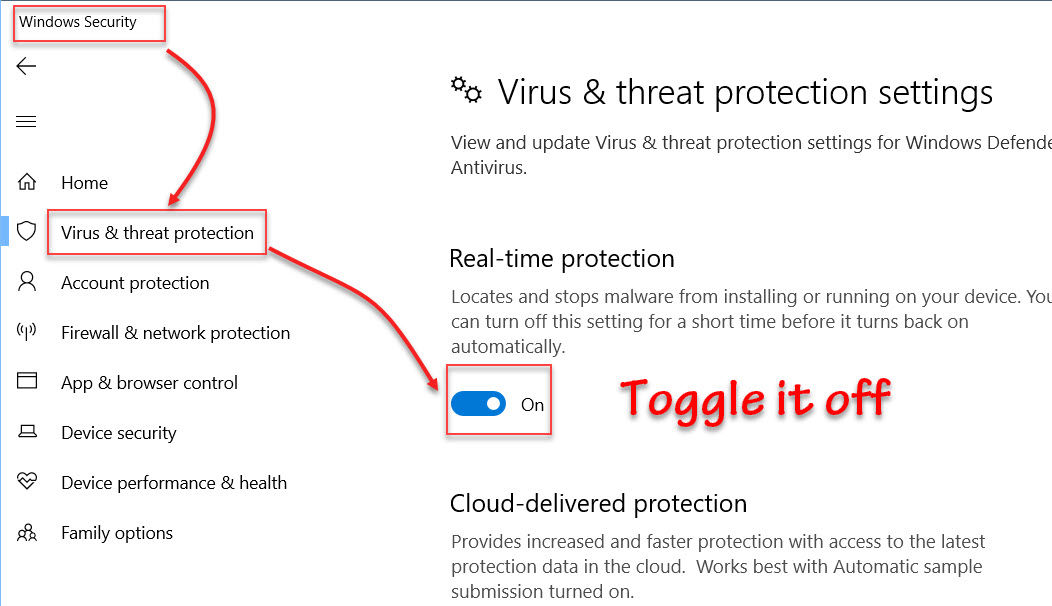
Turning off real-time protection in Windows Security.
Note: This is temporary — Windows automatically turns real-time protection back on after a restart, which is the safest option.
Method 2 — Disable Real-Time Protection With PowerShell
1. Right-click Start and choose Windows PowerShell (Admin) or Terminal (Admin).
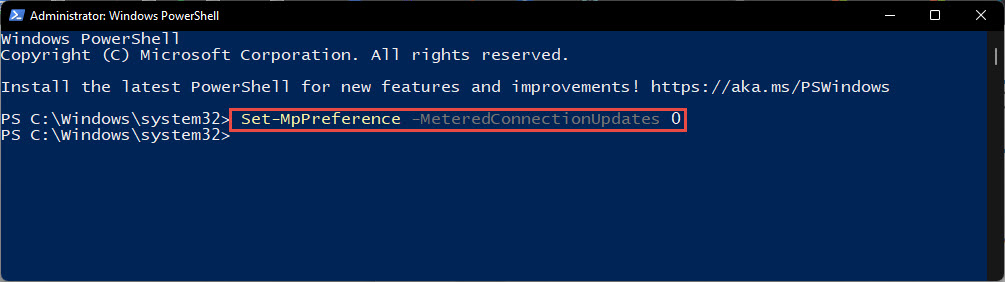
2. Run: Set-MpPreference -DisableRealtimeMonitoring $true
3. To re-enable it later, run: Set-MpPreference -DisableRealtimeMonitoring $false
Method 3 — Disable via Group Policy
1. Press Windows key + R, type gpedit.msc, and press Enter (available on Pro/Enterprise editions).
2. Go to Computer Configuration > Administrative Templates > Windows Components > Microsoft Defender Antivirus.
3. Open "Turn off Microsoft Defender Antivirus", set it to Enabled, and click OK.
4. Restart the PC. To reverse it, set the same policy back to Not Configured.
Method 4 — Disable via the Registry
Warning: Editing the registry incorrectly can cause problems. Back up the registry first (File > Export) before making changes.
1. Press Windows key + R, type regedit, and press Enter.
2. Go to HKEY_LOCAL_MACHINE\SOFTWARE\Policies\Microsoft\Windows Defender.
3. Create a DWORD (32-bit) value named DisableAntiSpyware and set it to 1.
4. Restart the PC. To re-enable Defender, set the value back to 0 or delete it.
Turn Off Only the Firewall or Only the Antivirus
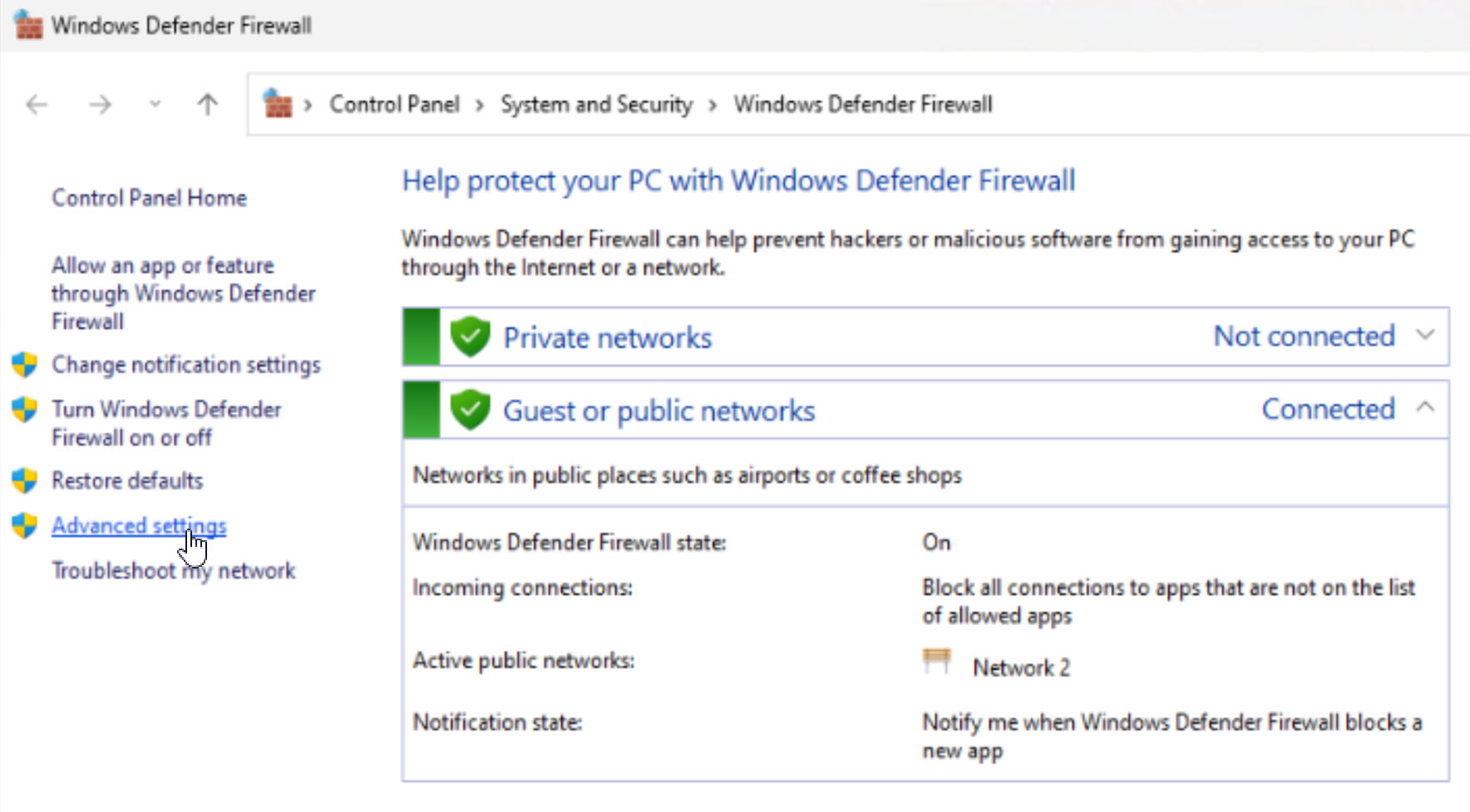
- Firewall only — open Windows Security > Firewall & network protection, choose your active network, and toggle Microsoft Defender Firewall off.
- Antivirus only — use Method 1 to switch off real-time protection while leaving the firewall on.
How to Re-Enable Windows Defender
1. Reverse whichever method you used (set policies/registry values back, or run the PowerShell re-enable command).
2. Open Windows Security > Virus & threat protection and turn Real-time protection back on.
3. Turn Tamper Protection back on to keep Defender protected from changes.
4. Run a quick scan to confirm Defender is active and healthy.
Troubleshooting
Problem: Defender turns itself back on.
Solution: The Windows Security toggle is temporary by design. For a lasting change, disable Tamper Protection first, then use Group Policy or the Registry method.
Problem: The registry/Group Policy change has no effect.
Solution: Tamper Protection is still on, or another antivirus is managing the setting. Turn Tamper Protection off and restart.
Problem: You cannot turn protection back on.
Solution: Reverse all changes (registry value to 0, policy to Not Configured), restart, then enable real-time protection in Windows Security.
Problem: You installed another antivirus.
Solution: Defender automatically steps aside when a compatible third-party antivirus is installed and active — you usually do not need to disable it manually.
Conclusion
You can disable Microsoft Defender in several ways, from a quick temporary toggle to permanent policy changes. Whichever you choose, treat it as short-term: re-enable protection or install an alternative antivirus promptly so your PC stays safe.
</w:pBdr><w:spacing w:before="220" w:after="40"/></w:pPr><w:r><w:rPr><w:b/><w:bCs/><w:color w:val="0B5394"/><w:sz w:val="21"/><w:szCs w:val="21"/><w:rFonts w:ascii="Calibri" w:cs="Calibri" w:eastAsia="Calibri" w:hAnsi="Calibri"/></w:rPr><w:t xml:space="preserve">About TechHub
This guide is part of the TechHub Knowledge Base. For more step-by-step IT guides and support, visit techhub.com.lk.