Overview
When Microsoft Defender (Windows Security) flags a file as a threat, it isolates it in quarantine. If you’re certain a file is safe, you can restore it. This guide shows two ways to do so — with an important caution about only restoring files you trust.
Restore files quarantined by Microsoft Defender.
Warning: Only restore a quarantined file if you are certain it is safe. Defender quarantines files it considers malicious — restoring genuine malware can compromise your PC.
Key Takeaways
- Quarantined files are isolated, not deleted.
- Restore them from Windows Security’s Protection history.
- You can also restore via the MpCmdRun command-line tool.
- Add an exclusion if Defender keeps re-quarantining a trusted file.
What Quarantine Means
Defender moves suspected threats to a protected, encrypted location so they can’t run. Files commonly quarantined include flagged downloads, cracked software, and items matching virus signatures. They remain recoverable until you remove them.
Method 1: Restore from Windows Security
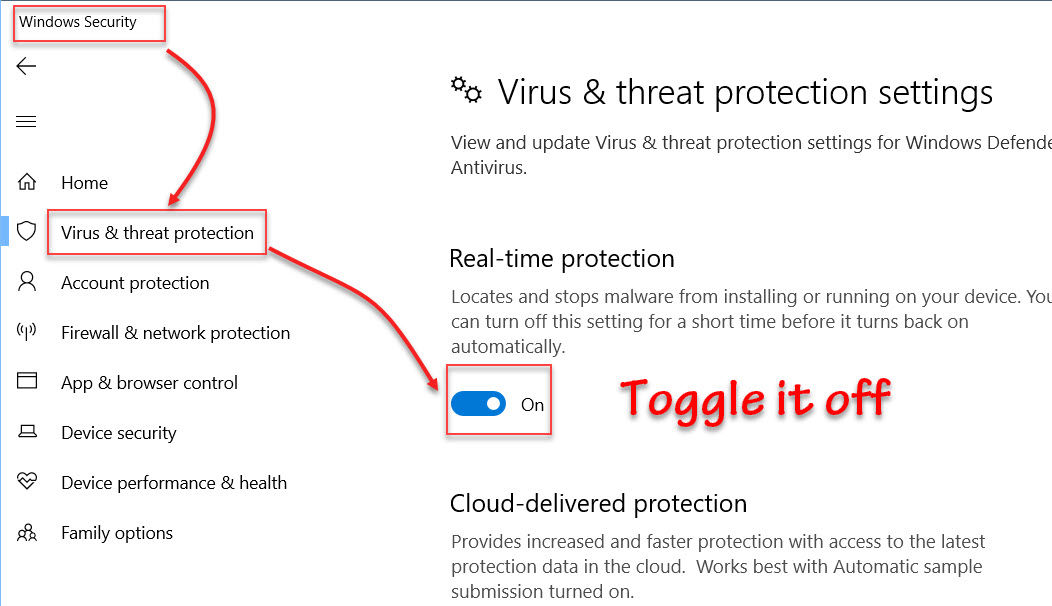
1. Open Windows Security > Virus & threat protection.
2. Click "Protection history".
3. Find the quarantined item and expand it.
4. Click Actions > Restore (choose Allow on device if prompted).
Method 2: Restore from Command Prompt
1. Open Command Prompt as administrator.
2. Go to the Defender folder: cd "C:\Program Files\Windows Defender"
3. List quarantined items: MpCmdRun.exe -Restore -ListAll
4. Restore one: MpCmdRun.exe -Restore -Name "<ThreatName>" (or -All to restore everything).
Add an Exclusion (Optional)
1. If Defender keeps quarantining a trusted file, open Virus & threat protection > Manage settings > Exclusions.
2. Add the file or folder as an exclusion.
3. Use exclusions sparingly — they reduce protection for that path.
Troubleshooting
Problem: The file is quarantined again after restoring.
Solution: Add a specific exclusion for it — but only if you’re sure it’s safe.
Problem: Restore option is missing.
Solution: The item may have been auto-removed; check retention settings, and act before quarantine cleanup runs.
Problem: "Access denied" on the command line.
Solution: Run Command Prompt as administrator and use the exact threat name from -ListAll.
Problem: Is it safe to run a quarantined file?
Solution: Only if you can verify its source and integrity; when in doubt, leave it quarantined.
Conclusion
Microsoft Defender keeps quarantined files recoverable through Protection history or the MpCmdRun tool. Restore only what you’ve verified as safe, and use exclusions carefully so you don’t lower your PC’s protection.
</w:pBdr><w:spacing w:before="220" w:after="40"/></w:pPr><w:r><w:rPr><w:b/><w:bCs/><w:color w:val="0B5394"/><w:sz w:val="21"/><w:szCs w:val="21"/><w:rFonts w:ascii="Calibri" w:cs="Calibri" w:eastAsia="Calibri" w:hAnsi="Calibri"/></w:rPr><w:t xml:space="preserve">About TechHub
This guide is part of the TechHub Knowledge Base. For more step-by-step IT guides and support, visit techhub.com.lk.