Overview
Microsoft Defender Application Guard (MDAG) opens untrusted sites in an isolated, virtualized container so malware can’t reach your PC. This guide explains how it works and how to enable it on supported Windows editions.
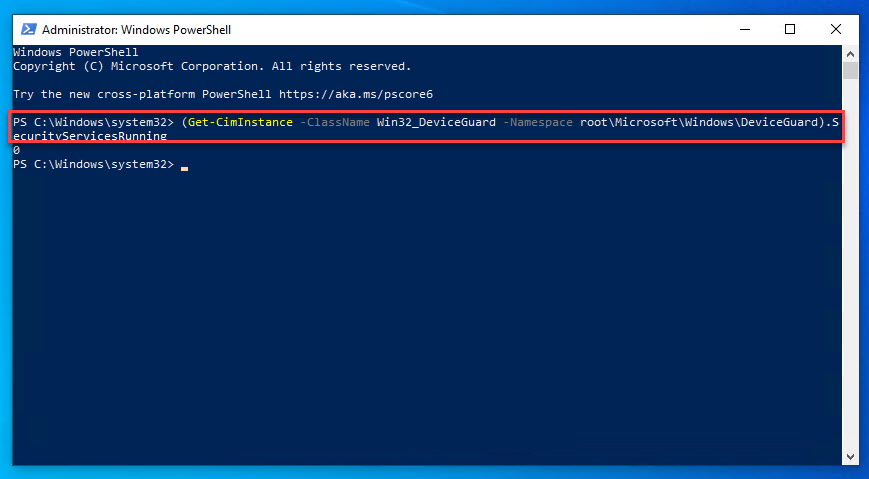
Microsoft Defender Application Guard.
Note: Microsoft has been deprecating Application Guard for Edge in favour of other isolation technologies. Check your Windows edition and version — the feature may be unavailable on newer builds.
Key Takeaways
- MDAG runs untrusted browsing in a hardware-isolated container.
- It protects the host even if a site is malicious.
- Available on Windows Pro/Enterprise/Education with virtualization.
- Enable it via Optional Features or PowerShell.
How It Works
When you open an untrusted site in an Application Guard window, Windows spins up a lightweight Hyper-V container separate from the OS. Anything downloaded or executed stays inside that container and is discarded when you close it.
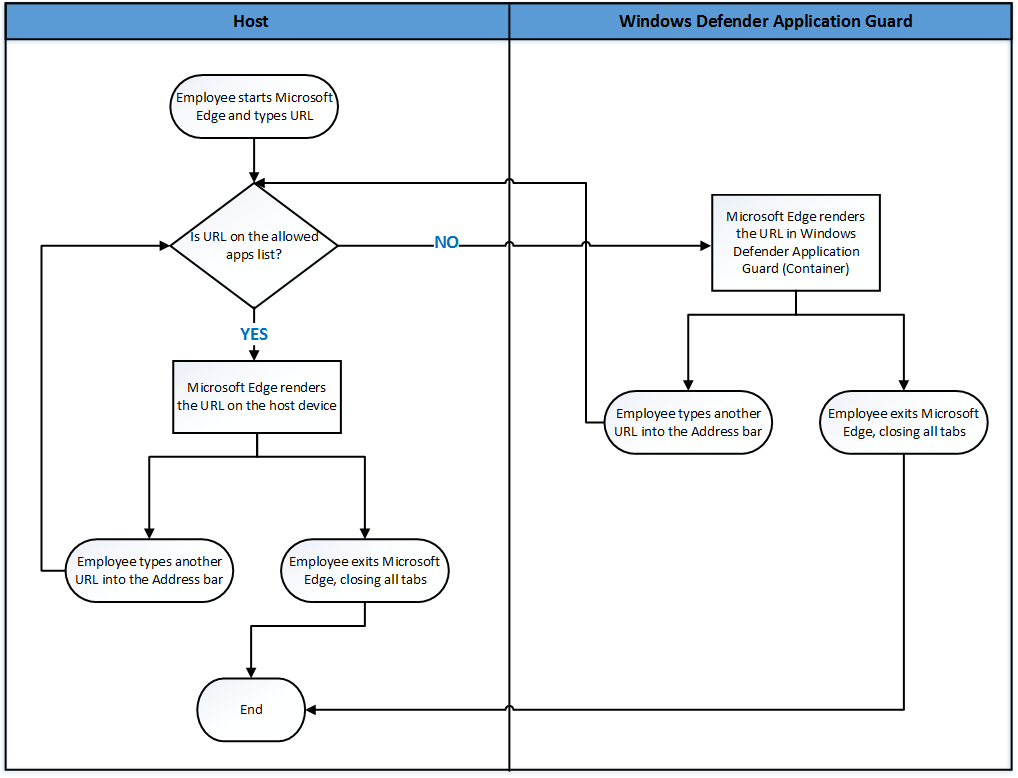
How Application Guard isolates browsing.
Requirements
- Windows 10/11 Pro, Enterprise, or Education.
- 64-bit CPU with virtualization (VT-x/AMD-V) enabled.
- Sufficient RAM and disk for the container.
Enable via Optional Features
1. Open "Turn Windows features on or off" (optionalfeatures).
2. Tick "Microsoft Defender Application Guard".
3. Click OK and restart when prompted.
Enable via PowerShell
1. Open PowerShell as administrator.
2. Run: Enable-WindowsOptionalFeature -Online -FeatureName Windows-Defender-ApplicationGuard
3. Restart the PC.
Use It in Microsoft Edge
1. Open Edge and click the menu (…).
2. Choose "New Application Guard window".
3. Browse untrusted sites safely inside the isolated window.
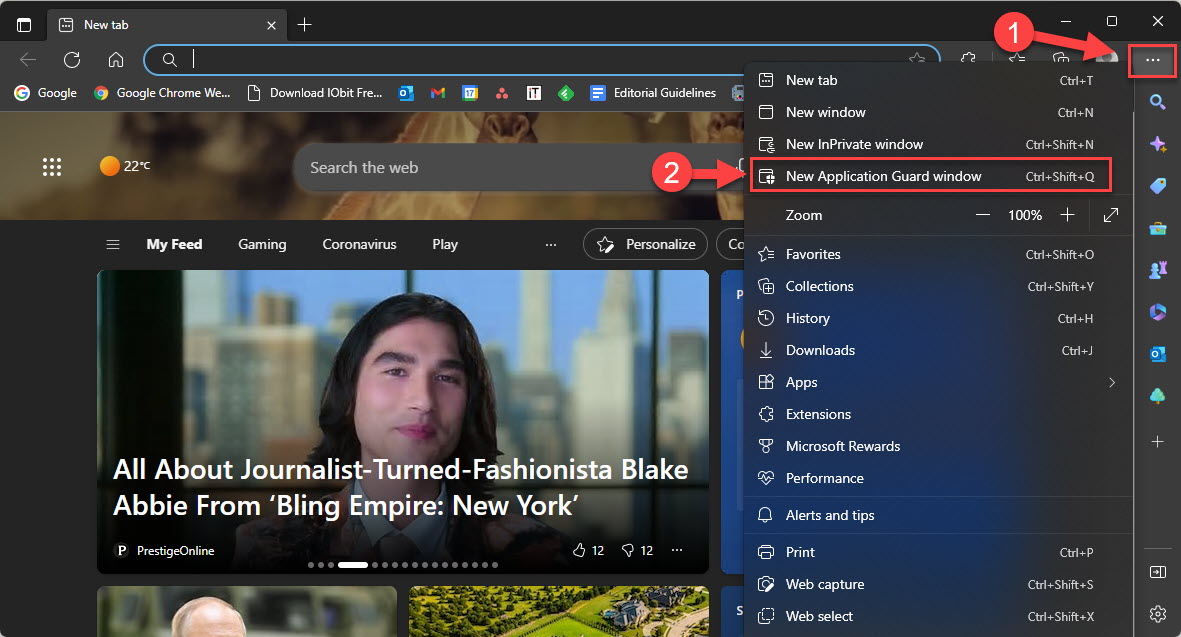
A new Application Guard window in Edge.
Troubleshooting
Problem: The feature isn’t listed.
Solution: It requires Pro/Enterprise/Education and may be removed on newer builds; confirm your edition and Windows version.
Problem: "Application Guard requires virtualization".
Solution: Enable VT-x/AMD-V in BIOS/UEFI and ensure Hyper-V/virtualization features are on.
Problem: Container is slow to start.
Solution: The first launch initializes the container; ensure adequate RAM and that the host isn’t heavily loaded.
Problem: Can’t copy/print from the container.
Solution: These are restricted by policy for isolation; an admin can allow them via Group Policy if required.
Conclusion
Application Guard adds a strong isolation layer for risky browsing on supported Windows editions. Enable it via Optional Features or PowerShell where available — but note Microsoft is phasing out the Edge integration, so verify support on your build.
</w:pBdr><w:spacing w:before="220" w:after="40"/></w:pPr><w:r><w:rPr><w:b/><w:bCs/><w:color w:val="0B5394"/><w:sz w:val="21"/><w:szCs w:val="21"/><w:rFonts w:ascii="Calibri" w:cs="Calibri" w:eastAsia="Calibri" w:hAnsi="Calibri"/></w:rPr><w:t xml:space="preserve">About TechHub
This guide is part of the TechHub Knowledge Base. For more step-by-step IT guides and support, visit techhub.com.lk.